BidWise guide · Warehouse
Put the Job Board on a Warehouse TV
BidWise Business can show two free boards on a TV in the warehouse. The Job board shows today’s and tomorrow’s jobs as Ready for pickup, Staging, Missing items or Loaded, and the Deliveries board shows what is late, coming today, tomorrow and later. A TV screen uses no seat, shows no prices and cannot open bids. Add it in About › License info › TV screens, type the code on the warehouse PC, and the board runs by itself.


Why a TV board?
The warehouse crew should not have to ask the office what goes out tomorrow. A board on the wall answers it all day: which jobs are ready, which are still staging, and what is missing before the crew shows up.
The board comes from the same Pull & load ticks the warehouse already makes, so it is never a second list to keep up.
The six steps
- Add a TV screenAbout › License info › TV screens.
- Set up the TV PCHDMI, install, This PC is a warehouse TV.
- Read the job boardToday and tomorrow, by status color.
- Read the deliveries boardLate, today, tomorrow, later, arrived.
- Tune the boardWarehouse settings: columns, size, seconds.
- What can go wrongOld board, lost code, wrong TV.
1Add a TV screen and get its code
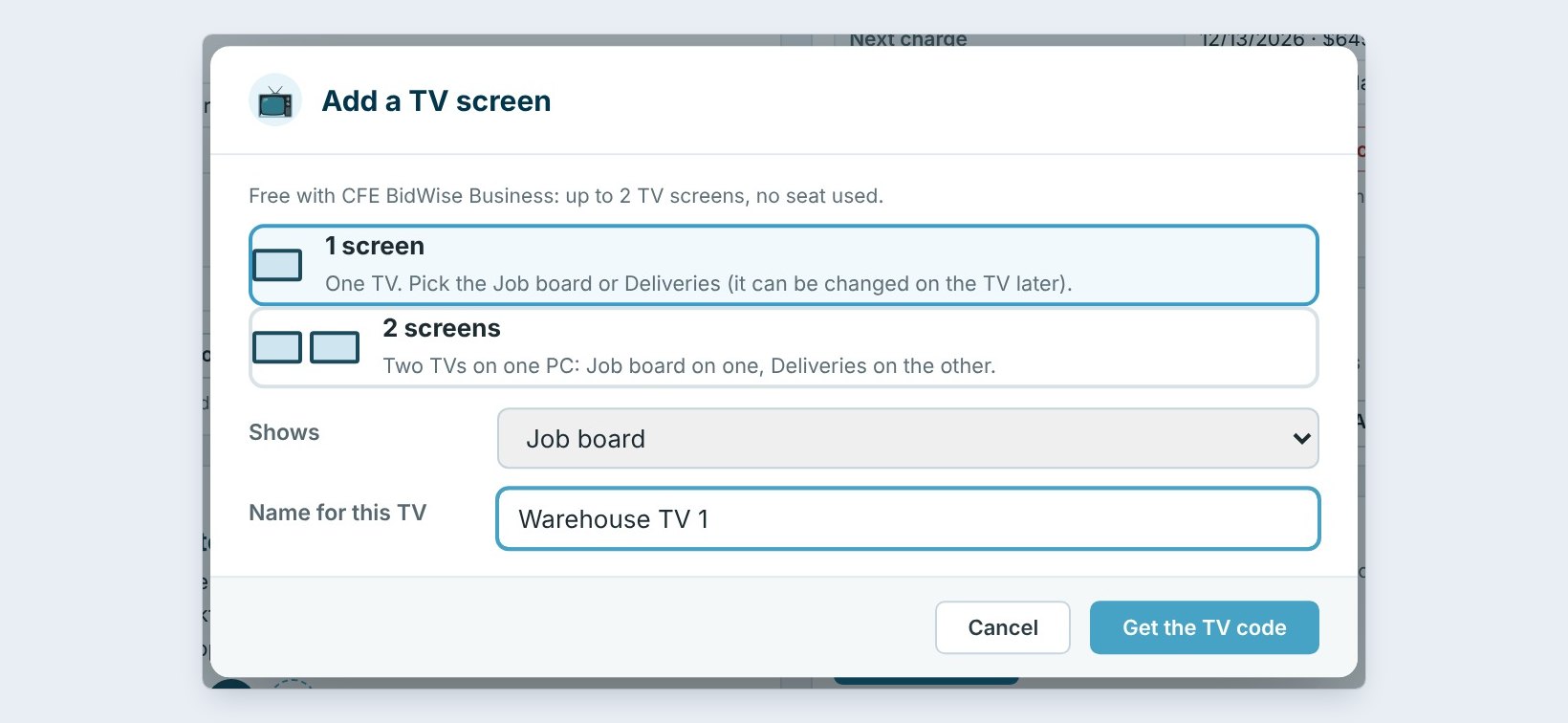
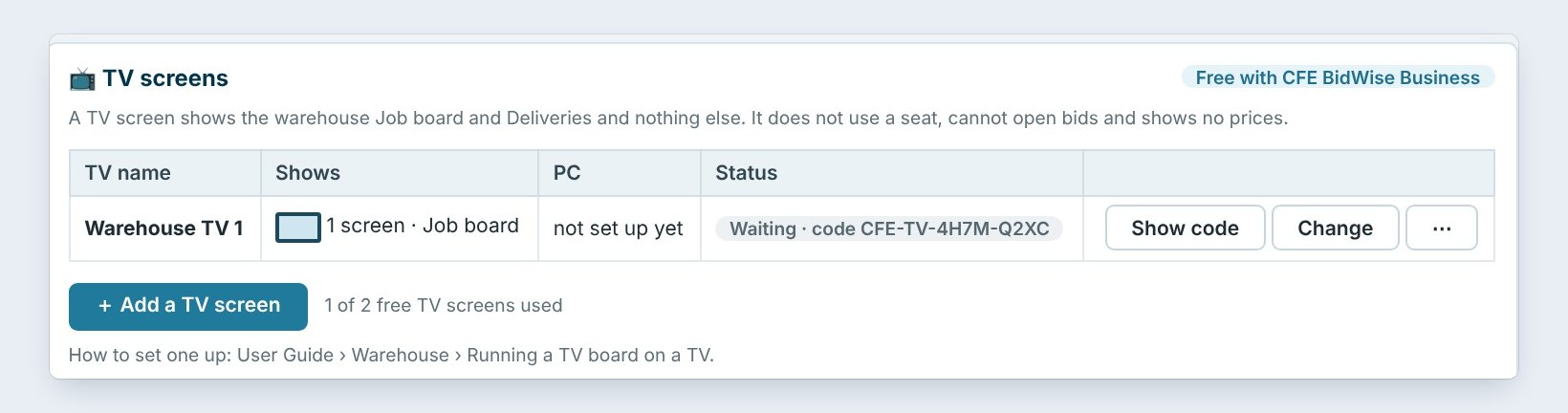
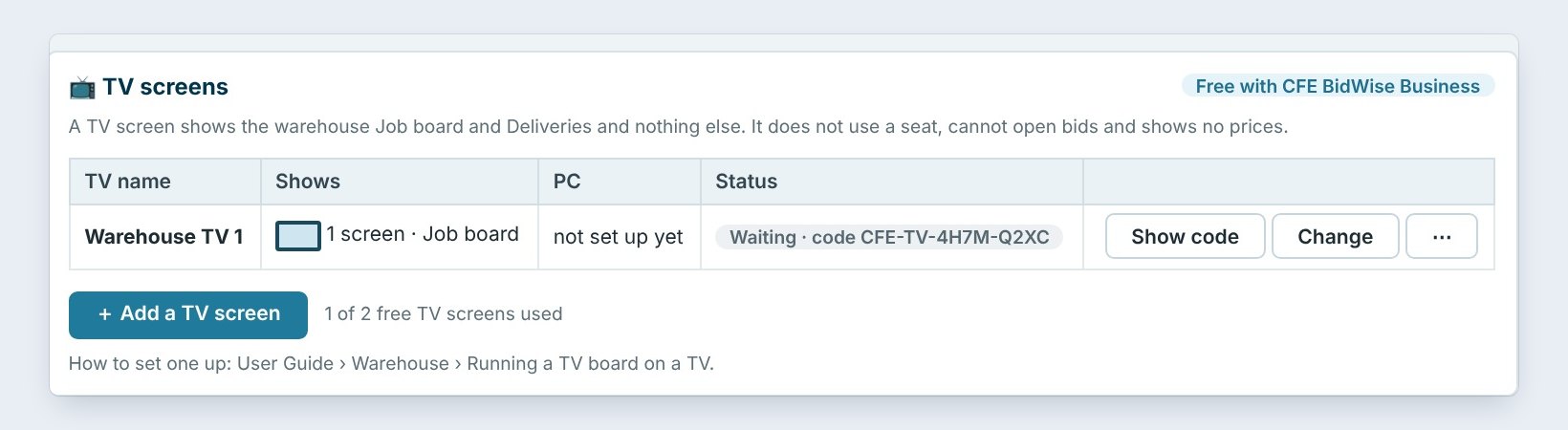
On your own PC, as the Master user, open About › License info and find the TV screens card. It says a TV screen shows the warehouse Job board and Deliveries and nothing else: it does not use a seat, cannot open bids and shows no prices. You get 2 free with BidWise Business.
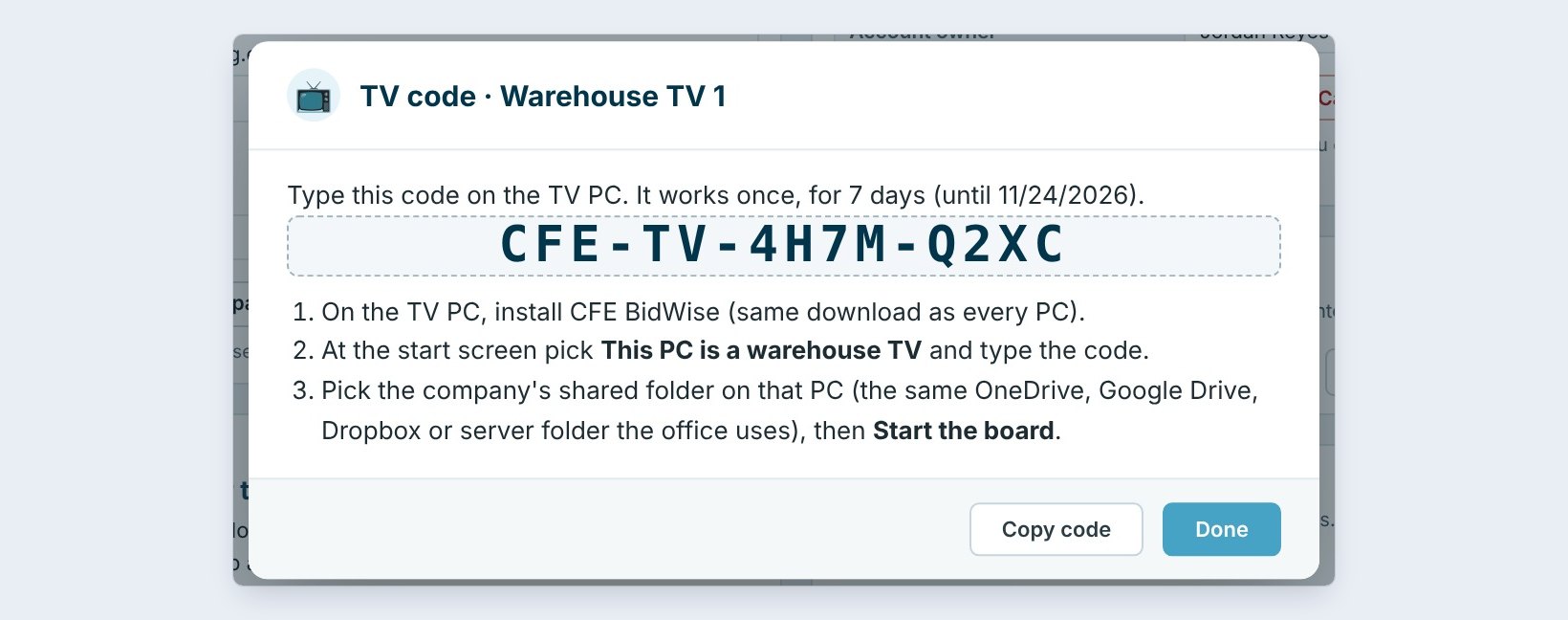
Press Add a TV screen. Pick 1 screen, one TV with the Job board or Deliveries, or 2 screens, two TVs on one PC with one board each. Name it, here Warehouse TV 1, and press Get the TV code. The code works once, for 7 days, and the card now lists the TV as Waiting.
2Set up the PC behind the TV
Any Windows PC in the warehouse works; a small mini PC behind the TV is plenty. Connect it to the TV with an HDMI cable and switch the TV to that input. For two screens, connect both TVs and pick Extend with Windows key plus P.
Install BidWise on it, the same download as every PC. At the start screen press This PC is a warehouse TV and type the code. No account and no sign-in are needed. In TV setup, press Pick folder and choose the company’s shared folder, the same OneDrive, Google Drive, Dropbox or server folder the office uses. Set a PIN of 4 to 8 numbers, then press Start the board. From now on the PC goes straight to the board when it starts.
3Read the job board
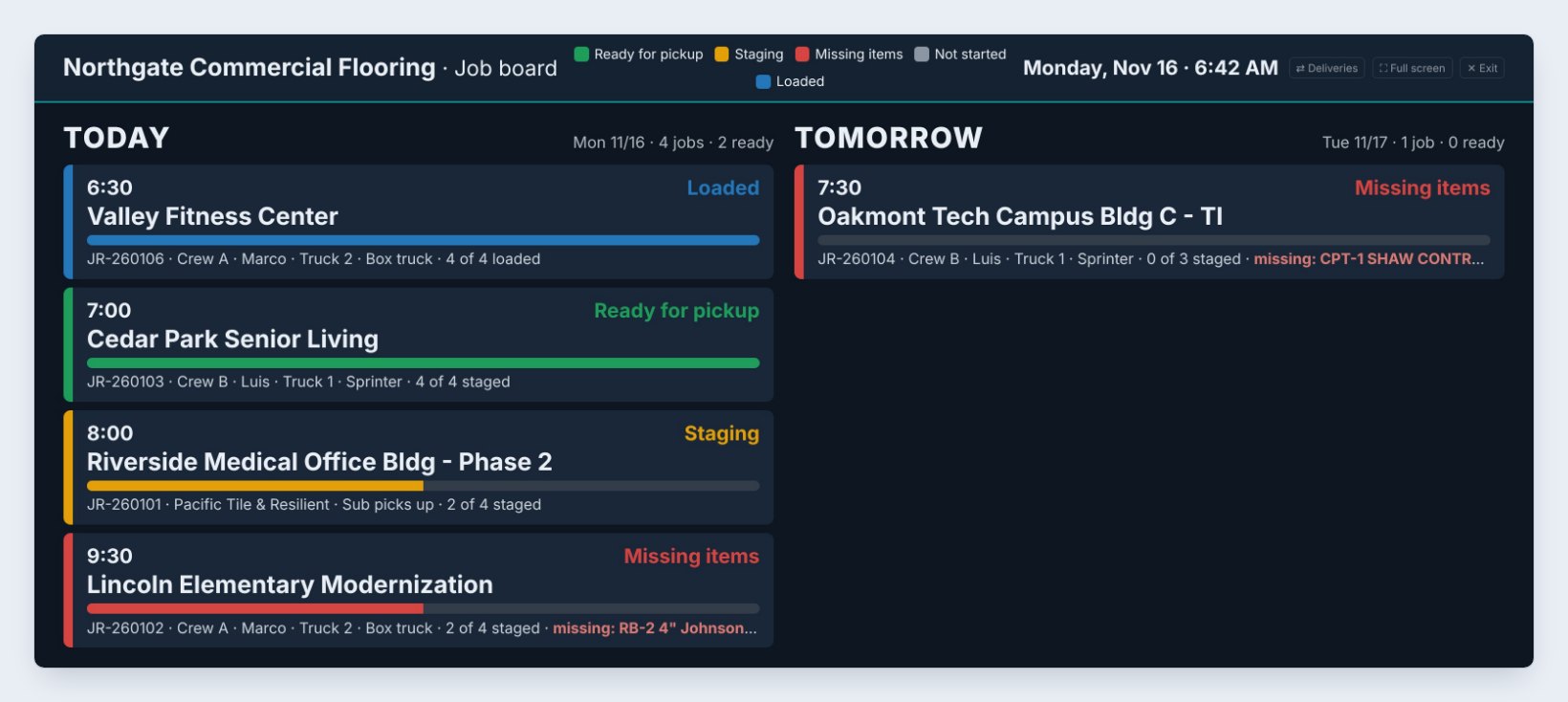
The Job board shows Today and Tomorrow. Each job card has the pickup time, the job name, the job number, the crew, the truck, and a bar for how much is staged or loaded.
The color says where it stands: blue Loaded, green Ready for pickup, yellow Staging, red Missing items with the missing material named, and gray Not started. Here Valley Fitness Center is loaded at 6:30, Cedar Park is ready, Riverside is half staged, and Lincoln Elementary is still missing the Johnsonite wall base. Tomorrow’s Oakmont Tech job has nothing staged yet. The board updates every minute.
4Read the deliveries board
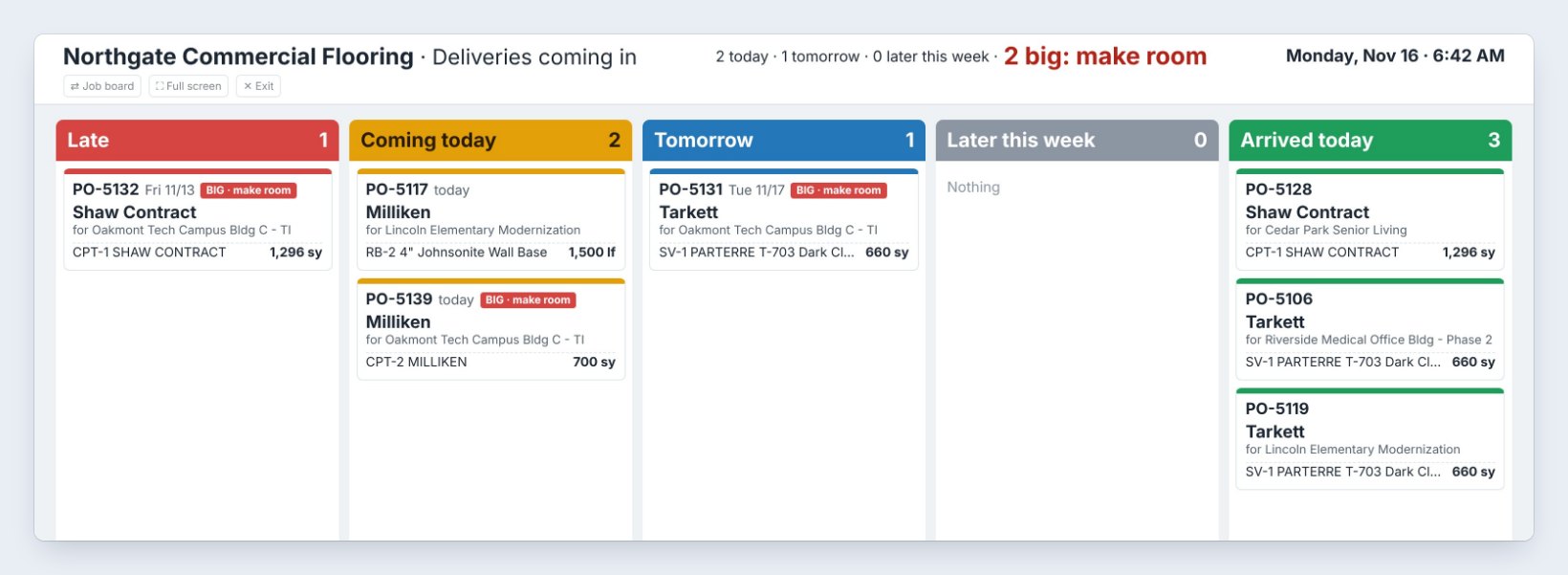
The Deliveries board comes from the POs on Ordering. It has five columns: Late, Coming today, Tomorrow, Later this week and Arrived today. Each card shows the PO, the vendor, the job, the material and the quantity.
A red BIG, make room tag marks a delivery large enough that the crew should clear floor space first, here 1,296 square yards of Shaw carpet tile. The top line counts it all: two today, one tomorrow, and two big ones. On a touch screen, tap a delivery to receive it.
Put the Deliveries board by the dock door and the Job board where the crews pick up. With 2 screens, one PC runs both TVs.
5Tune the board in Warehouse settings
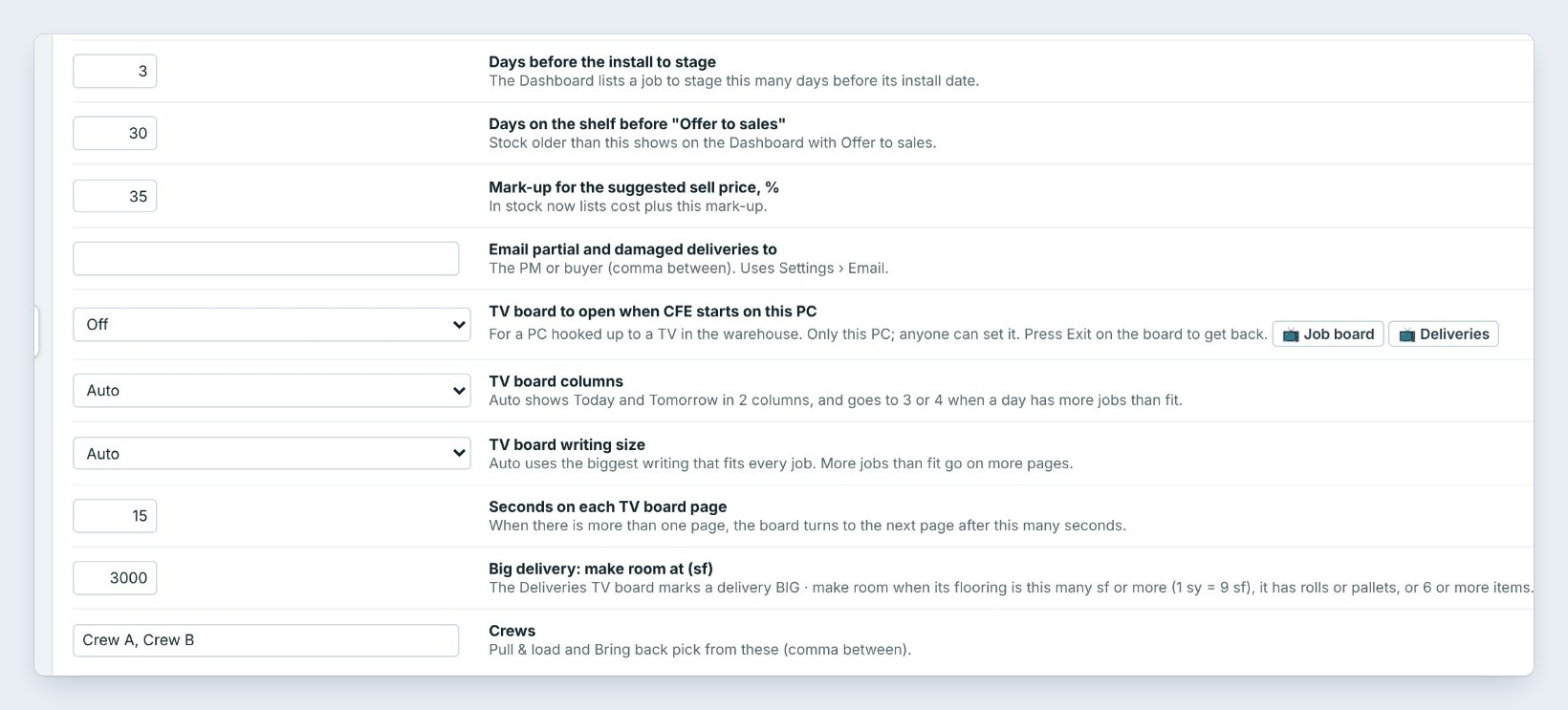
Open Warehouse › Settings. TV board columns set to Auto shows Today and Tomorrow in two columns, and goes to three or four when a day has more jobs than fit. TV board writing size on Auto uses the biggest writing that fits every job.
Seconds on each TV board page turns the pages when there are more jobs than one screen holds, here every 15 seconds. Big delivery: make room at sets the square feet that earns the red BIG tag, here 3,000. Days before the install to stage decides how early a job shows on the board, here 3 days.
6What can go wrong, and how to fix it
The board does not change. The TV reads the company’s shared folder, so that PC must have the same folder the office uses, and it must be syncing. Every BidWise Business PC sends its Won jobs there every 5 minutes, with every price taken out.
The code ran out or the TV moved to another PC. On your PC open TV screens, press the three dots and pick New code, or Remove to free the screen. Change switches the board it shows; the TV picks it up within the hour.
Someone wants to leave TV mode. Press the gear on the board and type the PIN. Only someone with the PIN can open TV setup or turn TV mode off.
Worked example: Monday at 6:42 AM
What the Northgate crews see when they walk in:
| Board | Shows | What the crew does |
|---|---|---|
| Job board | Valley Fitness loaded, Truck 2 | Crew A leaves at 6:30 |
| Job board | Lincoln Elementary missing base | Lead calls the office |
| Deliveries | Shaw PO-5132 late, BIG | Clears Bay 1 for Tuesday |
| Deliveries | 3 arrived today | Puts them away by noon |
Nobody asked the office what was going out, and the missing wall base was found before the crew left, not on site.
What to do next
The board comes from Warehouse today and Pull & load; set up the shared folder first.
Put your job board on the wall
TV screens come free with BidWise Business. Start with the 30-day free trial, no credit card.
Frequently Asked Questions
Does a TV screen use a seat?
No. Up to 2 TV screens are free with BidWise Business and use no seat.
Can the warehouse see prices on the TV?
No. The board shows jobs, crews, trucks and materials only. Every price is taken out before it reaches the TV, and the TV cannot open bids.
Does the board go through BidWise’s server?
No. It is written to your company’s shared folder, locked with your company’s TV key.
Can I show the board on my own PC?
Yes. Warehouse › TV board opens it full screen on any BidWise Business PC; press Exit to go back.

Written by
Cristian Valcu – Founder & CEO, Commercial Flooring Estimating LLC
Cristian has estimated commercial flooring for over 20 years and built BidWise around the way flooring contractors actually price, propose and track their bids.
Last updated: