BidWise guide · Warehouse
Leftover Stock, Bays, Bins and Labels
BidWise Business turns the leftovers your crews bring back into stock you can find and use. Bring back leftovers credits the job and puts each item in a bay and bin, Stock lists everything on the shelves with its dye lot and value, labels print for every box and roll, and Use stock first tells you when a new order could come off the shelf instead.


Why track leftovers?
Every flooring warehouse has a corner of half boxes and roll ends nobody can name. The money is real: the job already paid for that material, and the next job often orders the same product again.
When leftovers come back through BidWise, the job gets the credit, the material gets a bin and a label, and the next order checks the shelf before it goes to the vendor.
The five steps
- Bring leftovers backFrom the job’s Material List, into a bin.
- Read the stock listValue, matches, dye lots, bays.
- Bays, bins and labelsWhere things sit, and a label for each.
- Offer it to salesSend “In stock now” with a sell price.
- What can go wrongWrong count, damaged, moved.
1Bring leftovers back from the job
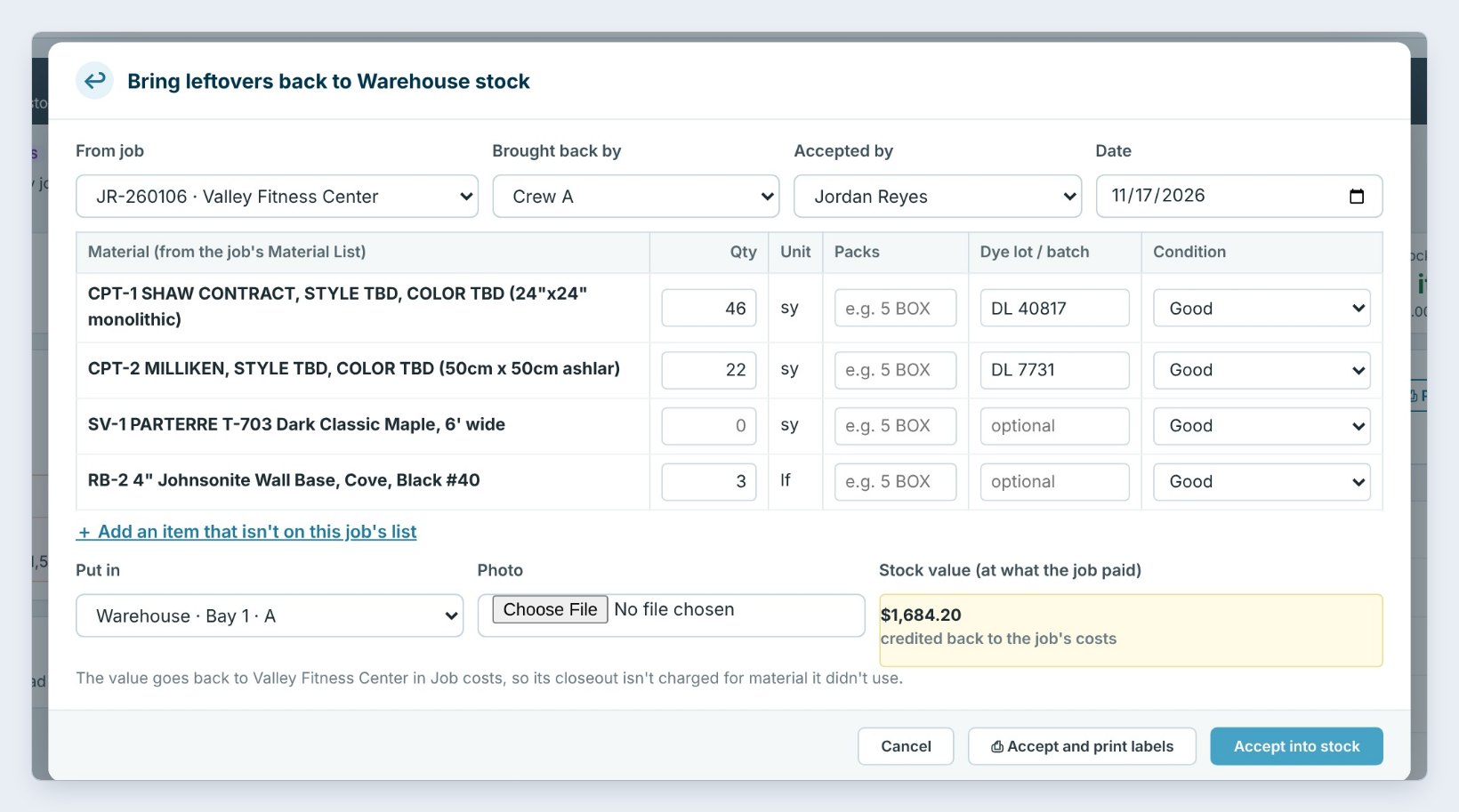
When a crew brings material back, press Bring back leftovers on the Warehouse ribbon or the Dashboard. Pick the job, here Valley Fitness Center, who brought it back, Crew A, and who accepted it.
The lines come straight from the job’s Material List. Type the quantity on each line that came back, the packs, such as 3 boxes, the Dye lot, and the condition, Good or Damaged. Pick where it goes in Put in, here Bay 1, bin A, and add a photo if you like.
The Stock value box shows what the job paid for it, here $1,684.20, which is credited back to the job’s costs. Press Accept into stock, or Accept and print labels.
2Read the stock list and use stock first
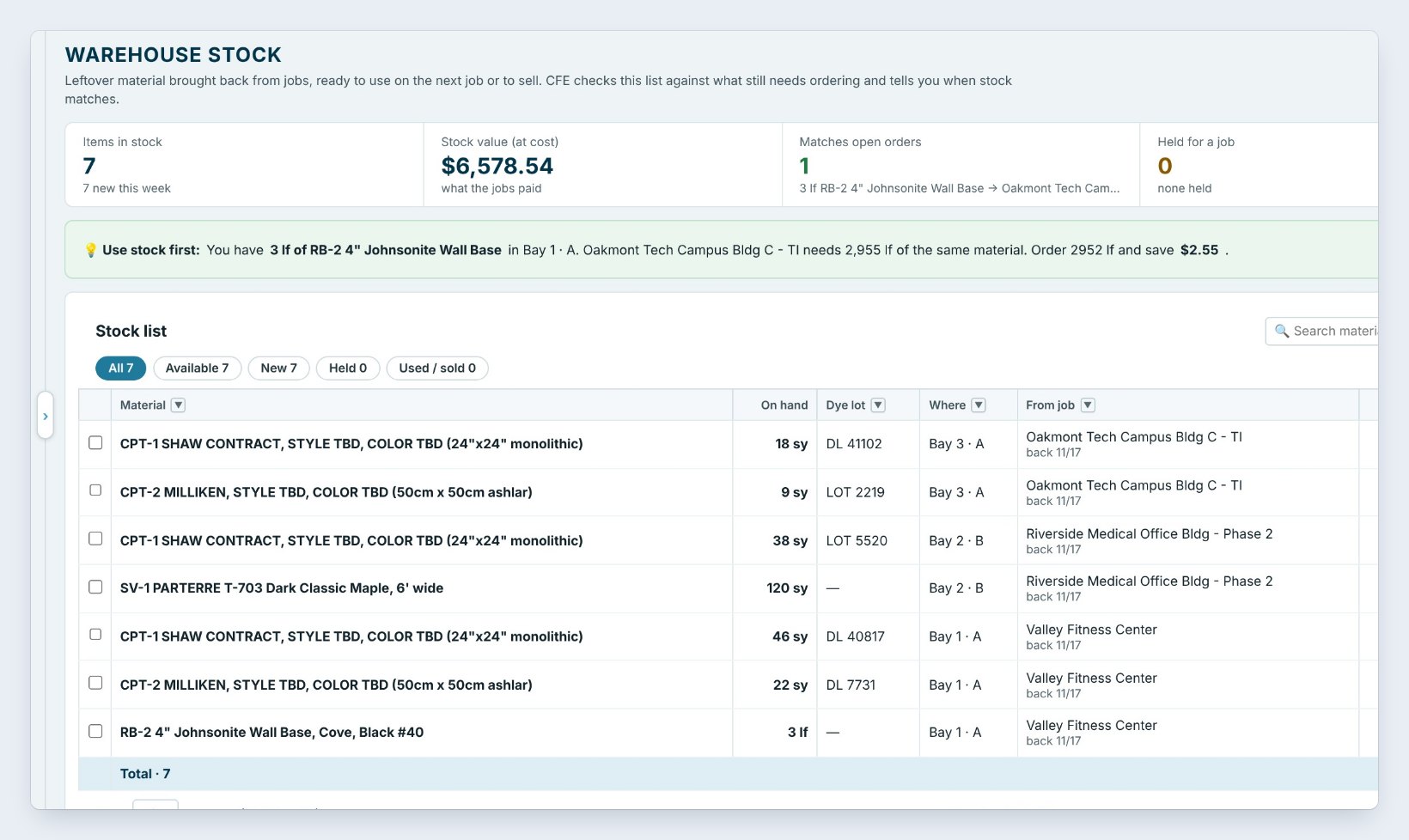
Open Stock. The tiles show Items in stock, the Stock value at cost, here $6,578.54, how many items Match open orders, what is Held for a job, and what was used or sold this year.
The green Use stock first banner is the money part. BidWise checks the shelves against every material still to be ordered, and here it found 3 linear feet of Johnsonite wall base in Bay 1 that Oakmont Tech needs. Press Hold for Oakmont Tech and order that much less.
The list shows each item with what is On hand, its Dye lot, Where it sits, the job it came From, its cost and value. Status says New in stock, Matches a job, Held or Used.
Check Use stock first before you send a big order. A matching dye lot on the shelf is free material for a small room or a repair.
3Set up bays and bins, then print labels
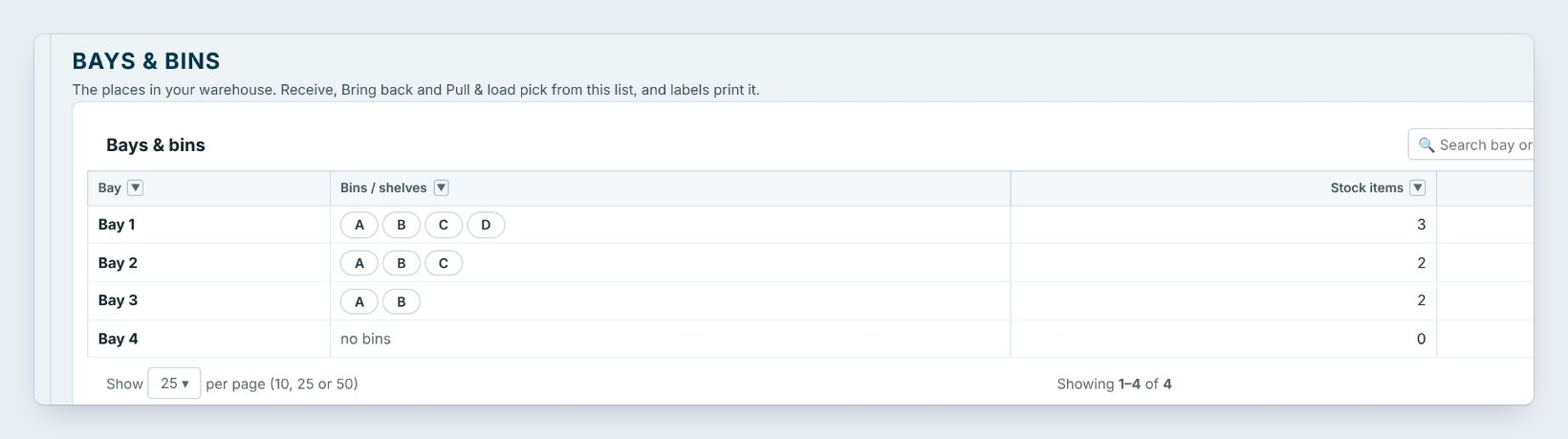
Bays & bins lists the places in your warehouse. Press Bay to add one, and Edit to name its bins or shelves, such as A, B, C and D. Receive, Bring back and Pull & load all pick from this list, and the table shows how many stock items and job items sit in each bay.
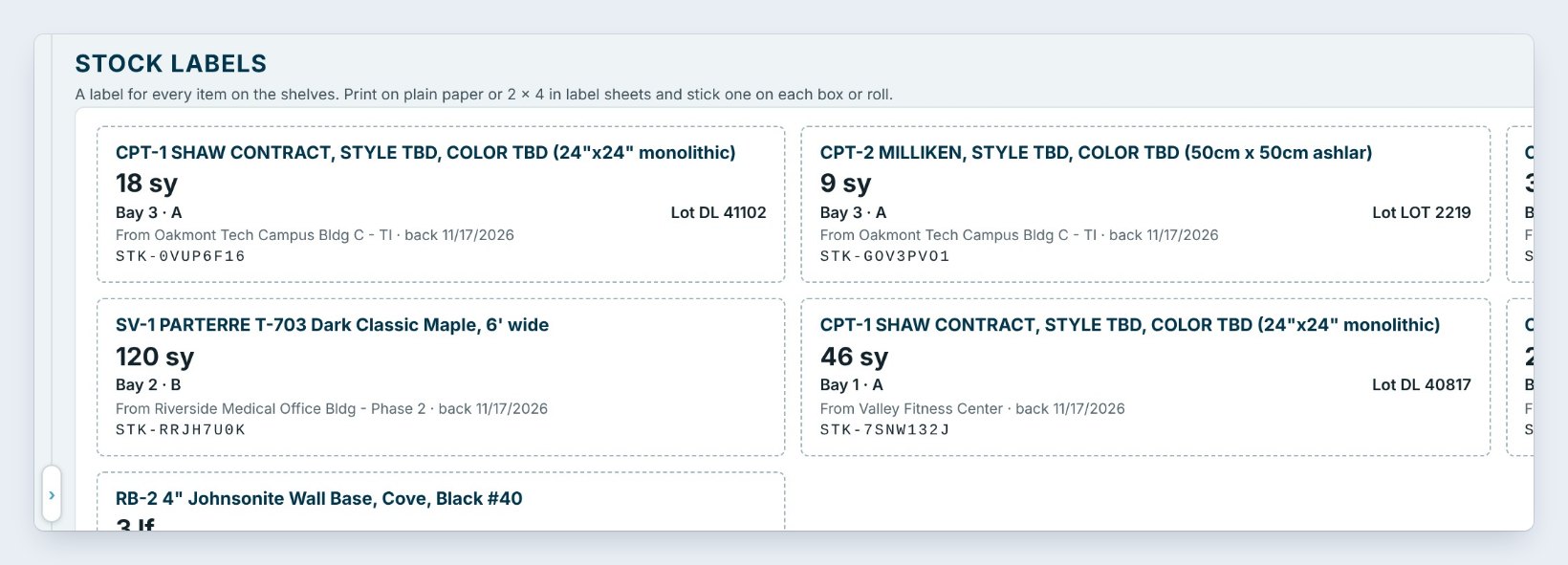
Labels makes a label for every item on the shelves: the material, the quantity, the bay and bin, the dye lot, the job it came from and a stock number. Press Print labels on plain paper or on 2 by 4 label sheets, and stick one on each box or roll.
4Send an In stock now list to your salespeople
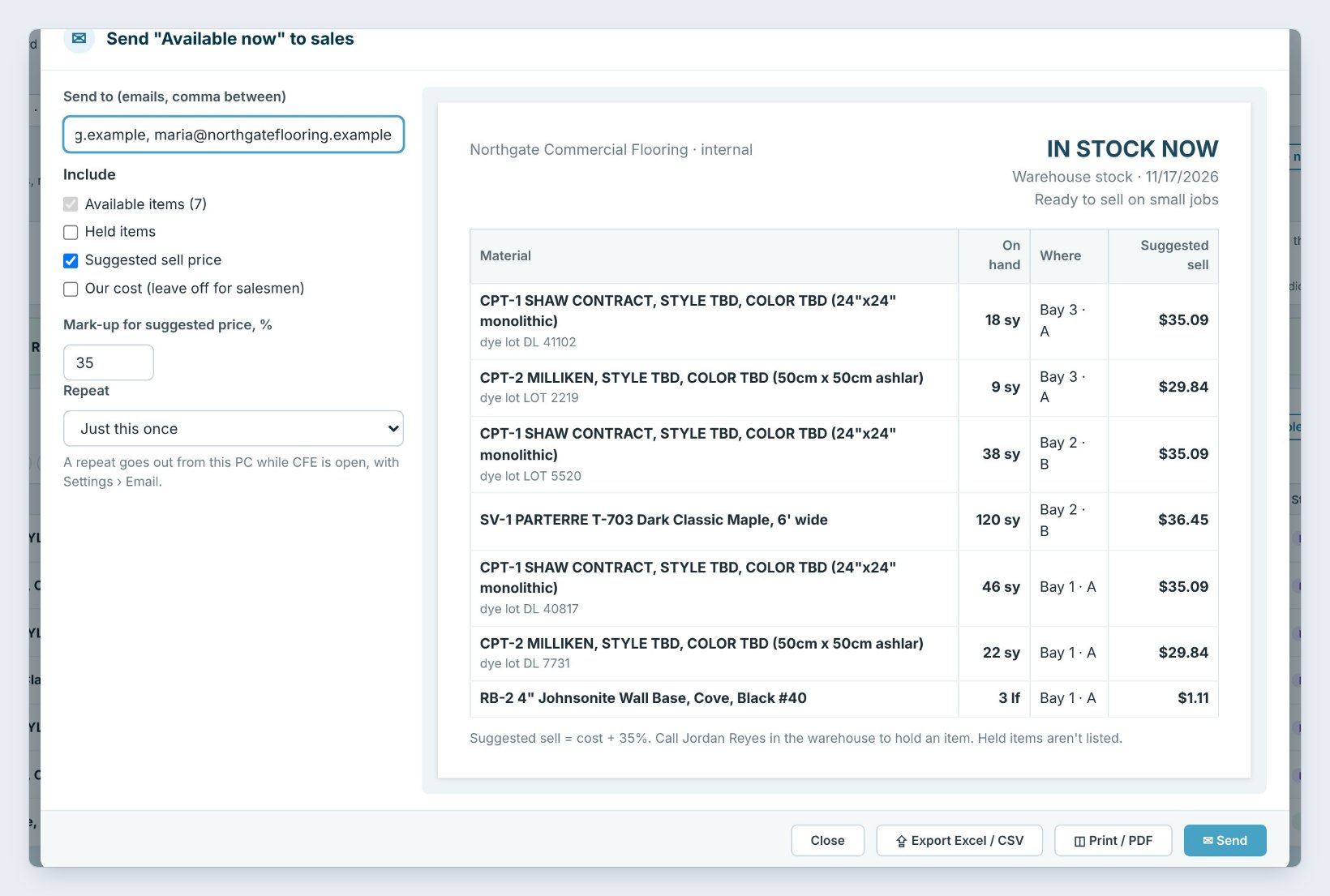
Material sitting too long can be sold on small jobs. Press In stock now. Type the salespeople’s emails, choose what to include, Available items, Held items, a Suggested sell price and, if you want, your cost.
The suggested price is cost plus your Mark-up, here 35%. The preview on the right is what they get: each item with what is on hand, where it is and the suggested sell price. Send it once, or set Repeat so it goes out every week by itself, through Settings › Email. You can also export it to Excel or print a PDF.
5What can go wrong, and how to fix it
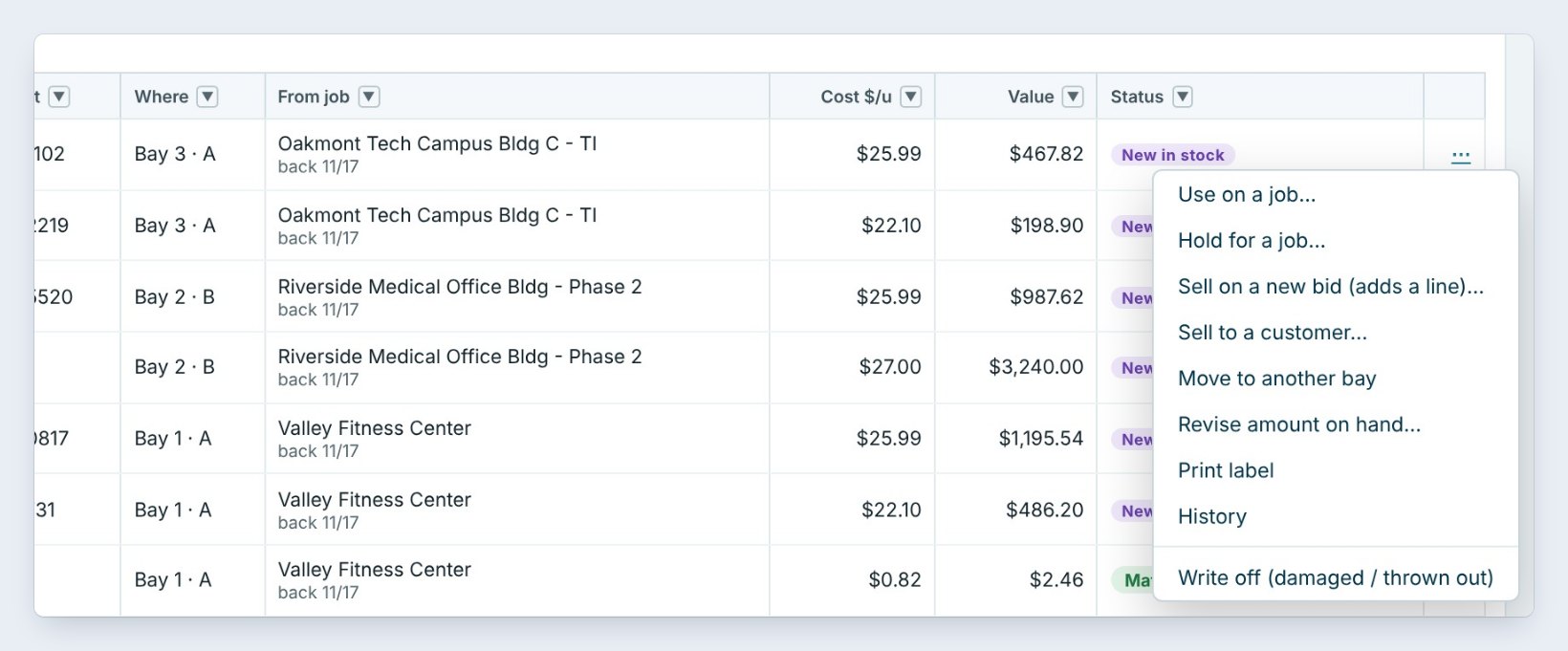
The shelf count is wrong. Press the three dots on the line and pick Revise amount on hand. Type the real amount and why, such as a shelf count or cut off for a repair. The change is kept in History, and 0 takes it off the shelf.
Something was damaged or thrown out. Pick Write off, so the value comes off the stock total.
Somebody moved it. Pick Move to another bay, then Print label for the new spot. The same menu uses it on a job, holds it, or sells it on a new bid or to a customer.
Worked example: one week of leftovers
Three crews bring material back to Northgate on Monday:
| Job | Came back | Put in |
|---|---|---|
| Valley Fitness Center | 46 sy + 22 sy carpet tile, 3 lf base | Bay 1 · A |
| Riverside Medical Office | 38 sy carpet tile, 120 sy sheet vinyl | Bay 2 · B |
| Oakmont Tech Campus | 18 sy + 9 sy carpet tile | Bay 3 · A |
| Total on the shelves | 7 items | $6,578.54 |
On Tuesday, Use stock first matched the wall base to Oakmont Tech, so that order went out 3 linear feet smaller.
What to do next
Go deeper with the warehouse guides on the stock list and stock labels, and see Warehouse today.
Use your leftovers before you order more
Stock, bays, bins and labels come with BidWise Business. Start with the 30-day free trial, no credit card.
Frequently Asked Questions
Does the job get credit for leftovers?
Yes. The stock value, what the job paid, is credited back to the job’s costs, so its closeout is not charged for material it did not use.
Can I track dye lots on leftovers?
Yes. Type the dye lot when you bring it back; it shows on the stock list, the label and the In stock now list.
What label size do I need?
Plain paper works, or 2 by 4 inch label sheets.
Is leftover stock on BidWise Personal?
Personal shows the stock on the Dashboard; Bring back, labels, bays and bins, and In stock now come with BidWise Business.

Written by
Cristian Valcu – Founder & CEO, Commercial Flooring Estimating LLC
Cristian has estimated commercial flooring for over 20 years and built BidWise around the way flooring contractors actually price, propose and track their bids.
Last updated: