BidWise guide · Warehouse
Warehouse Today: Receive, Pull, Stage and Load
Warehouse today is the warehouse crew’s command screen in BidWise Business. It shows what is coming in, which jobs to pull and stage, which trucks go out and what is late, for every Won job, with no bid prices anywhere. Deliveries and Receive check material in by vendor and PO, Pull & load ticks each item pulled, staged and loaded, and Trucks plans the runs.


Why one screen for the warehouse?
A crew that shows up to a job with half the adhesive or the wrong dye lot loses a day, and the warehouse usually finds out from an angry phone call. The material was ordered in the office, but nobody in the warehouse knew what was due or what was missing.
Warehouse today takes the orders, deliveries and installs the office already put in BidWise and turns them into the warehouse crew’s to-do list, without showing any bid prices.
The five steps
- Start on Warehouse todayTiles, today’s schedule, pull and stage.
- Check deliveries inDeliveries calendar, then Receive.
- Pull, stage and loadTick each item: pulled, staged, loaded.
- Plan the trucksTrucks: runs, drivers and crews.
- What can go wrongLate delivery, missing items, wrong lot.
1Start the day on Warehouse today
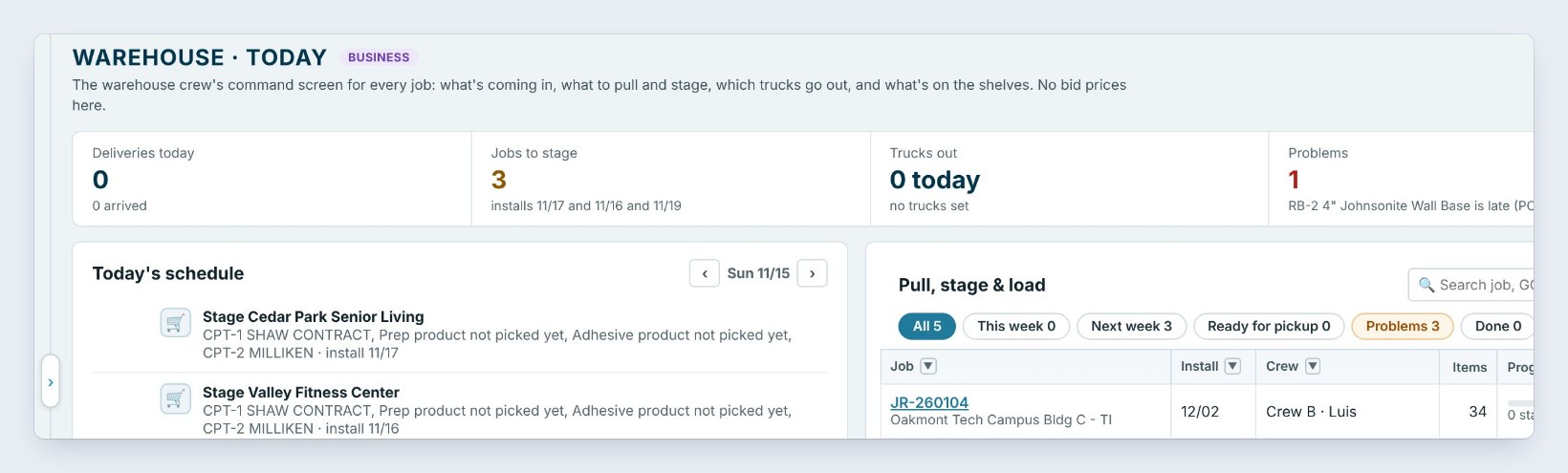
Open Warehouse. The Dashboard, Warehouse today, covers every Won job at once. Five tiles sit on top: Deliveries today, Jobs to stage, Trucks out, Problems and Stock on the shelves. Here three jobs need staging for installs on 11/17, 11/16 and 11/19, and one Johnsonite wall base delivery is late.
On the left, Today’s schedule says what to stage today, with the items still missing, and Pickups tomorrow lists the crews coming in the next work day, with Print. On the right, Pull, stage & load lists every job with its install date, crew, items and progress, with filters for This week, Next week, Ready for pickup and Problems.
2See what is coming in and receive it
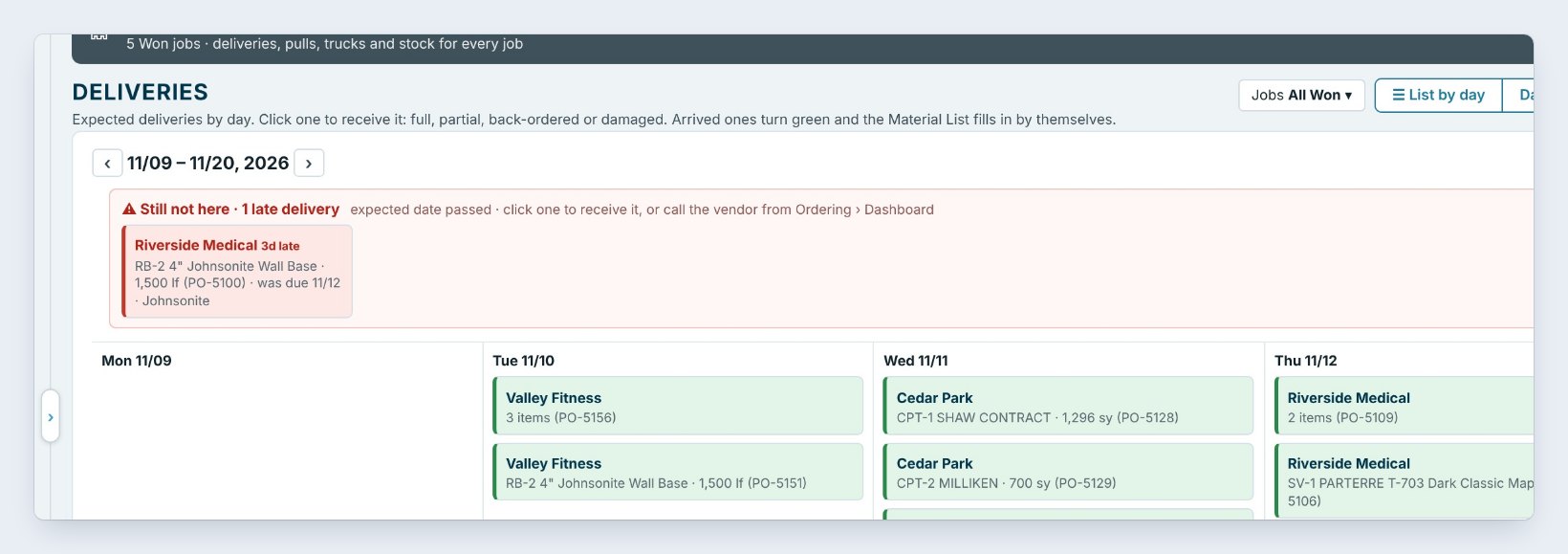
Deliveries is the calendar of what is coming in, by day, for one or two weeks or a month. Each card shows the job, the material and the PO. Anything past its date moves up to the red Still not here row, here the Johnsonite wall base for Riverside Medical, three days late.
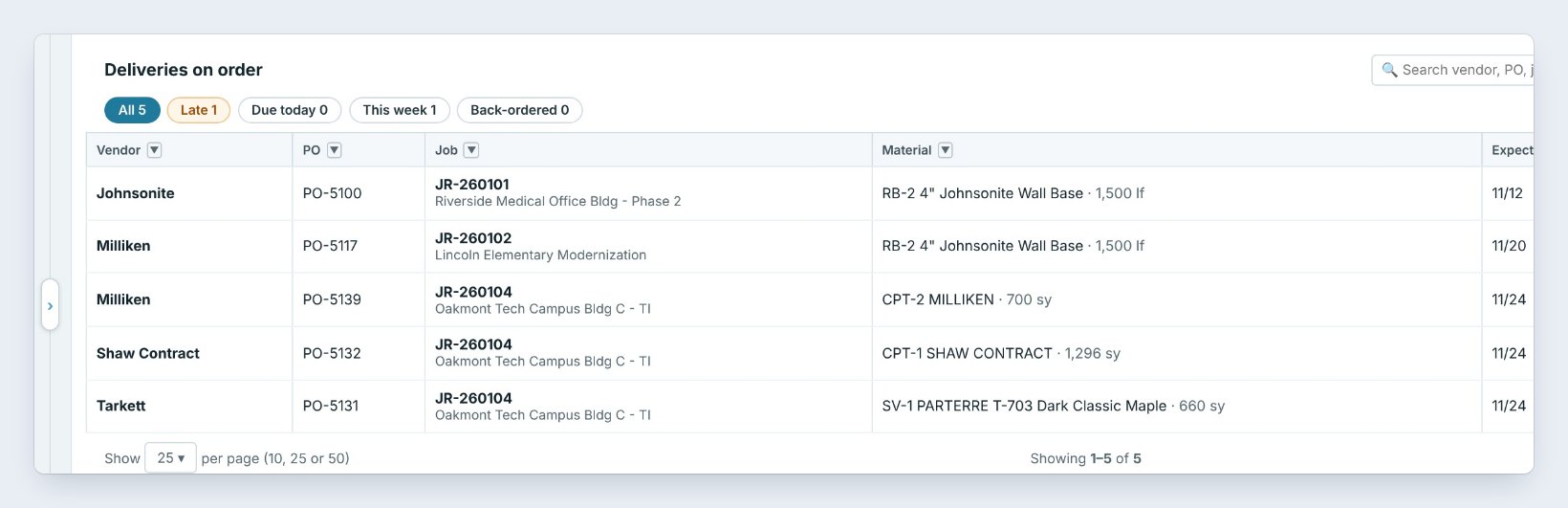
When the truck shows up, open Receive. It lists every delivery still on order, lined up by vendor, with filters for Late, Due today, This week and Back-ordered. Press Receive on the line and check in what came: all of it, part of it, back-ordered or damaged, with the dye lot and the bin. The office’s Material List fills in by itself.
3Pull, stage and load each job
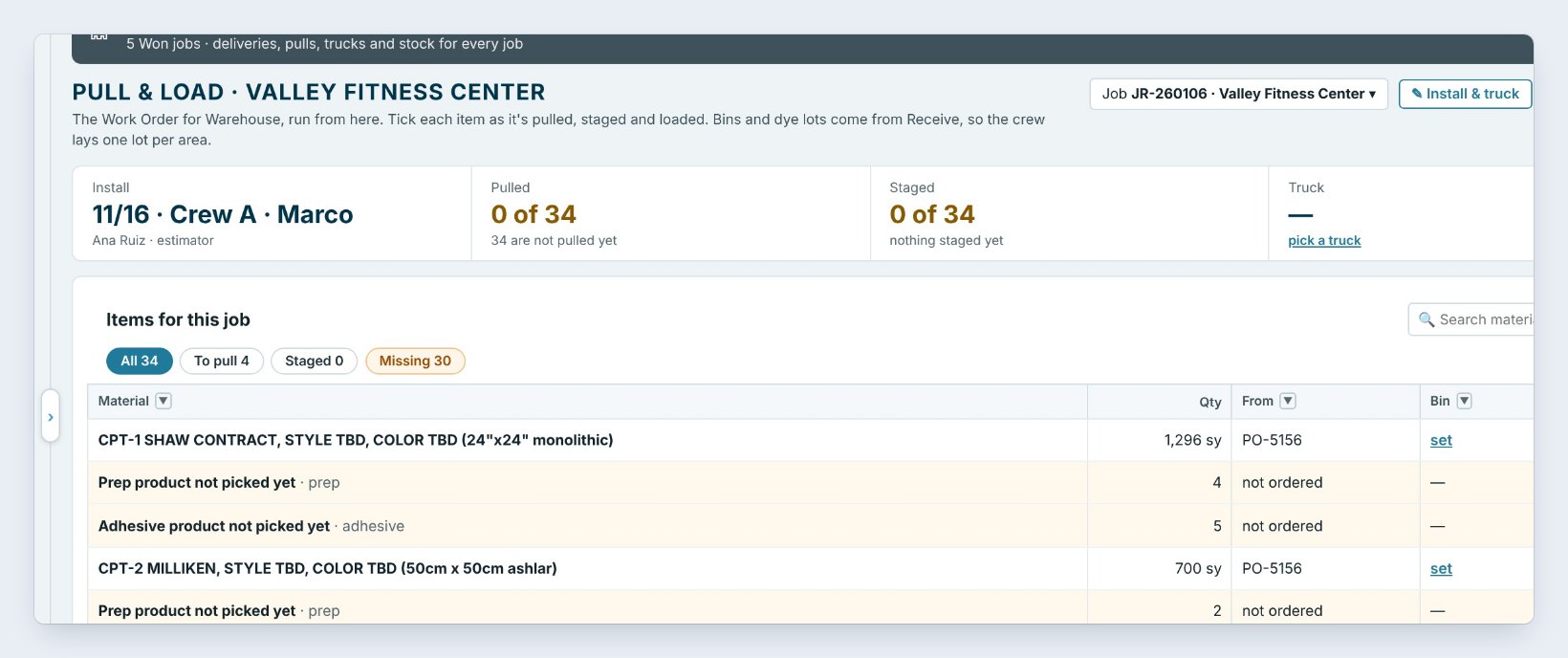
Pull & load is the Work Order for Warehouse for one job, here Valley Fitness Center, installing 11/16 with Crew A. The tiles count Pulled, Staged, the Truck and what is Missing.
Each material line shows the quantity, where it comes from, the Bin and the Dye lot from Receive, so the crew lays one lot per area. Tick Pulled when it comes off the shelf, Staged when it is in the job’s area, and Loaded when it is on the truck. Lines in tan, like Prep product not picked yet, still need a product picked in the office, so they show as Missing.
Print the Pull list for the crew and the Load sheet for the driver. Both come from the same page, so the warehouse and the truck always match the office.
4Plan the truck runs
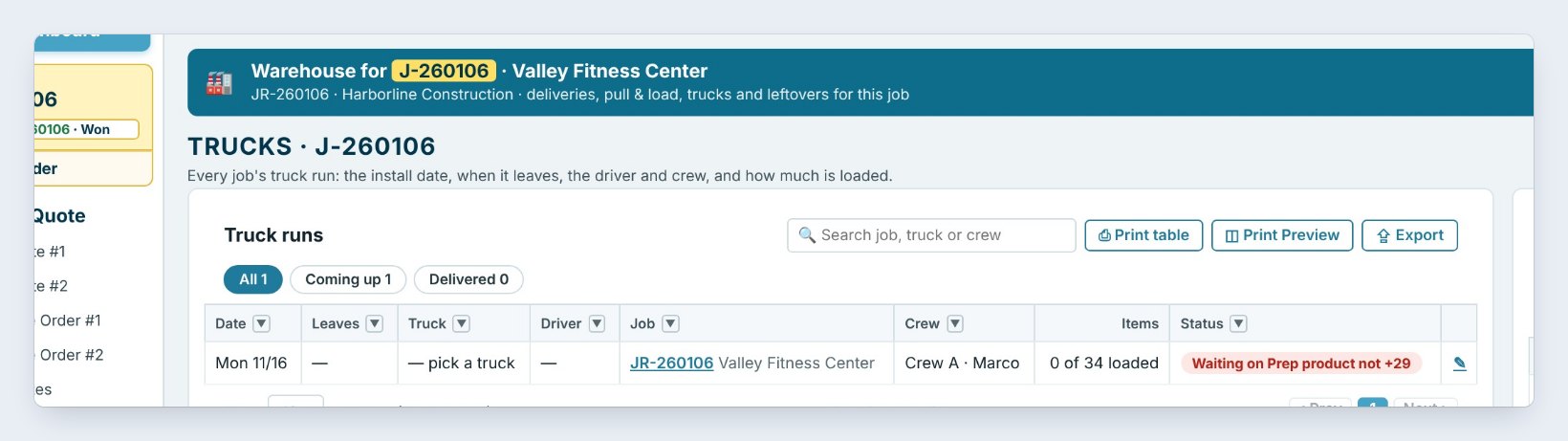
Trucks lists every truck run: the install date, when it leaves, the truck, the driver, the job, the crew and how many items are loaded, with filters for Coming up and Delivered. Click pick a truck to put a job on Truck 1 or Truck 2.
The right side lists your trucks with their drivers and runs coming up. Add a truck once with its name and driver, and every job can be assigned from Pull & load or from here. The status shows the same warning as the job, here Waiting on Prep product, so nobody loads a truck that will leave short.
5What can go wrong, and how to fix it
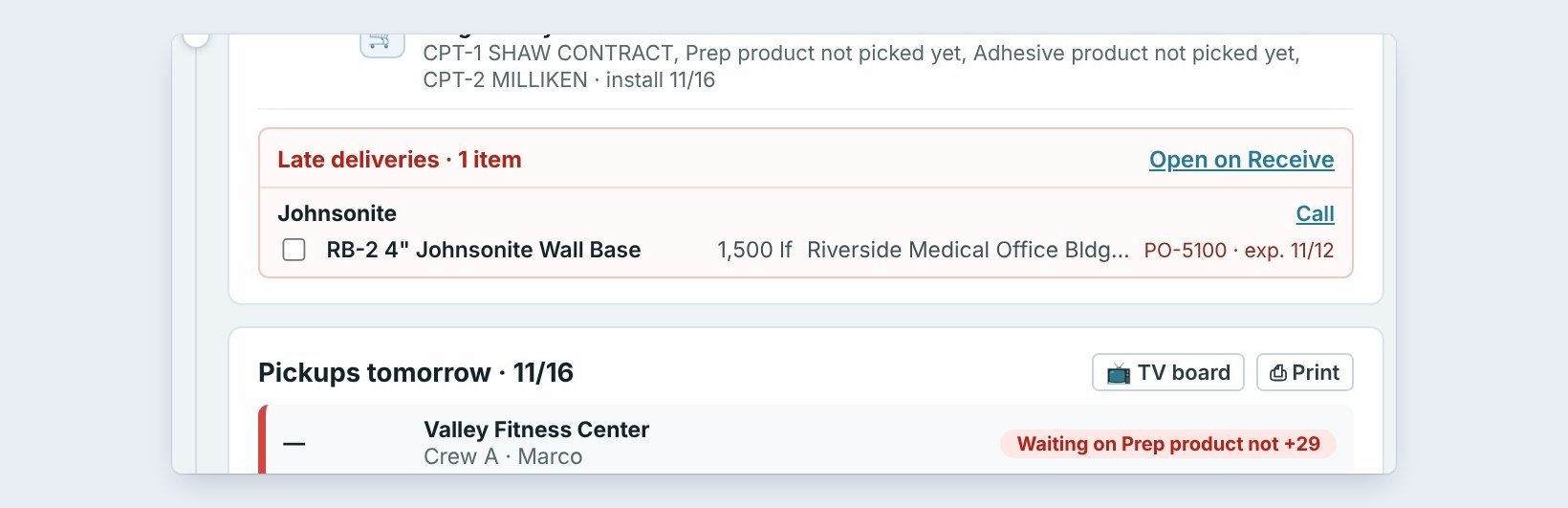
A delivery is late. It shows under Late deliveries on the Dashboard, grouped by vendor with the vendor’s phone and a Call link. Call the order desk, then mark the line back-ordered with its new date in Receive, so the Material List and the schedule show it too.
A job shows Missing items the day before pickup. Open its Pull & load and filter on Missing. Lines marked not ordered go back to the office; lines on order show their PO and expected date.
Two dye lots came in for one area. Type the lot on each line when you receive it. With Track dye lots on in Warehouse settings, BidWise warns before two lots go into one area.
Worked example: Monday at Northgate
The warehouse lead opens Warehouse today at 6:30 AM:
| Time | Screen | What happens |
|---|---|---|
| 6:30 AM | Warehouse today | 3 jobs to stage, 1 late delivery |
| 7:00 AM | Late deliveries | Calls Johnsonite, new date 11/18 |
| 9:15 AM | Receive | Shaw carpet tile in, dye lot typed, Bay 1 |
| 1:00 PM | Pull & load | Valley Fitness staged, 34 of 34 |
| 3:30 PM | Trucks | Truck 2 loaded for Crew A at 6:30 AM |
The crews picked up full loads on Tuesday, and the office saw every step without walking out to the warehouse.
What to do next
Go deeper with the warehouse guides on receiving against the PO, staging a job and loading the truck, and see the warehouse order and pick ticket.
Run your warehouse from one screen
Warehouse today comes with BidWise Business. Start with the 30-day free trial, no credit card.
Frequently Asked Questions
Does the warehouse crew see prices?
No. Warehouse today, Receive, Pull & load and Trucks show quantities, bins and dye lots, never bid prices. Warehouse users can be limited to the Warehouse tab only.
Where does the warehouse list come from?
From the Material List and the orders the office made in Ordering, and the installs booked on the Schedule.
Can I print the pull list?
Yes. Pull & load has Pull list, Load sheet, Print table and Print Preview, and the Dashboard prints Pickups tomorrow.
Is Warehouse today on BidWise Personal?
Personal shows today’s schedule, late deliveries and the pull and stage list. Trucks, Bring back, labels, bays and warehouse users come with BidWise Business.

Written by
Cristian Valcu – Founder & CEO, Commercial Flooring Estimating LLC
Cristian has estimated commercial flooring for over 20 years and built BidWise around the way flooring contractors actually price, propose and track their bids.
Last updated: