BidWise guide · Warehouse
Make and Print Stock Labels
Warehouse › Labels prints one label for each stock item, in three sizes: Small 2 × 4 in, Medium 4 × 6 in or a Large pallet sign. Each label shows the color or style in big type, the amount and cartons, the lot, the bay and bin, the salesman to ask before selling it, the job it came from and a QR code a phone can scan. Pull & load prints job labels for material staged for a job.


Why label stock?
A box without a label is a box nobody trusts. Is it the Honey Ash or the Smoked Oak? Which lot? Did a salesman already promise it to a customer? So the crew orders new material and the leftover sits.
A BidWise label answers all of that from the aisle, and its QR code opens the item on a warehouse phone.
The six steps
- Open LabelsTick items on Stock, or show them all.
- Pick the sizeSmall, Medium or a pallet sign.
- Read a labelColor, amount, lot, bay, salesman, QR.
- Select, edit and printPrint one, a few, or all.
- Job labelsLabels for material staged for a job.
- What can go wrongWrong paper, wrong bin, old amount.
1Open the Labels page
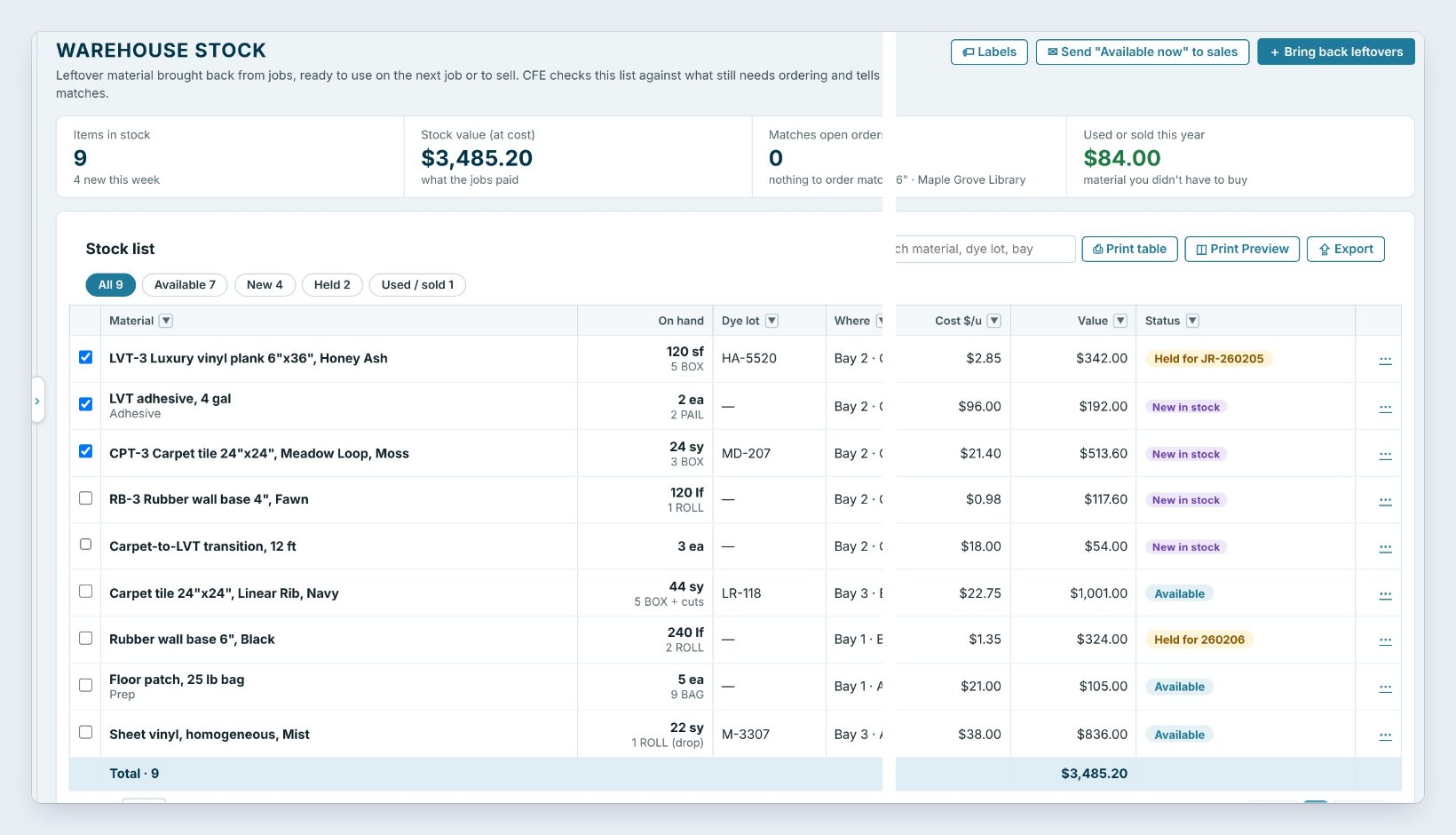
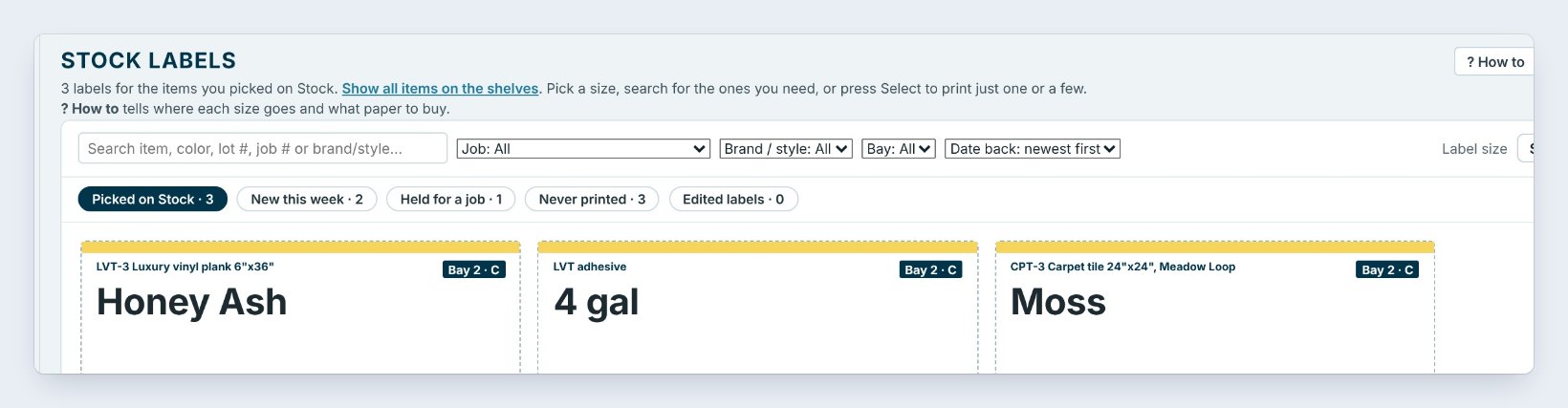
Open Warehouse › Stock, tick the rows you want, here three items in Bay 2 · C, and click Labels. The Labels page opens with just those three. Click Show all items on the shelves for everything, or use the search box and the Job, Brand / style and Bay filters to find the ones you need.
The chips across the top count what needs a label: New this week, Held for a job and Never printed.
2Pick the label size
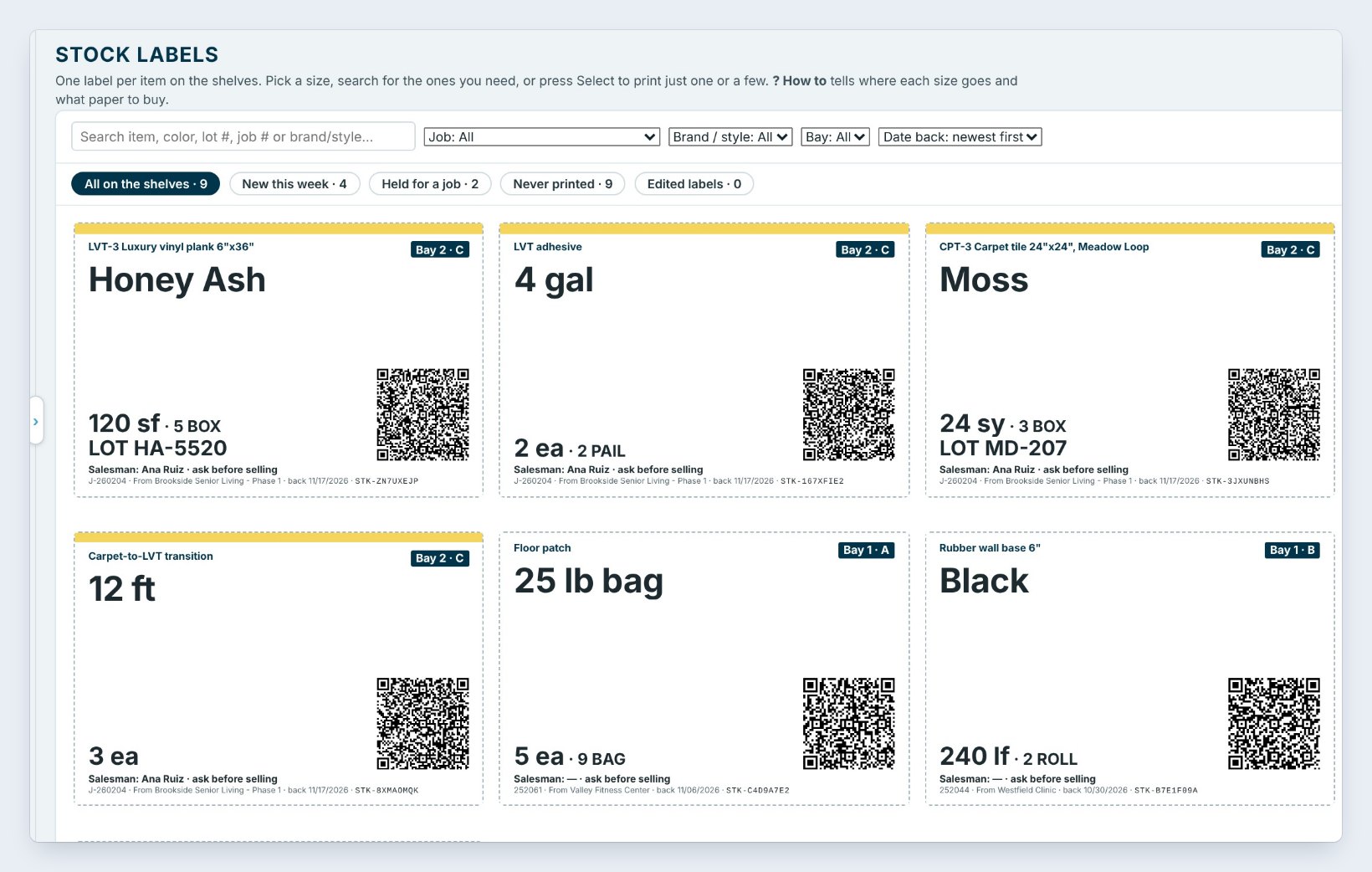
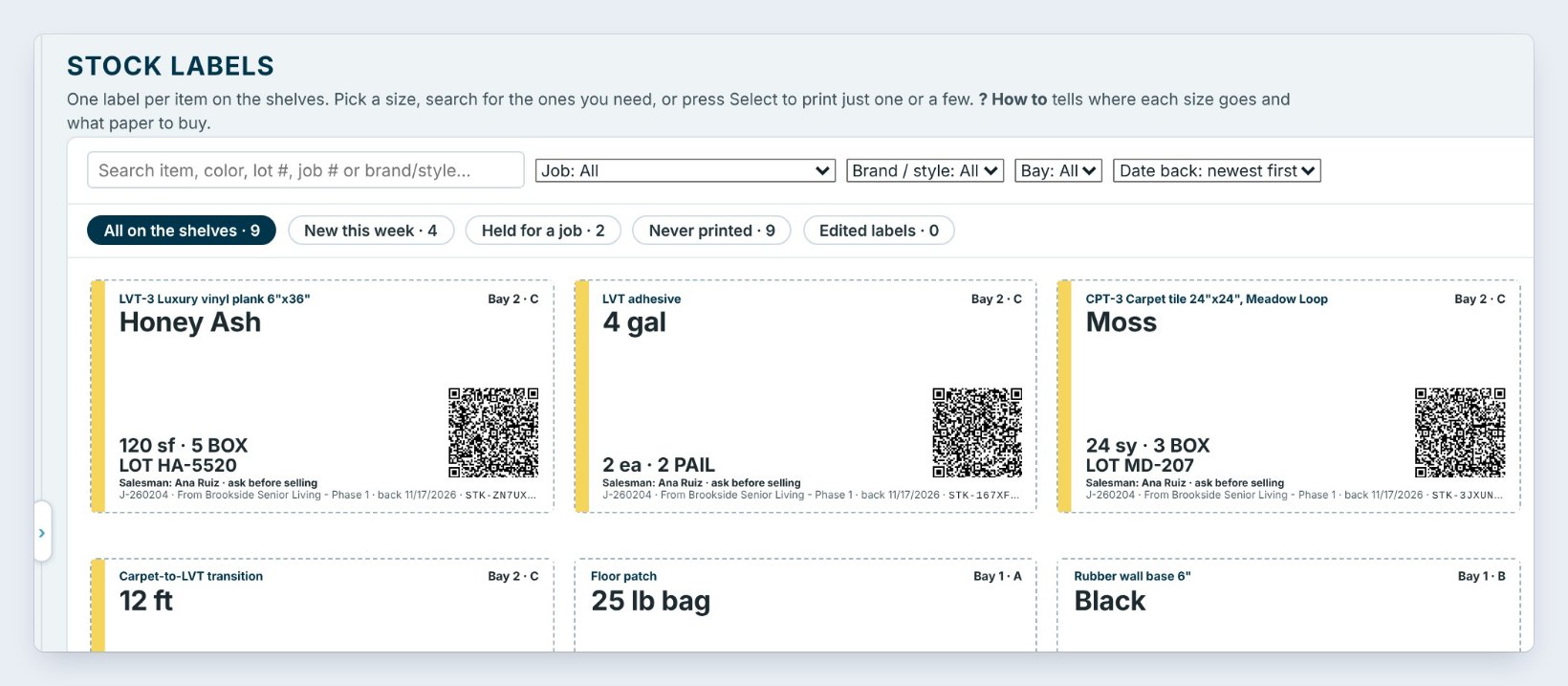
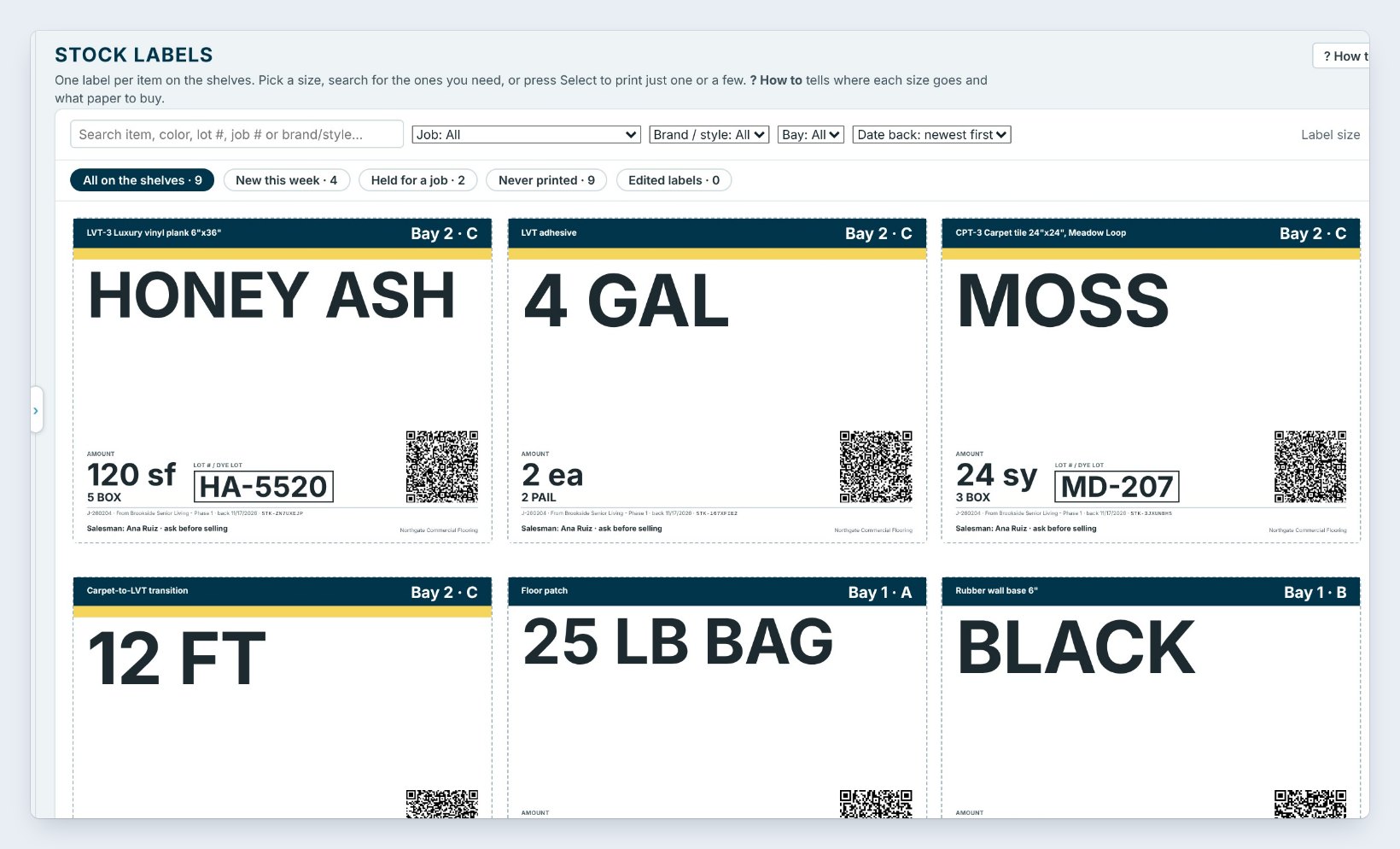
Pick a Label size at the top right. Medium 4 × 6 in is the default, for carton stacks and the ends of carpet and sheet vinyl rolls; it prints on 4 × 6 thermal labels or 2 per letter page. Small 2 × 4 in is for single boxes, rolls of base and adhesive pails, on Avery 5163 sheets with 10 labels a page, and you can start at any label on a half-used sheet. The Large pallet sign fills a letter page, so the picker reads it from the floor on the second and third rack level.
Set copies each to 2 for a pallet, one sign for each side.
3What a stock label says
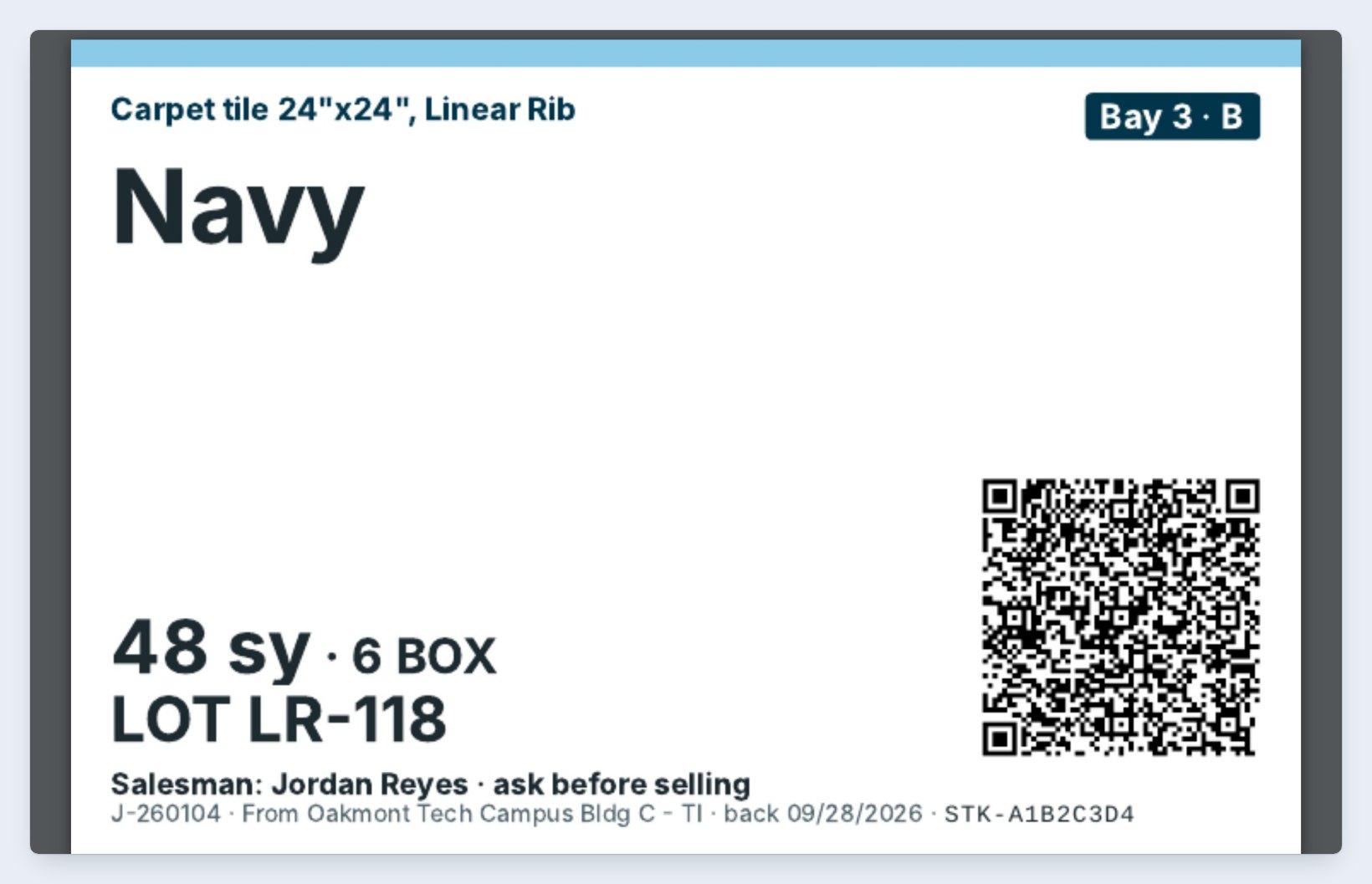
Each label reads from the top: the material in small type, then the color or style in big type, Navy. At the bottom: how much and the cartons, 48 square yards, 6 BOX, the lot, and the bay in the corner. Then Salesman: Jordan Reyes, ask before selling, the job it came back from, and the STK stock number. The QR code opens the item on a warehouse phone.
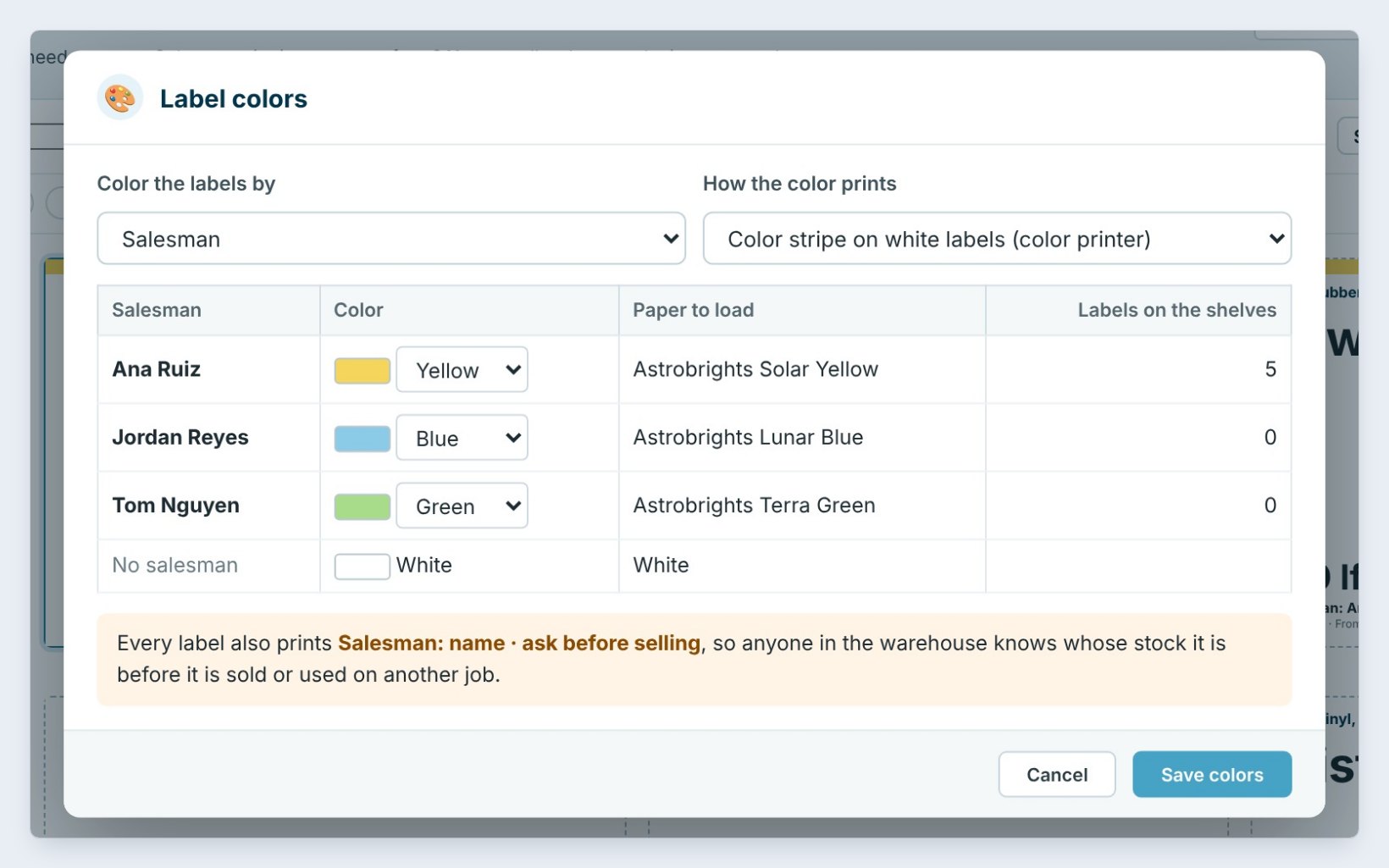
Click Colors to give each salesman a color, such as yellow for Ana and blue for Jordan, printed as a stripe or on colored paper. Anyone in the warehouse can tell whose stock it is before it gets sold or used on another job.
Stick the label on the end of the box that faces out on the shelf. The crew reads the color and the lot without pulling the box.
4Pick a few, fix one, and print
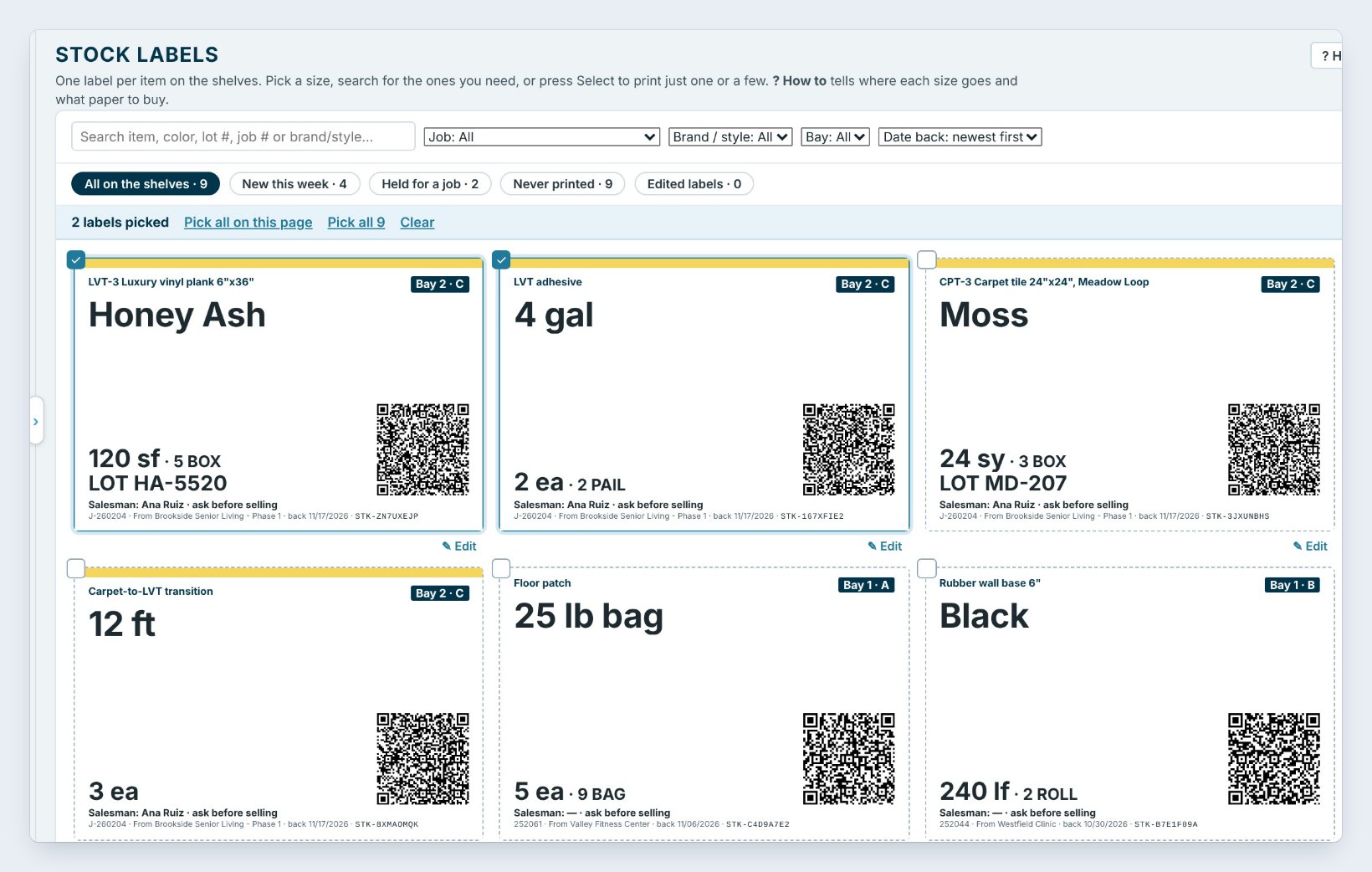
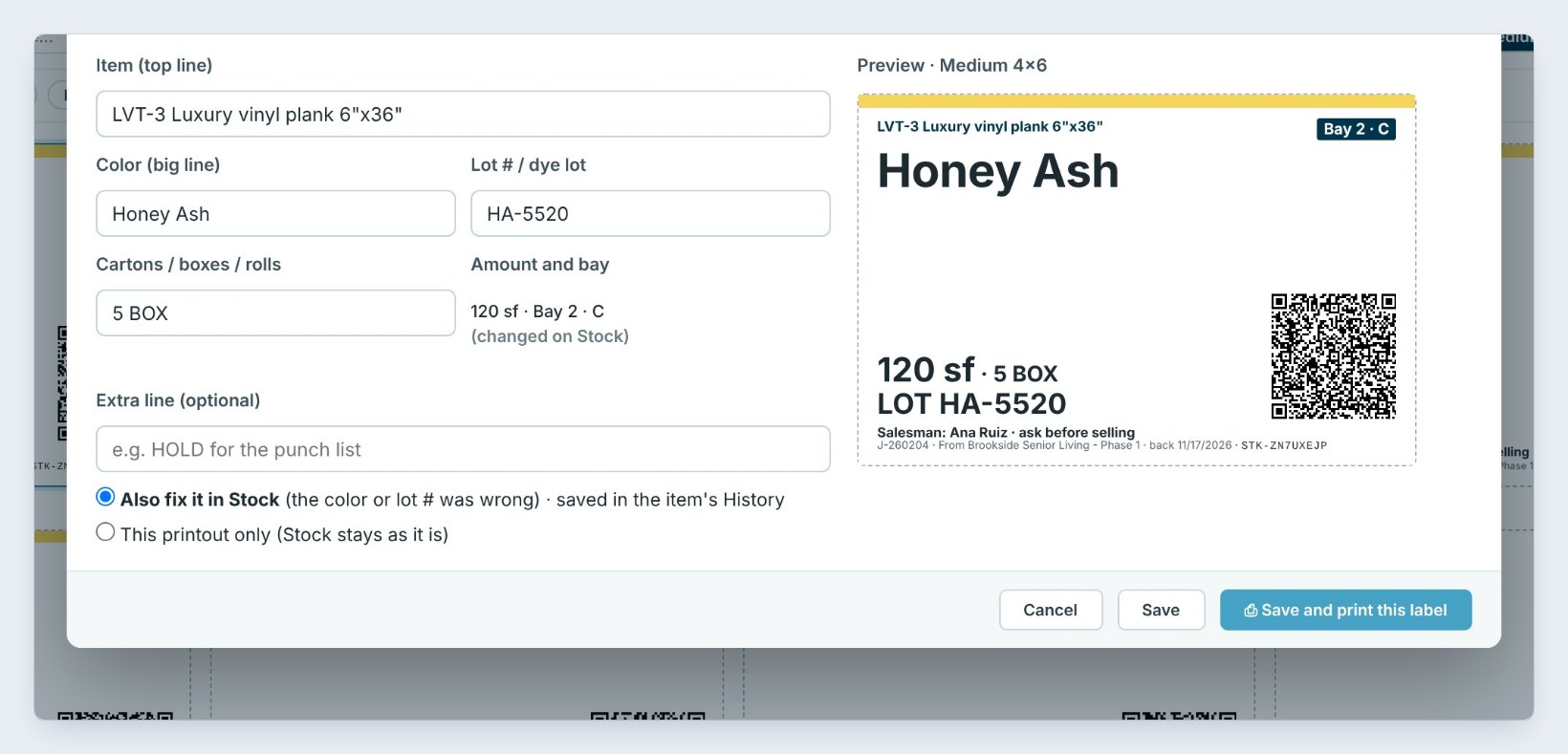
To print just one or a few, press Select and click the labels you need; the button turns into Print selected. To fix a label, click its Edit. Change the color or lot, add an Extra line such as HOLD for the punch list, and pick Also fix it in Stock when the color or lot was wrong, which is saved in the item’s History, or This printout only. Then Save and print this label.
Print Preview shows the pages first; Print labels sends them all.
5Print job labels for staged material
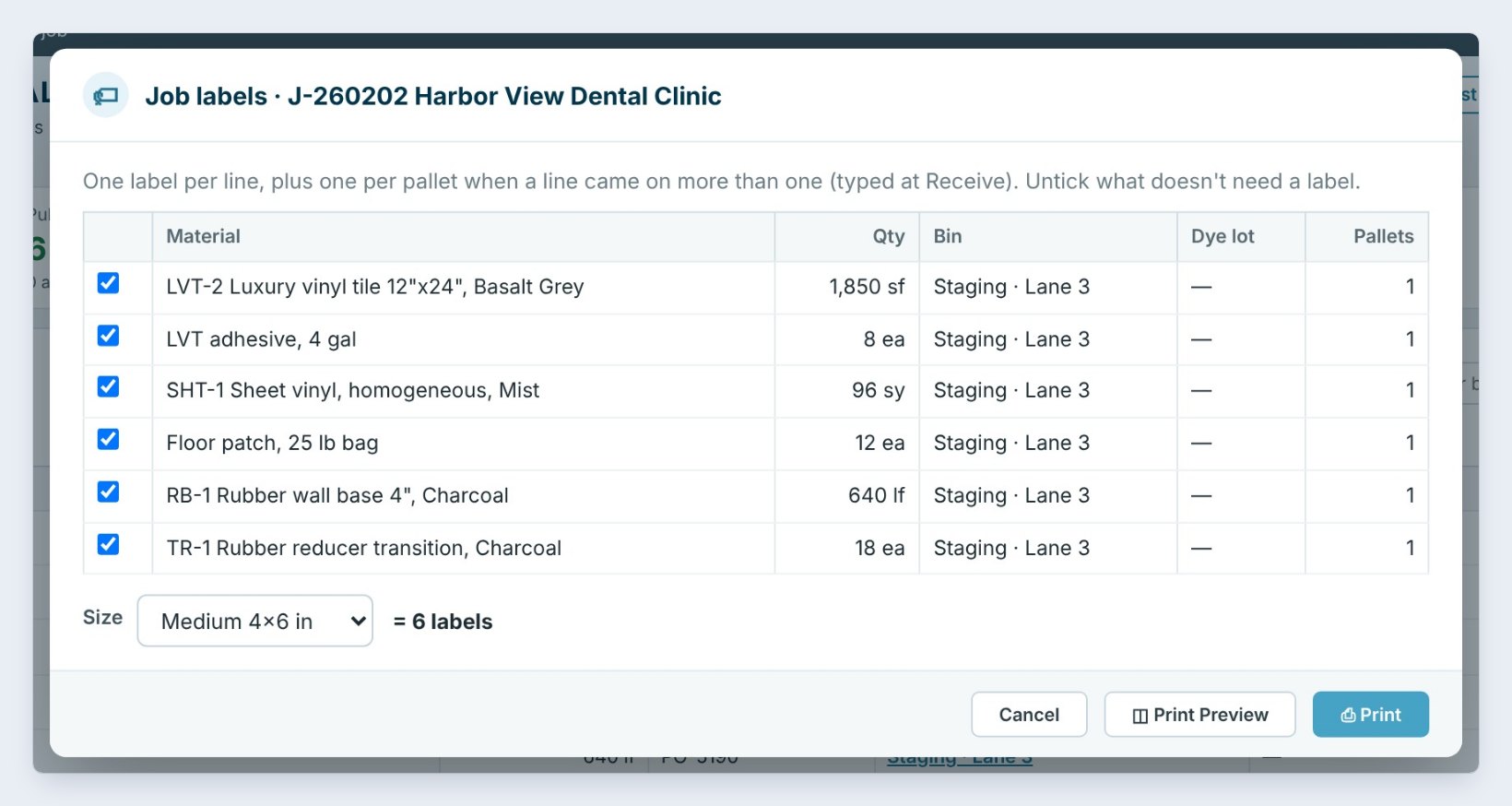
Stock labels are for leftovers. Material bought for a job gets a job label. On Pull & load, click Job labels: one label per line, plus one per pallet when a line came on more than one, typed at Receive. Untick what doesn’t need a label and click Print.
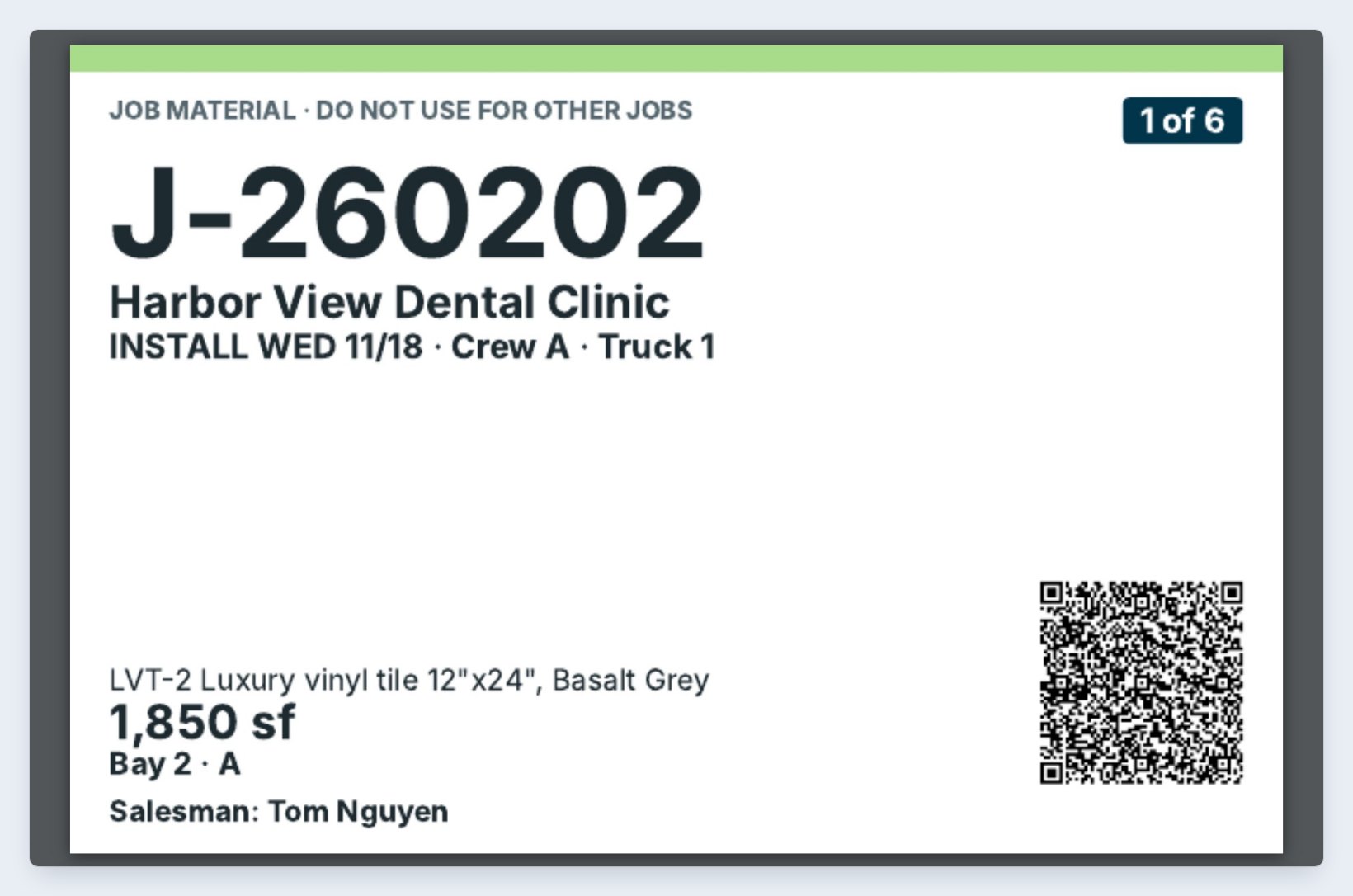
The label says JOB MATERIAL, DO NOT USE FOR OTHER JOBS, with the job number big, the install date, crew and truck, the material, amount and bin, and 1 of 6. With Print job labels at Receive on, they print by themselves when the delivery is saved.
6What can go wrong, and how to fix it
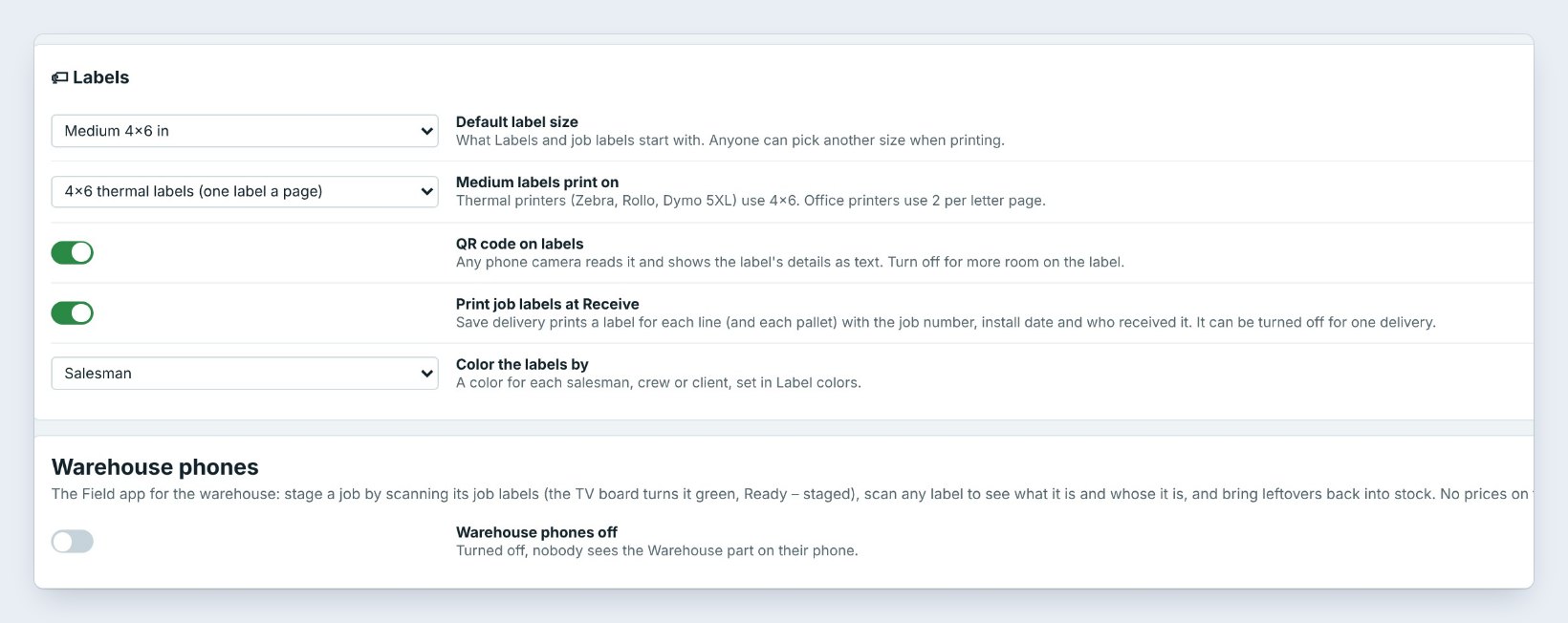
The labels print on the wrong paper. Set the default size and what Medium labels print on in Warehouse › Settings › Labels: 4 × 6 thermal labels, or letter paper, 2 per page.
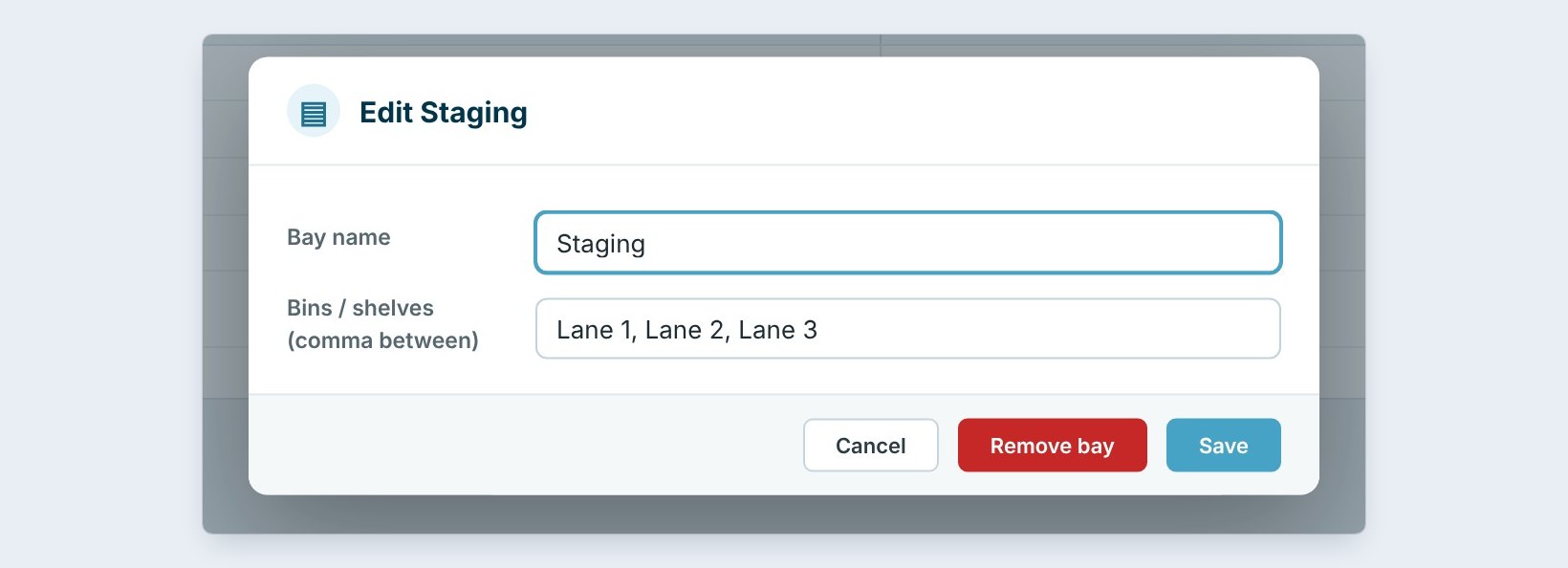
The label says the wrong bin. The box got moved. Use Move to another bay on its Stock row, then print the label again. If the bay itself is named wrong, click Edit on Bays & bins.
The amount on the label is old. After you use part of an item, use Revise amount on hand to fix the cartons line, and print a fresh label. The Never printed and Edited labels chips show what still needs one.
Worked example: labeling Bay 2 on November 17
Crew A brings back leftovers from Brookside Senior Living, and the office labels them before they go on the shelf:
| Label | Amount | Size | Salesman |
|---|---|---|---|
| Honey Ash, LVT-3 plank | 120 sf · 5 BOX | Medium 4 × 6 | Ana Ruiz (yellow) |
| 4 gal, LVT adhesive | 2 ea · 2 PAIL | Small 2 × 4 | Ana Ruiz (yellow) |
| Moss, CPT-3 carpet tile | 24 sy · 3 BOX | Medium 4 × 6 | Ana Ruiz (yellow) |
| Fawn, RB-3 wall base | 120 lf · 1 ROLL | Small 2 × 4 | Ana Ruiz (yellow) |
Four labels on yellow stripes, two minutes. Next month, when Maple Grove Library needs Honey Ash, the box in Bay 2 · C says so on the end, and says to ask Ana first.
What to do next
Start the warehouse at the dock: check deliveries in against the PO.
Put a label on every leftover
The warehouse is part of BidWise Business. Start with the 30-day free trial, no credit card.
Frequently Asked Questions
What label sizes does BidWise print?
Small 2 × 4 in on Avery 5163 sheets, Medium 4 × 6 in on thermal labels or 2 per letter page, and a Large pallet sign on letter paper.
What does the QR code do?
A warehouse phone scans it to open the item: where it is, how much, whose it is, and Moved it, Count is off or Use on a job. Any phone camera reads it as text. You can turn QR codes off in Warehouse › Settings › Labels.
Are stock labels on BidWise Personal?
No. Personal has a simple stock list. Labels, job labels, bays and bins are on Business.

Written by
Cristian Valcu – Founder & CEO, Commercial Flooring Estimating LLC
Cristian has estimated commercial flooring for over 20 years and built BidWise around the way flooring contractors actually price, propose and track their bids.
Last updated: