BidWise guide · Warehouse
Stage a Job for Pickup
On Pull & load, set the job’s install date, crew and truck, move each item to a staging lane and tick it Staged. When every item is here and staged, the job turns Ready for pickup on the Warehouse dashboard, the Pickups list and the TV board. If something is missing, the job says Waiting on that item instead.


Why stage in the app?
A crew at the dock at 6:30 in the morning should load and leave. If half the job is in Bay 2 and the rest is on a pallet nobody labeled, the crew waits while the warehouse hunts.
Staging each job in its own lane the day before, and ticking it off in BidWise, means the warehouse, the office and the crew all see the same answer: ready, or waiting on what.
The six steps
- Set install, crew and truckThe date the truck leaves, who goes, which truck.
- Move items to a staging laneClick the bin, pick the lane.
- Tick each item StagedStaged counts up; status follows.
- Or stage it with a phoneScan each job label as you pull it.
- Get to Ready for pickupReceive the last item, stage it.
- What can go wrongMissing items, no install date, staged too late.
1Set the install date, crew and truck
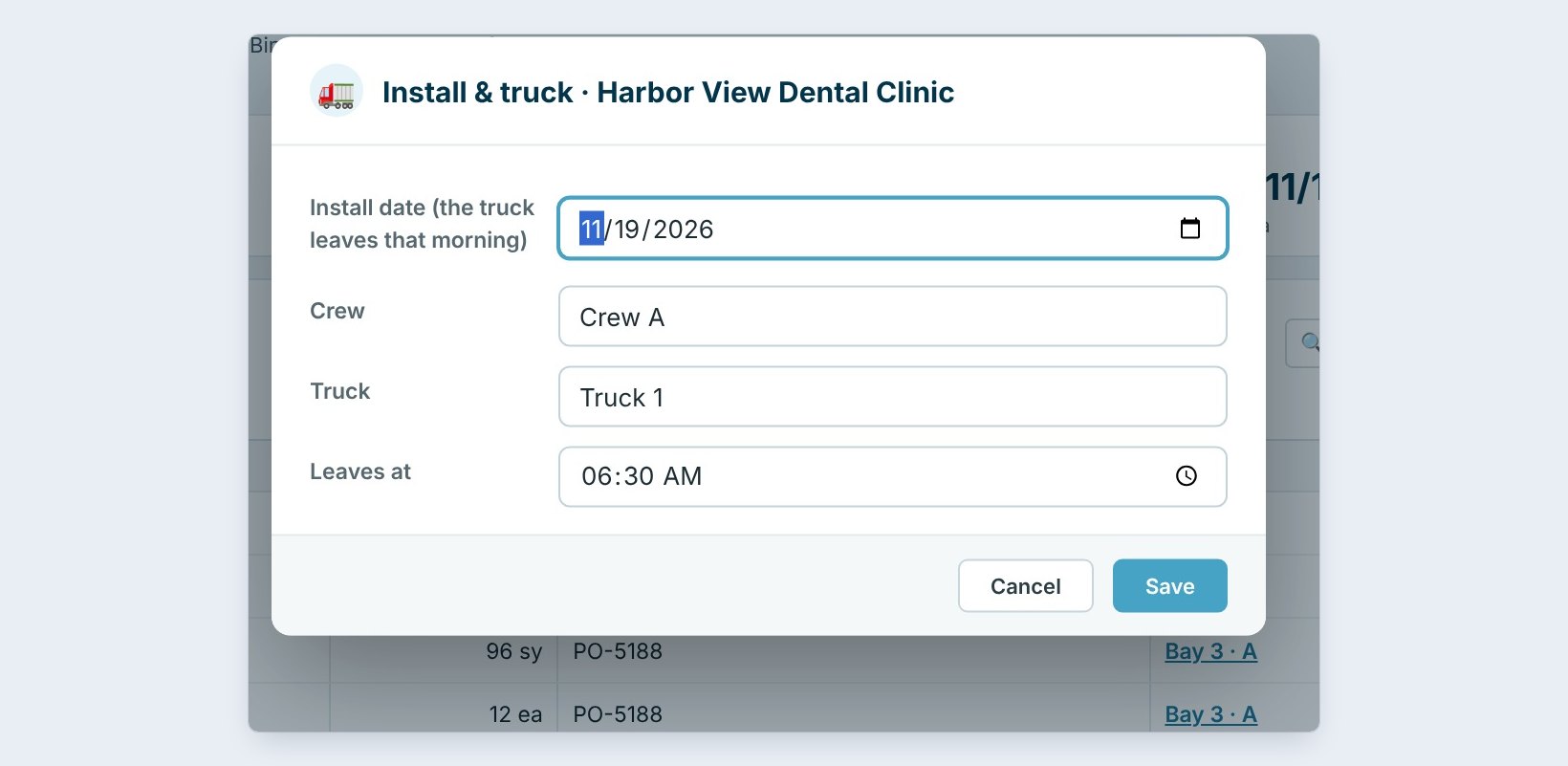
On Pull & load, click Install & truck. Set the Install date, which is the morning the truck leaves, the Crew, the Truck and Leaves at. Harbor View Dental Clinic goes on 11/19 with Crew A on Truck 1, leaving at 6:30 AM.
The crew list comes from Warehouse › Settings › Crews and the trucks from Trucks. The date and truck also go on the job’s Work Order for Warehouse.
2Move each item to a staging lane
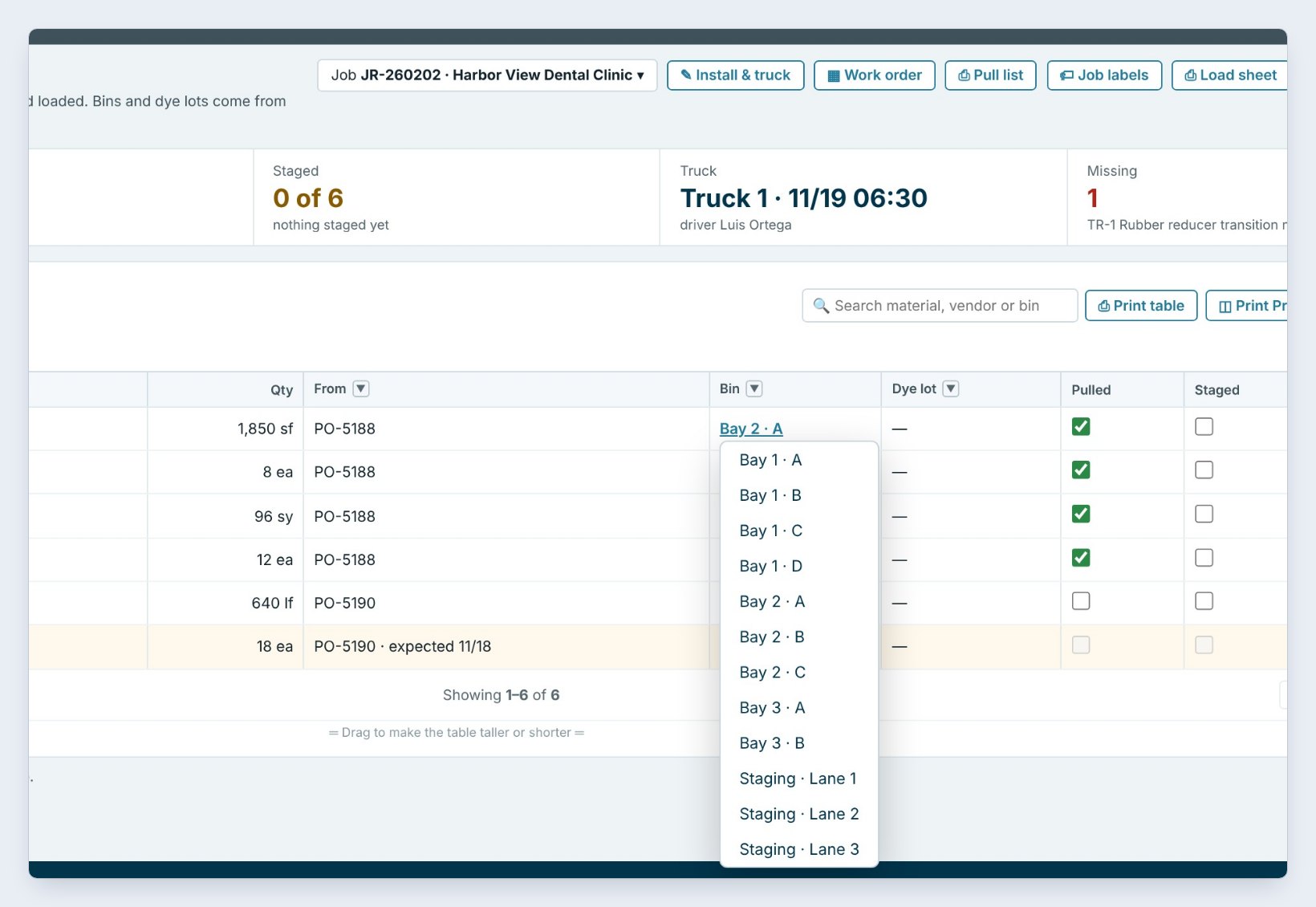
Each item shows the Bin it was received into. As you pull it, click the bin and pick the lane where the job is being staged, here Staging · Lane 3. Pinecrest Middle School already sits in Lanes 1 and 2 for tomorrow, so Harbor View gets its own lane.
The lanes are just bins in Warehouse › Bays & bins: a bay called Staging with bins Lane 1, Lane 2 and Lane 3. Add as many as your floor has.
3Tick each item Staged
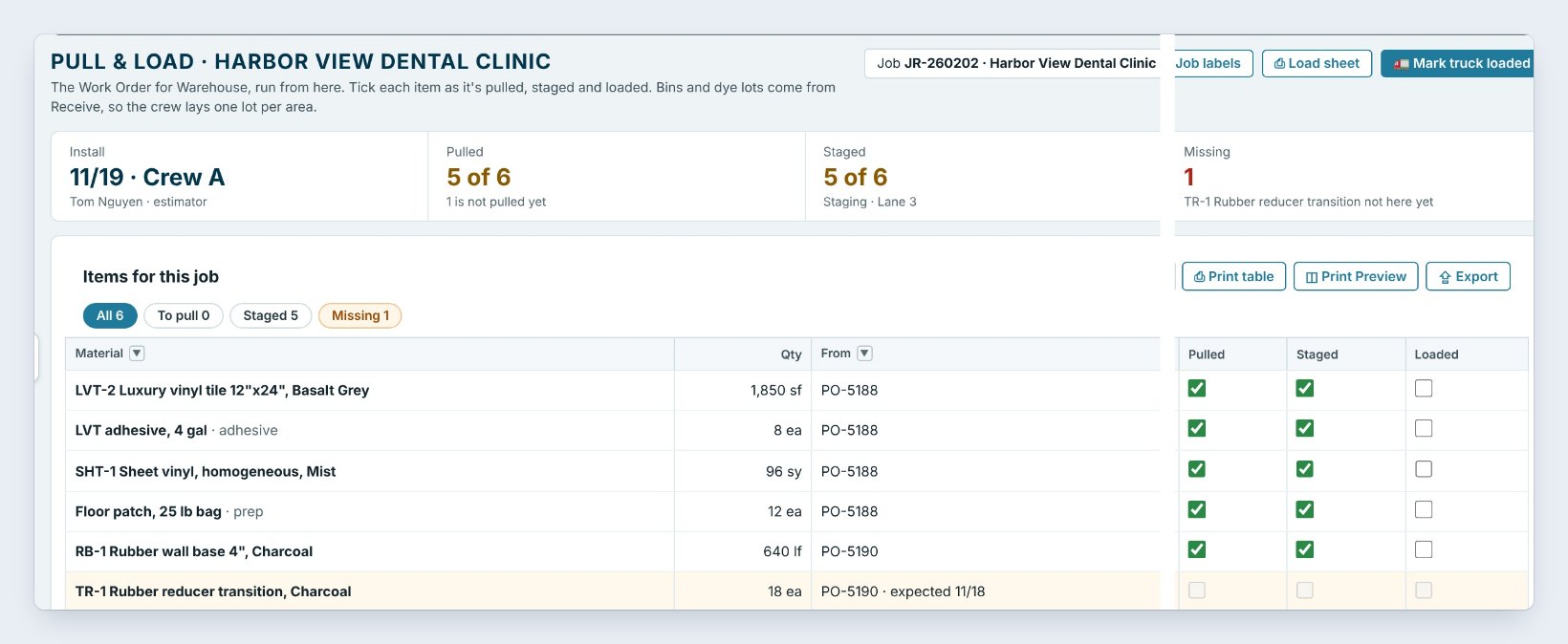
Tick Staged on each item once it is in the lane. The Staged tile counts up, 5 of 6, and names the lane. The status on the Warehouse dashboard goes from Not started to Staging.
The sixth line, 18 rubber reducers, has not arrived. The Missing tile says 1, and on the dashboard the job reads Waiting on TR-1 Rubber reducer in red, because the install is less than 7 days out.
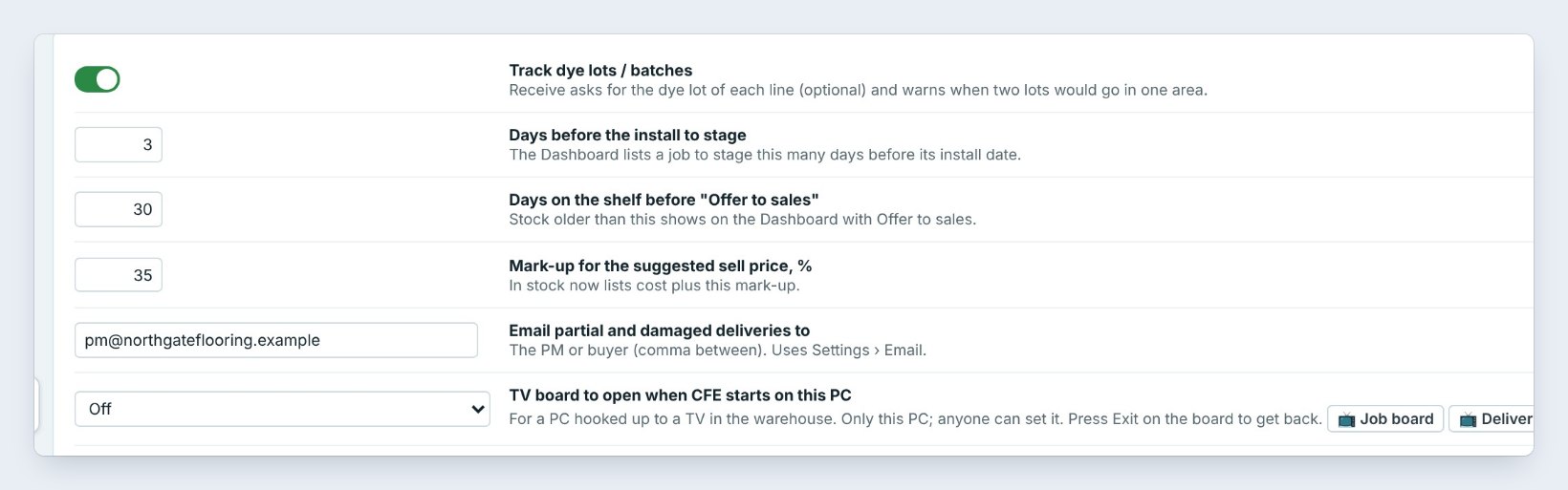
Stage the day before, not the morning of. Warehouse › Settings › Days before the install to stage is 3 here, so a job shows on the dashboard as Jobs to stage three days ahead, while there is still time to chase a missing item.
4Or stage it by scanning the job labels with a phone
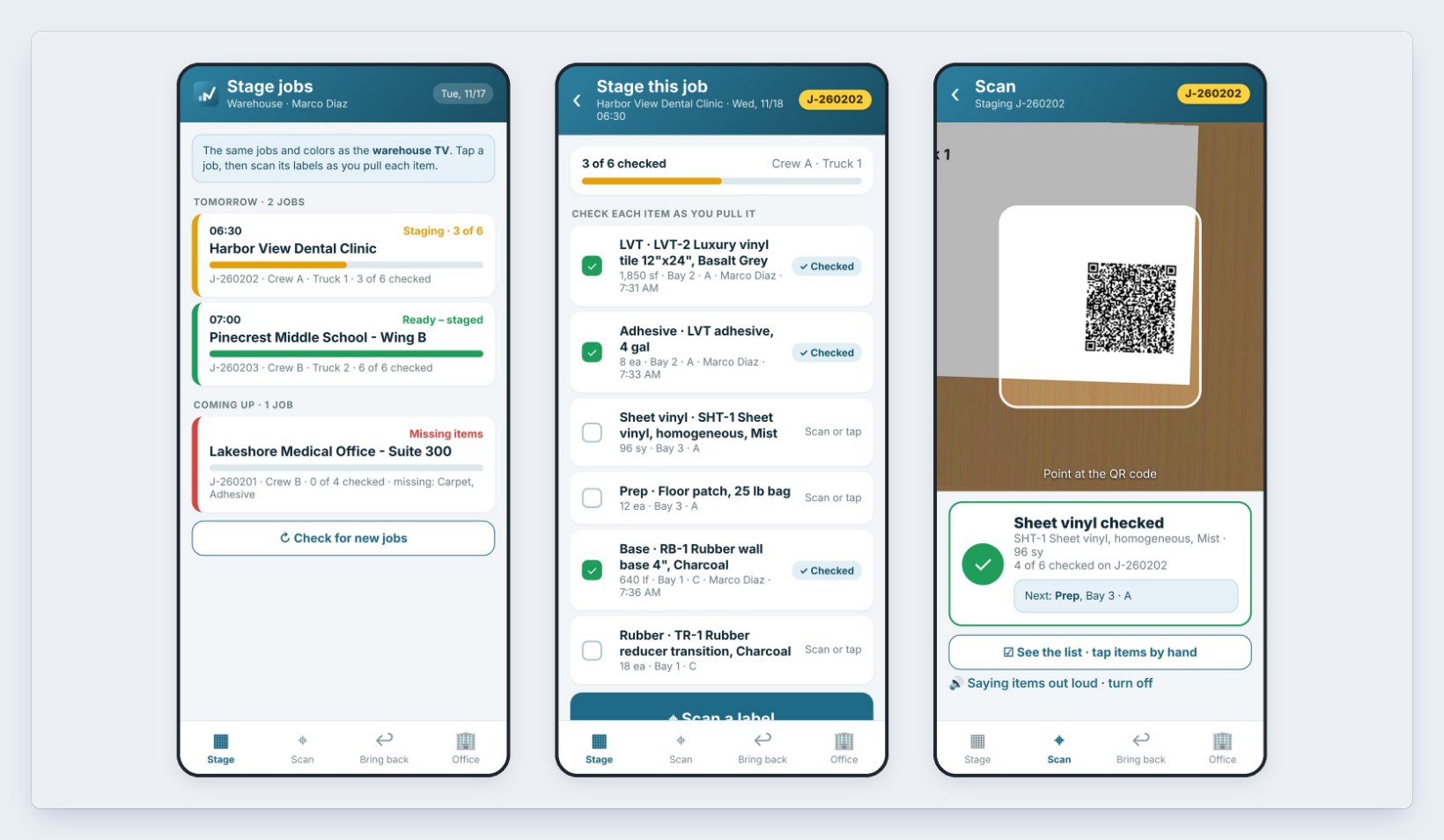
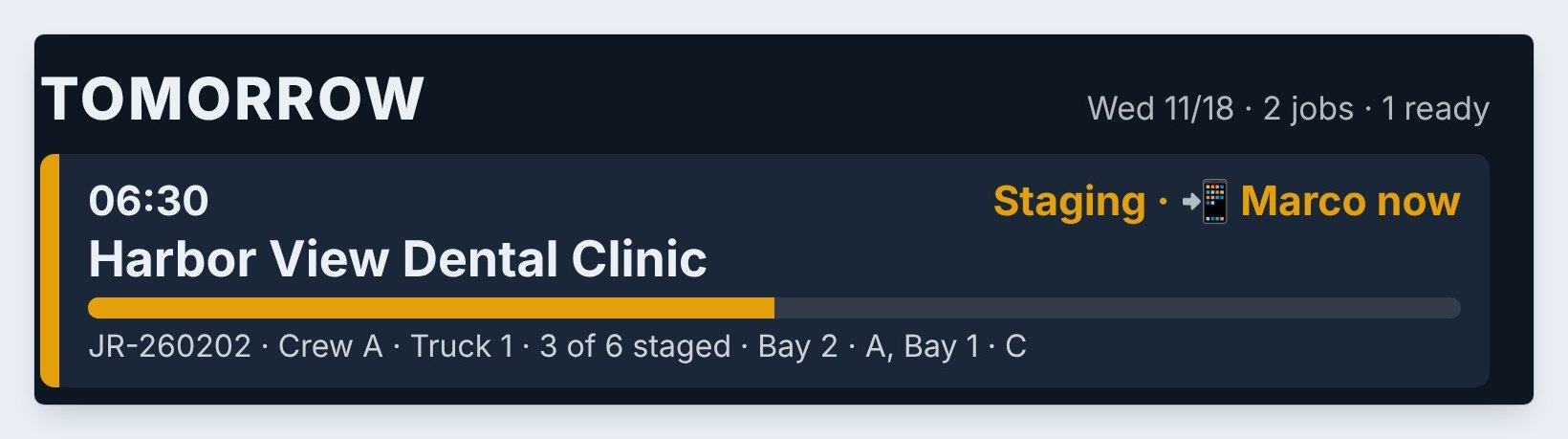
With Warehouse phones on, the person staging doesn’t need the PC. On the phone, tap Stage and pick the job. The list is the same as the warehouse TV: what is staging, what is ready and what is missing.
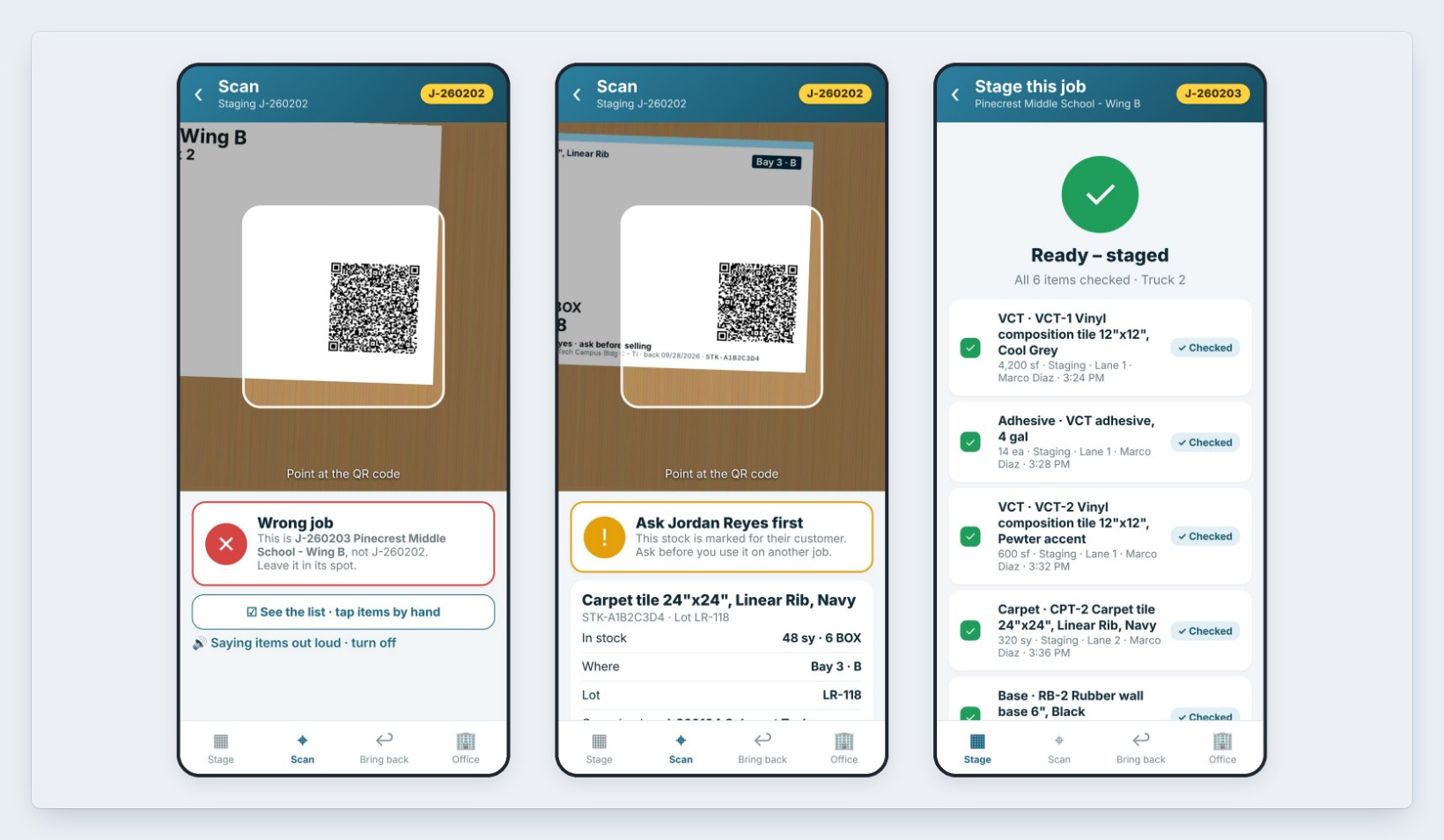
Tap Scan a label and point the camera at each job label as the item goes into the lane. The phone says Sheet vinyl checked, counts 4 of 6, and tells you the next item and its bin. Can’t scan a torn label? Tap See the list and tick it by hand.
Every scan ticks Staged on Pull & load with the name and the time, and the TV board shows who is staging the job right now.
5Receive the last item and get to Ready for pickup
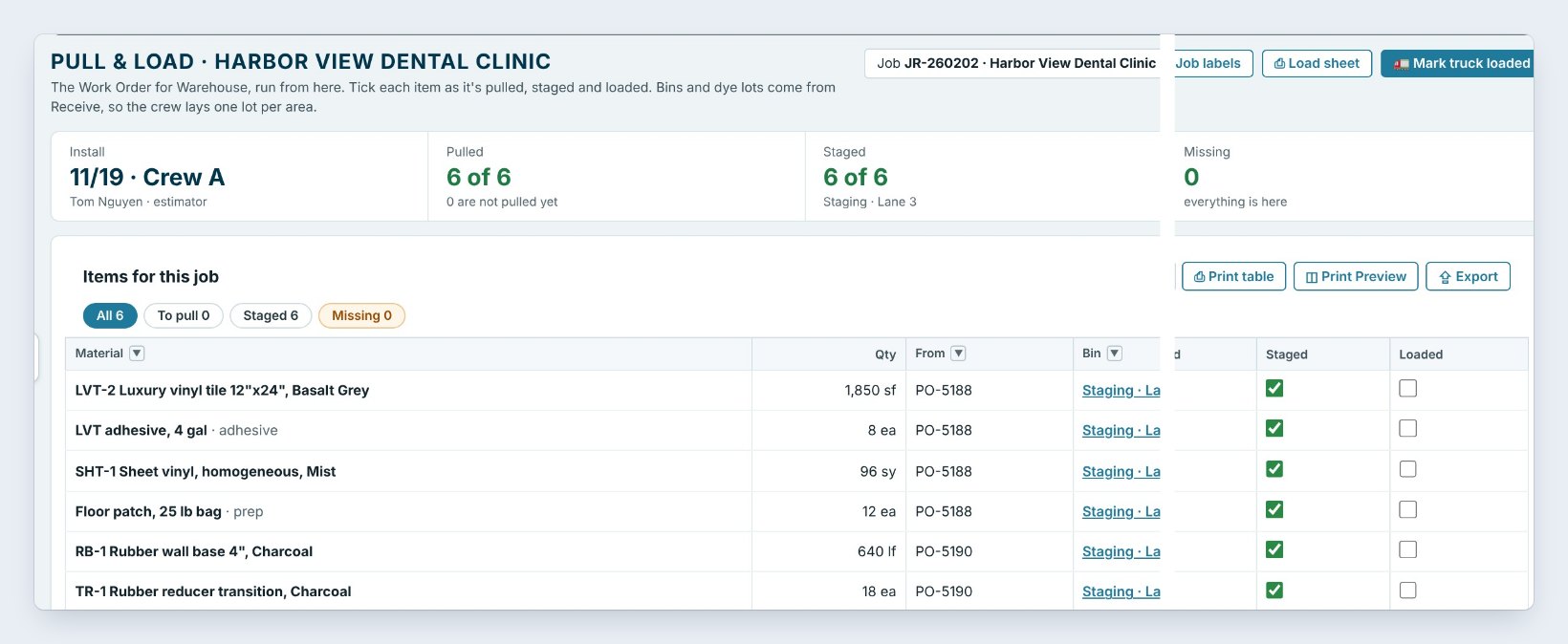
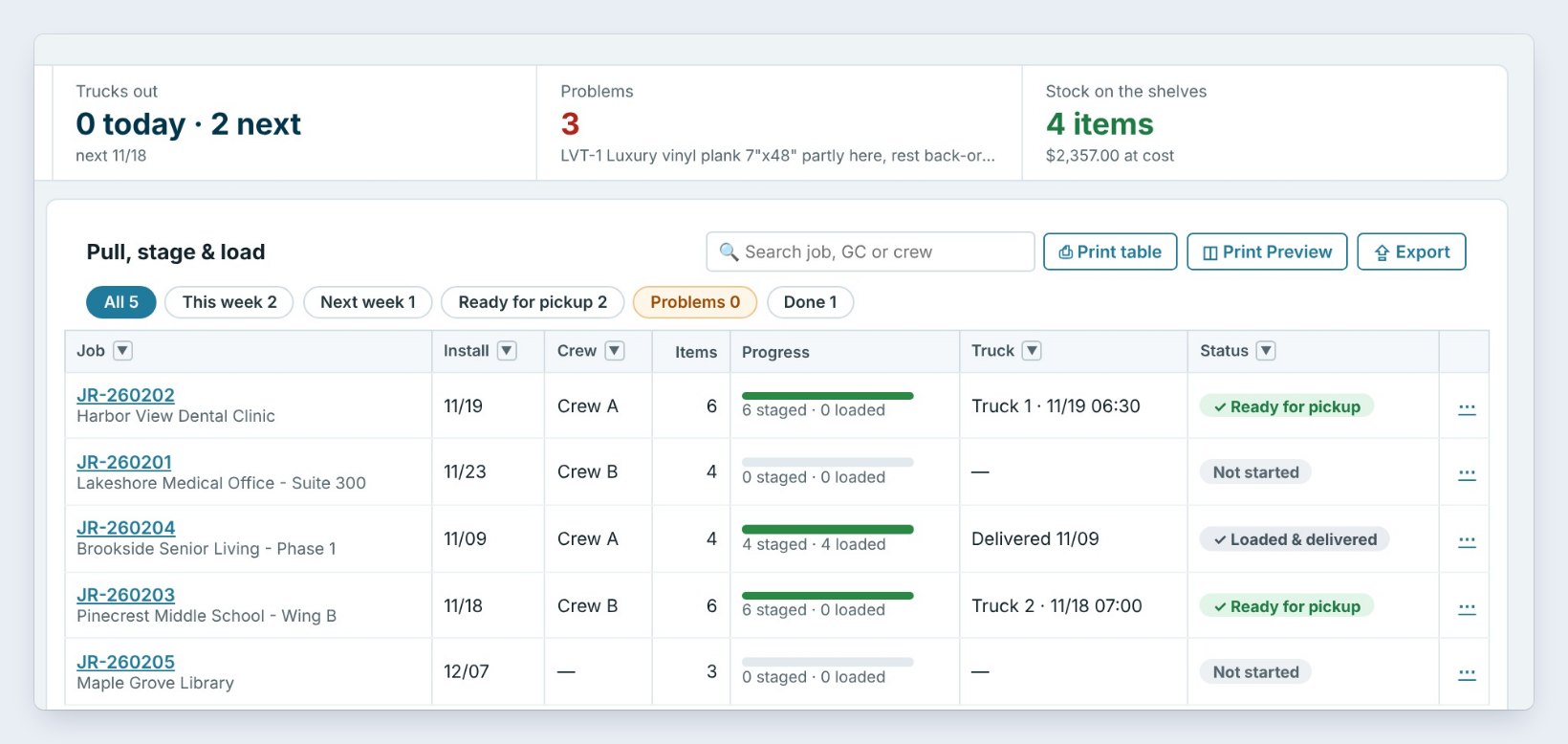
The reducers arrive on PO-5190. Receive them straight into Staging · Lane 3, then tick the last Staged box. With every item here and staged, Missing goes to 0 and the job turns Ready for pickup, in green, on the dashboard, on Pickups tomorrow and on the warehouse TV board.
6What can go wrong, and how to fix it
Waiting on an item the day before. Call the vendor from the dashboard’s Late deliveries box, or check the Stock list for a match. If the crew can start without it, they can: the truck can still be loaded with what is here.
The job never shows on Jobs to stage. It has no install date. Set it with Install & truck, or book it on the Schedule.
The phone says Wrong job. That label belongs to another job, here Pinecrest. Leave it in its spot. If the phone says Ask a salesman first, it is stock held for that salesman’s customer: call before you use it.
Staging starts too late every week. Raise Days before the install to stage in Warehouse › Settings, from 3 to 5, so jobs show up earlier.
Worked example: two jobs, two days
The warehouse on Tuesday, November 17:
| Job | Install | Lane | Status |
|---|---|---|---|
| Pinecrest Middle School – Wing B | Wed 11/18, Crew B, Truck 2, 7:00 | Lanes 1 and 2 | Ready for pickup |
| Harbor View Dental Clinic | Thu 11/19, Crew A, Truck 1, 6:30 | Lane 3 | Waiting on TR-1, then Ready |
| Lakeshore Medical Office | Mon 11/23, Crew B | – | Not started, 2 back-orders |
By 3 PM both of this week’s jobs were Ready for pickup, and Lakeshore was on the Problems list with its back-ordered LVT and base.
What to do next
Next, load the truck and send it with Load the truck and mark it delivered.
Stage your next job the day before
The warehouse is part of BidWise Business. Start with the 30-day free trial, no credit card.
Frequently Asked Questions
Do I have to use staging lanes?
No. Staged is a tick; the lane is optional. Lanes help the crew find a job on a busy floor and print on the Pickups list and TV board.
What does Ready for pickup need?
Every item of the job here, and every item ticked Staged.
Do I need the phone to stage?
No. Ticking Staged on the PC does the same thing. The phone just lets the person in the lane do it with a scan, and needs Warehouse phones turned on in Warehouse › Settings.
Does Personal have staging?
Yes: the install date, Staged ticks and Ready for pickup. Trucks, lanes and bins are on Business.

Written by
Cristian Valcu – Founder & CEO, Commercial Flooring Estimating LLC
Cristian has estimated commercial flooring for over 20 years and built BidWise around the way flooring contractors actually price, propose and track their bids.
Last updated: