BidWise guide · Your data, backups and support
Back Up and Restore After a Crash: Company Copy and Backups
BidWise protects your bids twice: the company copy sends every save to your company folder right away, and the daily backup saves the estimates, users, settings and logo to the cloud and to the PC once a day. To restore, open Settings › Backup / restore › Restore from backup and pick Settings only, One estimate or Everything.


Why it matters
A dead hard drive, a stolen laptop or one wrong click should cost you minutes, not years of bids and pricing.
The six steps
- Know your two safety netsCompany copy on every save; daily backup.
- Set up the daily backupCloud folder, PC folder, once a day.
- One folder for the officeShared office folder, or a Google Drive link.
- Undo a small mistakeOne estimate, or Settings only.
- After a crash: EverythingNew PC, same folder, restore Everything.
- What can go wrongCommon snags and the fix for each.
1Know your two safety nets
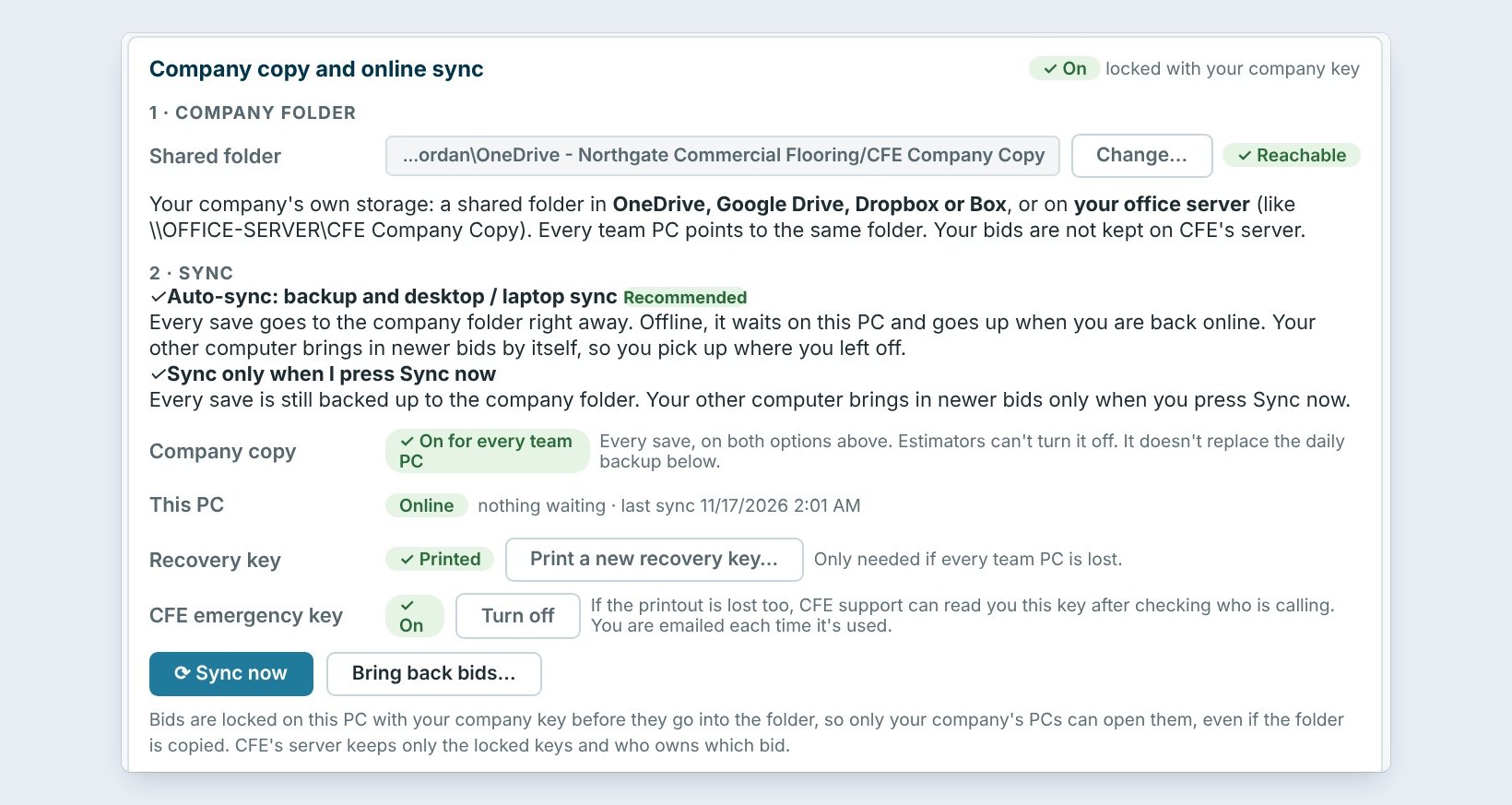
Open Settings › Backup / restore. On BidWise Business, the top card is the company copy. Every save goes to your company's own shared folder right away, in OneDrive, Google Drive, Dropbox, Box or an office server. If the PC is offline, the save waits and goes up when it is back online. It is on for every team PC, and estimators can't turn it off.
The second net is the daily backup. It doesn't replace the company copy, and the company copy doesn't replace it: the copy holds the latest bids, the backup holds a snapshot of each day, with users, settings and logo, going back a year.
2Set up the daily backup
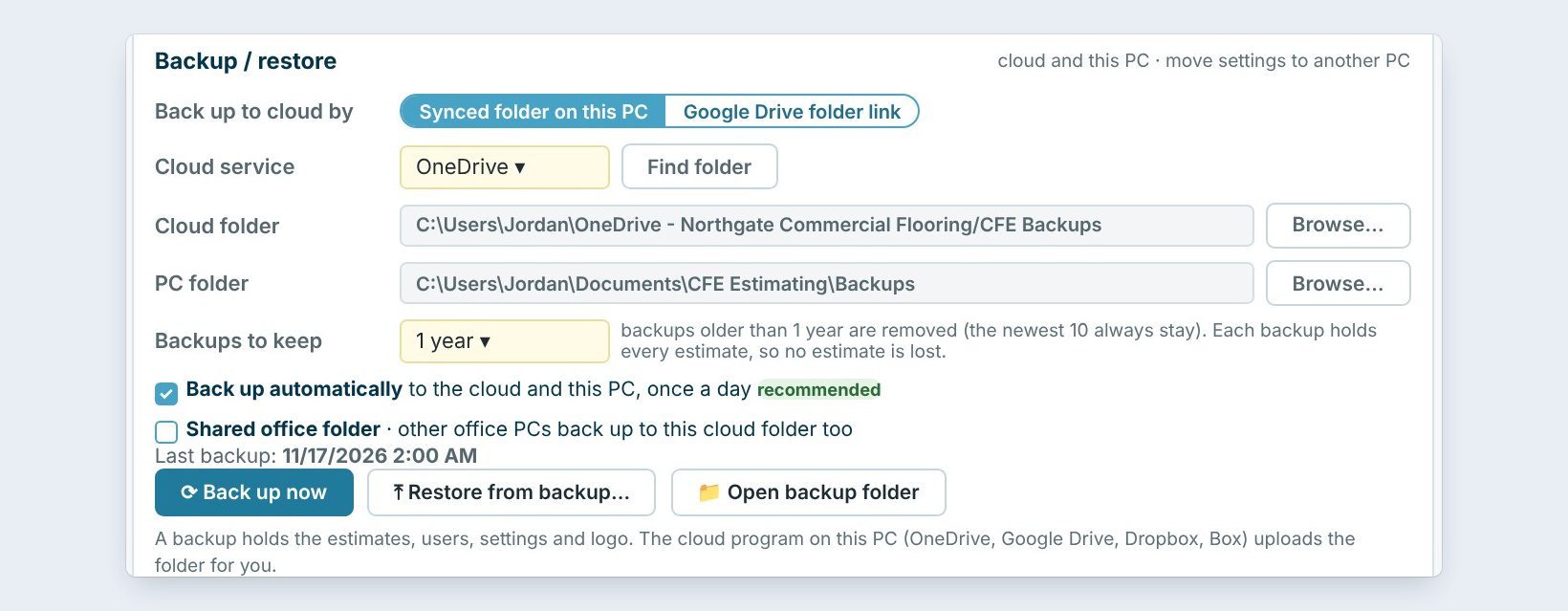
Set Back up to cloud by to Synced folder on this PC and pick your Cloud service, here OneDrive. Find folder fills in the cloud folder for you. The PC folder keeps a second copy on this computer.
Backups to keep is 1 year: older backups are removed, but the newest 10 always stay. Leave Back up automatically ticked, so it runs once a day. Last backup shows when it last ran, and Back up now runs one right away.
Before a big change, like a new price list or a Settings overhaul, click Back up now. If you don’t like the result, you can go back to that exact minute.
3Back up the whole office to one folder
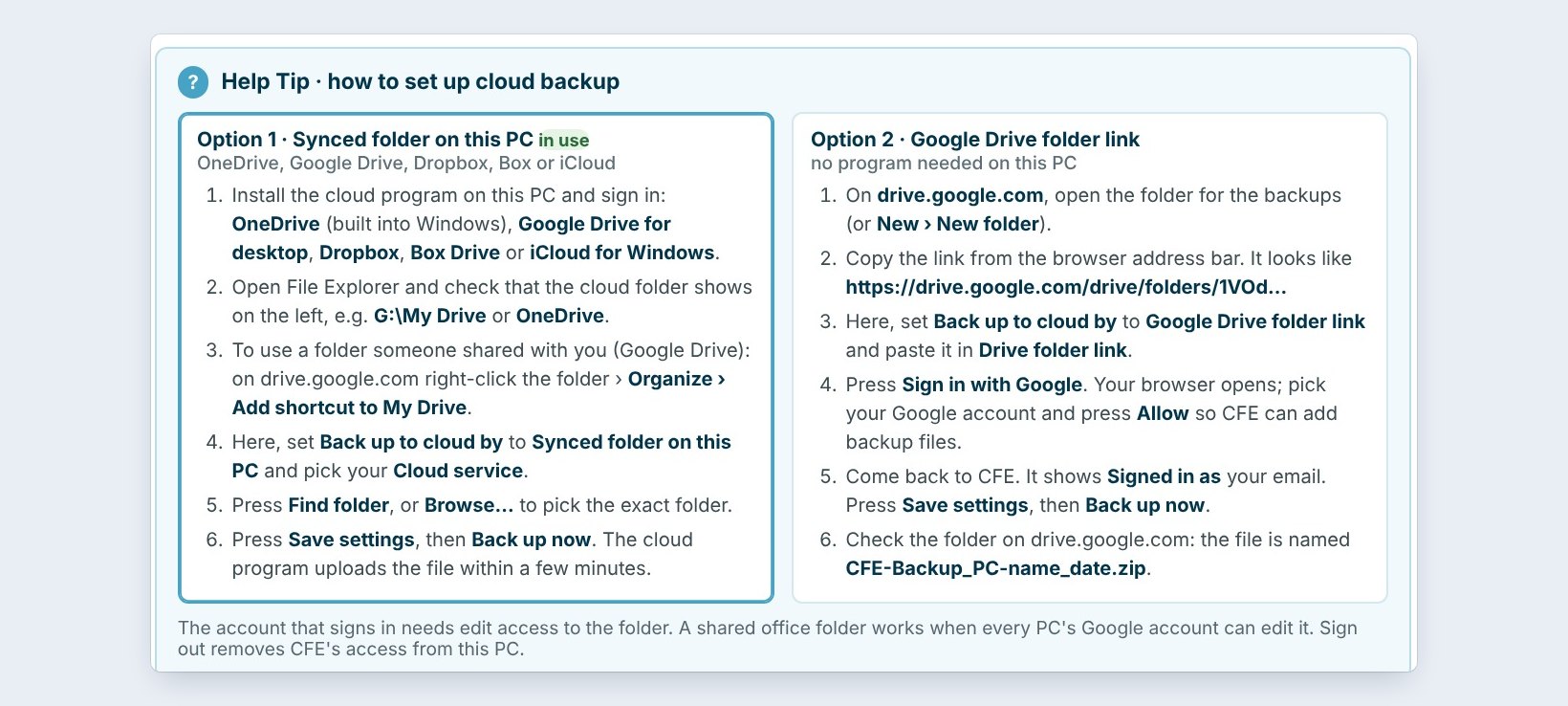
The Help Tip on the card shows two ways in. Option 1 uses the cloud program on the PC: OneDrive is built into Windows, or install Google Drive, Dropbox, Box or iCloud. Option 2 needs no program: paste a Google Drive folder link and sign in with Google.
Tick Shared office folder and every office PC backs up to the same cloud folder. Each PC names its backups with its PC name, so nothing is overwritten, and a new PC can start from the office's data and settings.
4Undo a small mistake
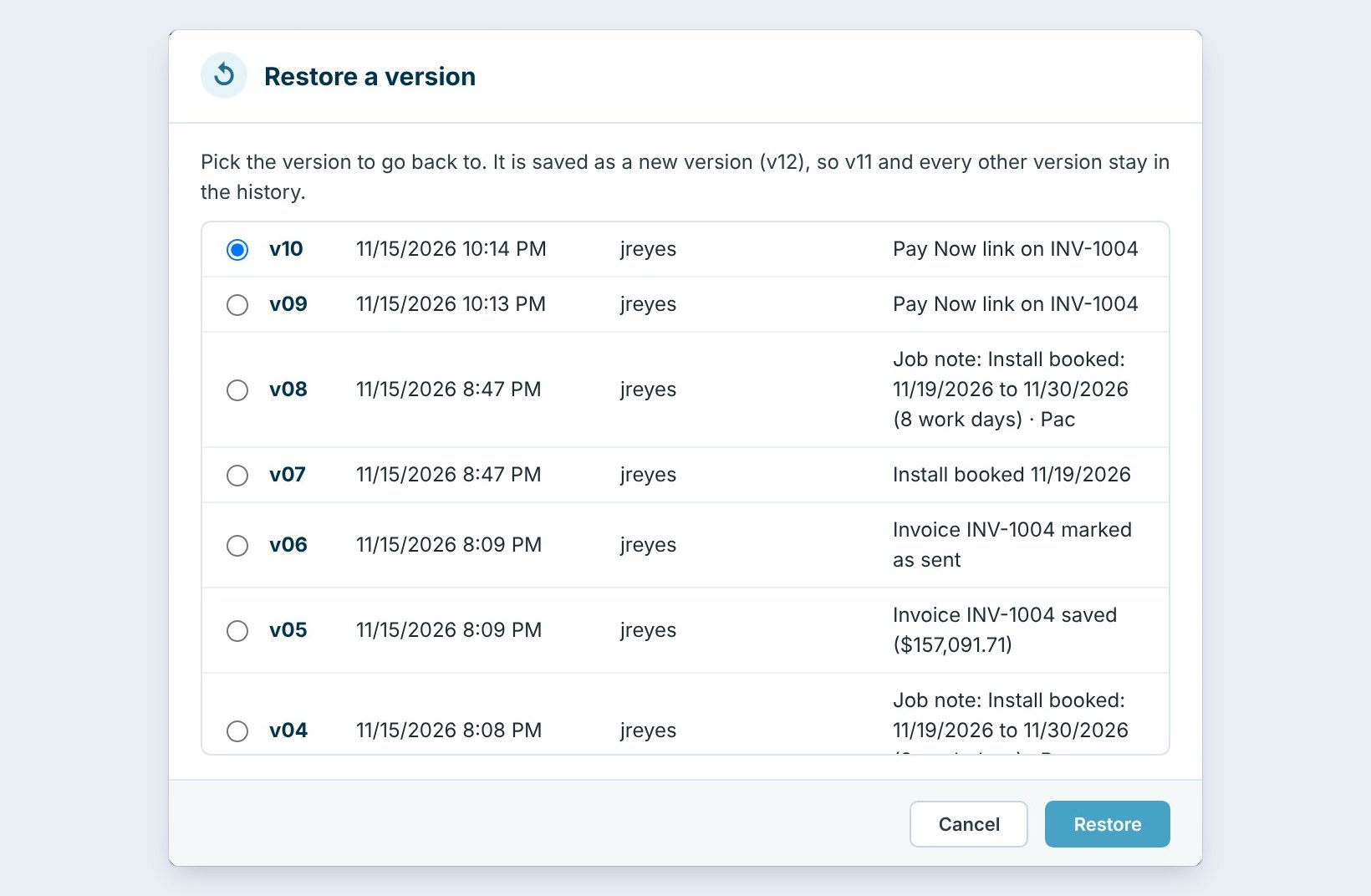
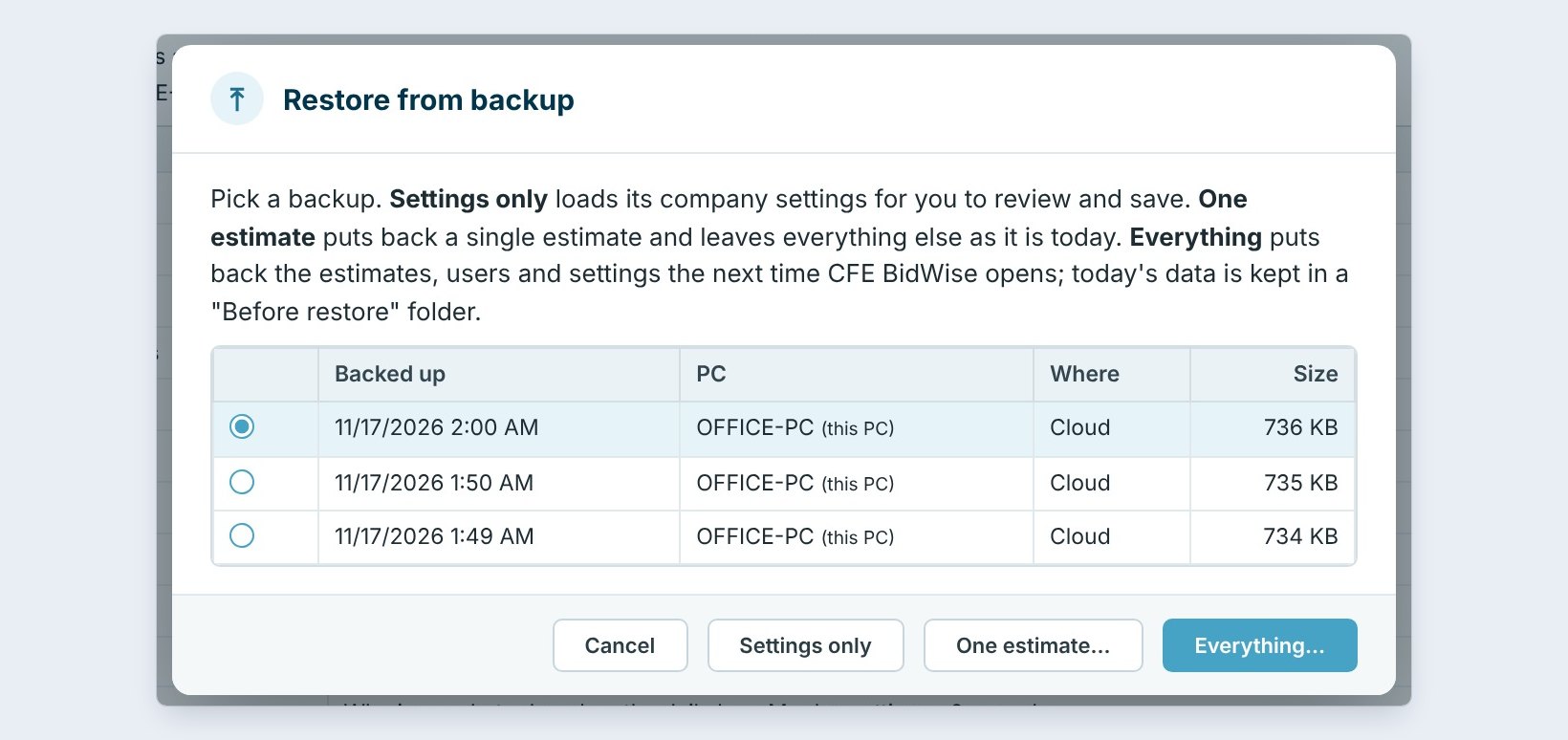
Saved over a bid by mistake? First try File › Info › Restore a version, which lists every saved version of that estimate. Unsaved work after a crash waits in File › Open › AutoSave.
Deleted the bid, or need it from last week? Click Restore from backup, pick the day, and click One estimate. It puts back that single estimate and leaves everything else as it is today. Settings only loads the company settings from that backup for you to review before you save, handy if someone changed the tax rates or the terms.
5After a crash, restore Everything
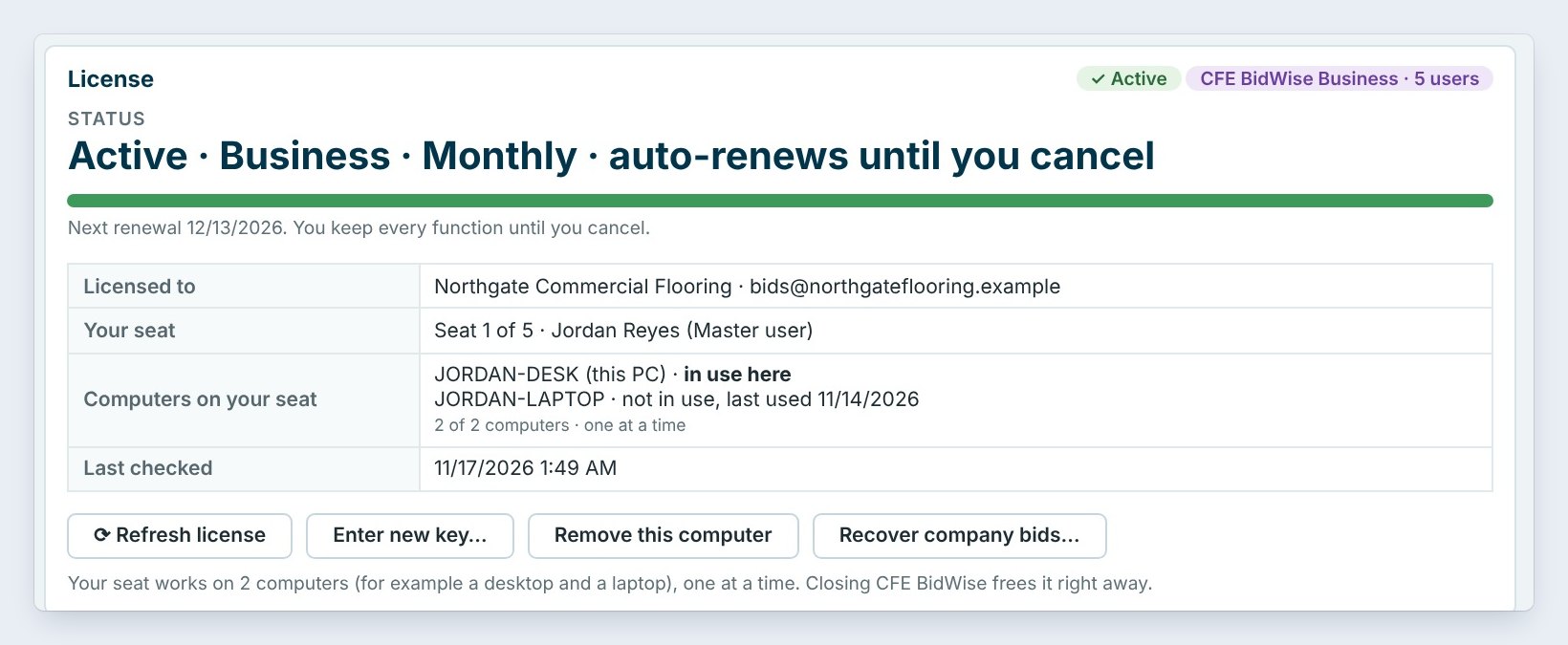
The PC died. Install BidWise on the replacement, sign in, and enter your license key in About › License info. Your seat works on 2 computers, so remove the dead one there if it is listed.
Point Backup / restore at the same cloud folder, click Restore from backup, pick the newest backup and click Everything. The estimates, users and settings come back the next time BidWise opens. Today's data is kept in a Before restore folder, so nothing is lost even if you pick the wrong day. On a team, bids saved after that backup come back from the company copy.
Every PC in the company died at once? The Master user uses About, License info, Recover company bids with the printed recovery key. The recovery key guide shows how.
6What can go wrong, and how to fix it
Last backup is days old. The PC was off or the cloud program is signed out. Open OneDrive, Google Drive or Dropbox, sign in, then click Back up now. The restore list is empty. You are looking at a different folder; pick the same cloud folder as the old PC and wait for the files to download.
The company folder says Can’t reach it. The shared folder moved or the cloud program stopped. Click Change and pick the folder again; saves wait on the PC until then. Restored the wrong day? Your data from before the restore is in the Before restore folder.
Worked example: which net catches which mistake
Northgate Commercial Flooring, with the company copy on and a daily backup to OneDrive:
| What happened | Where it comes back from | Time to fix |
|---|---|---|
| Typed over a bid and saved | File › Info › Restore a version | 1 minute |
| BidWise closed before saving | File › Open › AutoSave | 1 minute |
| Deleted a bid last Tuesday | Restore from backup › One estimate | 2 minutes |
| Someone changed the tax rates | Restore from backup › Settings only | 3 minutes |
| Laptop stolen | New PC › Everything, then the company copy | 20 minutes |
Nothing on this list needs a call to BidWise, and none of the bids live on BidWise’s servers.
What to do next
Next: keep the whole team in step with company data sync.
Never lose a bid
Company copy and daily cloud backups come with BidWise. Start with the 30-day free trial, no credit card.
Frequently Asked Questions
How long are backups kept?
One year by default. Older backups are removed, but the newest 10 always stay.
Does the backup include my settings and logo?
Yes. A backup holds the estimates, users, settings and logo.

Written by
Cristian Valcu – Founder & CEO, Commercial Flooring Estimating LLC
Cristian has estimated commercial flooring for over 20 years and built BidWise around the way flooring contractors actually price, propose and track their bids.
Last updated: