BidWise guide · Your data, backups and support
Company Data Sync: Keep Every Team PC in Step
Company data sync gives every team PC the same GCs, subs, paperwork, vendors, prices, orders, stock and invoices. Each change is saved on the PC first, then a locked copy goes to your company’s shared folder within about a minute, and the other PCs bring it in by themselves. If two people change the same thing, the newest change wins and the older value is kept in History.


Why it matters
When the estimator adds a GC contact, the office manager pays a sub and the warehouse receives a pallet, everyone should see it, without emailing spreadsheets around.
The six steps
- See what syncsTwelve areas, last change and status.
- Pick the company folderThe same folder as the company copy.
- Work as usualSaved here first, out within a minute.
- Two people, same recordNewest wins; the older value goes to History.
- Who sees whatEach user’s rights still apply.
- What can go wrongCommon snags and the fix for each.
1See what goes with the sync
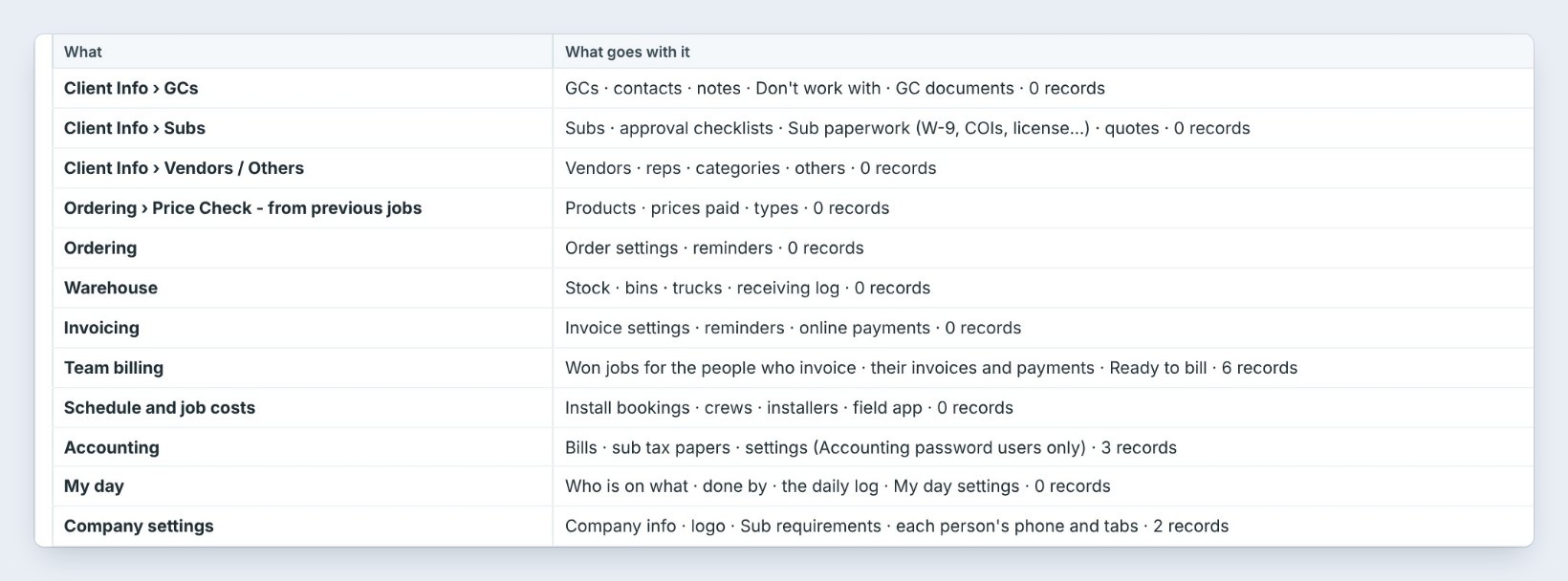
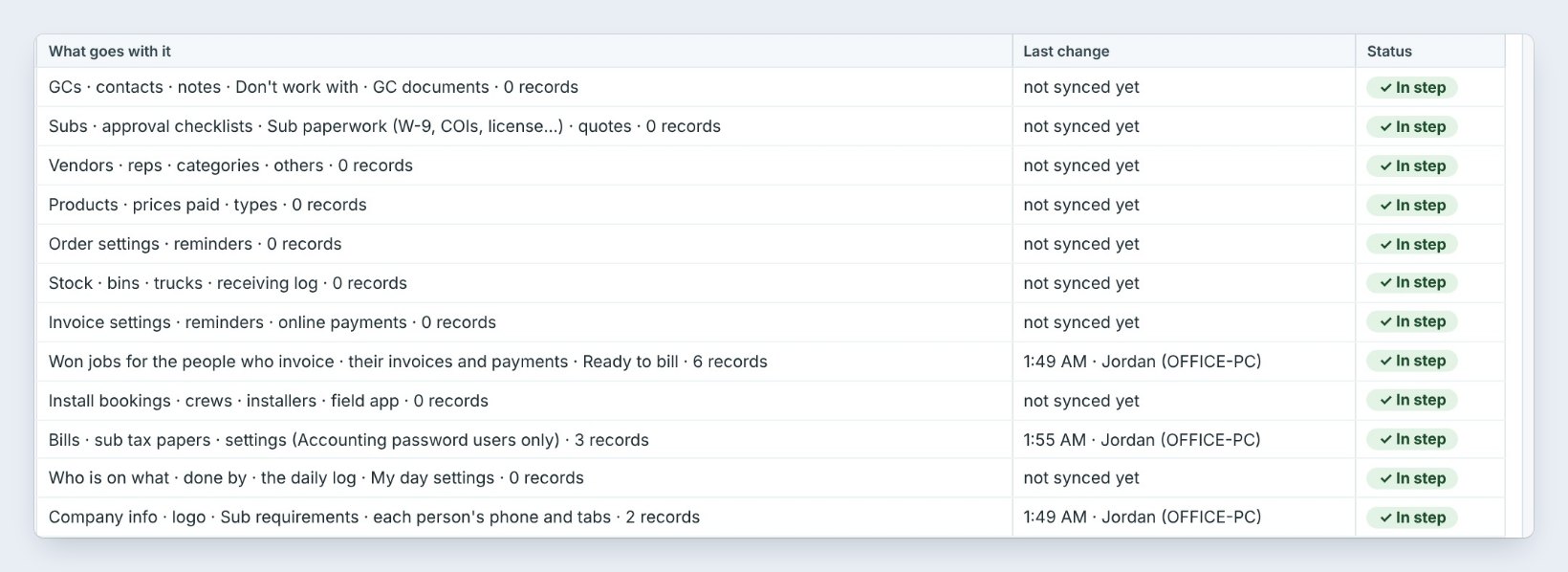
Open Settings › Backup / restore. The Company data sync card lists every area that travels between team PCs: GCs with contacts and notes, Subs with their paperwork, Vendors, Price Check history, Ordering, Warehouse stock and bins, Invoicing, Team billing, Schedule and job costs, Accounting, My day and Company settings.
Last change says when, who and on which PC, like 1:55 AM, Jordan (OFFICE-PC). In step means this PC has everything. Bids travel separately, in the company copy.
2Point every PC at the company folder


The sync uses the same folder as the company copy of bids, in OneDrive, Google Drive, Dropbox, Box, or an office server. Every team PC picks that one folder. Sub and GC papers and sub quote PDFs go to a files folder inside it, so every PC opens the same W-9s and COIs.
Everything is locked with your company key before it leaves the PC, so only your company's PCs can read it, and nothing is stored on BidWise's servers. Pick Auto-sync, recommended, or Sync only when I press Sync now.
3Work as usual, the sync runs by itself

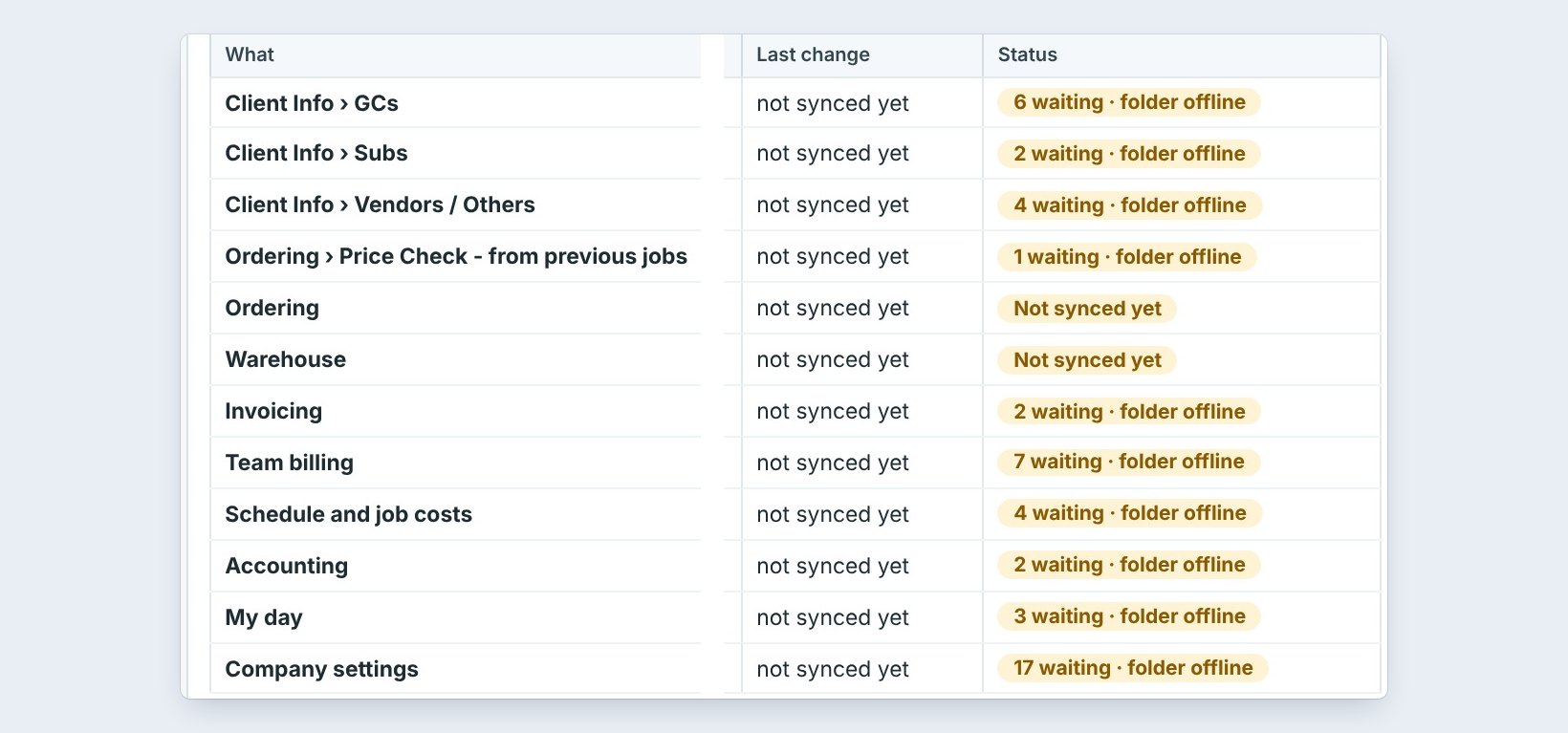
Each change is saved on your PC first, then goes to the company folder within about a minute. The other PCs bring it in by themselves and show a note like 3 changes came in from the team. The status bar of every company list reads Synced with the team and the time.
Offline? Keep working. Changes wait on the PC and go up when it is back online; the card shows how many are waiting. Sync now sends and brings in everything right away, handy before you leave for a site visit.
Before you close the laptop for the road, click Sync now. You leave with the latest prices and GC contacts, and the office gets your changes.
4When two people change the same thing


Ana changes a GC's phone number at 9:02 and Tom changes it at 9:05. The newest change wins, so Tom's number stays, and Ana's goes into History with who and when. Open History and click Use this one to bring hers back. No PC is ever locked out, and nothing is lost.
Deleted a sub by mistake? Removed keeps every deleted record for 30 days. Click Put back, and it returns to every PC with the next sync.
5Who sees what
The sync moves the data, but each person still sees only what their rights allow. Invoicing and Accounting appear only for the people allowed, so an estimator's PC can hold the company's invoices without that estimator ever opening them.
On BidWise Personal, the same sync keeps your own desktop and laptop in step through your own cloud folder. The daily backup still runs as before, on top of the sync.
6What can go wrong, and how to fix it
Folder offline. The cloud program is signed out or the server is down. Changes wait on the PC; sign in again, and they go up. A PC shows waiting for hours. It is offline or using a different folder: check that every PC points at the same company folder.
Waiting for the company key. The company key isn't on this PC yet. Connect to the internet and wait a minute. If every team PC was lost, the Master user uses Recover company bids with the printed recovery key. Last problem on the card names anything else, and Help › Send log sends it to BidWise.
Worked example: one morning, three PCs
Northgate Commercial Flooring runs OFFICE-PC (Jordan), EST-2 (Tom) and the warehouse PC (Luis):
| Time | What happens | Everyone else sees it |
|---|---|---|
| 7:05 AM | Tom adds a new GC contact on EST-2 | By 7:06 AM |
| 7:20 AM | Luis receives 12 rolls into bin B-4 | By 7:21 AM, in Warehouse stock |
| 8:10 AM | Jordan pays a sub bill in Accounting | Only on the PCs allowed into Accounting |
| 9:02 / 9:05 | Ana and Tom both edit a GC phone | Tom’s wins; Ana’s is in History |
| 10:30 AM | Tom on a site visit, offline, edits 2 prices | Goes up when he is back online |
No spreadsheets emailed around, and nothing typed twice.
What to do next
Next: see who owes you money.
One office, one set of lists
Company data sync comes with BidWise Business. Start with the 30-day free trial, no credit card.
Frequently Asked Questions
Are my bids stored on BidWise’s servers?
No. Everything goes to your own company folder, locked with your company key.
How fast does a change reach the other PCs?
Within about a minute while both PCs are online.

Written by
Cristian Valcu – Founder & CEO, Commercial Flooring Estimating LLC
Cristian has estimated commercial flooring for over 20 years and built BidWise around the way flooring contractors actually price, propose and track their bids.
Last updated: