BidWise guide · Your data, backups and support
Export, Import and Move Your Data to a New PC
Settings › Export my data saves your bids, estimate lines, contacts, jobs, invoices, payments and bills as Excel, CSV, a QuickBooks Desktop .IIF file or JSON. Import my data brings lists in from a BidWise export or another program, and a full backup moves everything to a new PC in a few minutes.


Why it matters
Your bids are years of pricing history. You should be able to take them anywhere, and move to a new computer without retyping a thing.
The five steps
- Pick what to exportPresets or tick the lists you want.
- Pick the formatExcel, CSV, QuickBooks Desktop or JSON.
- Export and checkSave the file; every export is logged.
- Import my dataFrom a new PC, a BidWise file, or another program.
- Move to a new PCBack up the old PC, restore Everything on the new one.
- What can go wrongCommon snags and the fix for each.
1Pick what to export
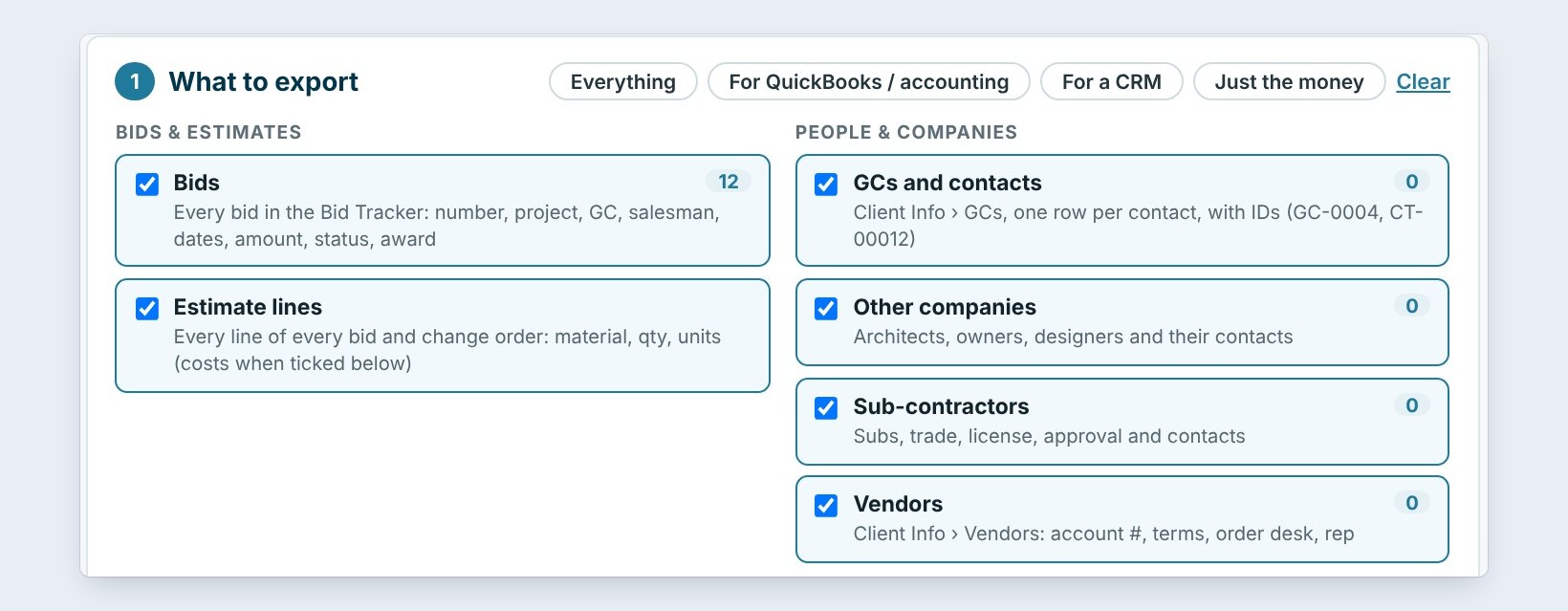
Open Settings › Export my data. Step one is What to export. The quick presets pick the lists for you: Everything, For QuickBooks / accounting, For a CRM, or Just the money.
Or tick each list yourself. Under Bids and estimates there are the Bids from the Bid Tracker and every Estimate line. Under People and companies, the GCs and contacts, other companies, subs and vendors. Under Jobs and money, Won jobs, Invoices, Payments received and Job costs. Accounting adds bills and bill payments once Accounting is unlocked.
2Pick the format
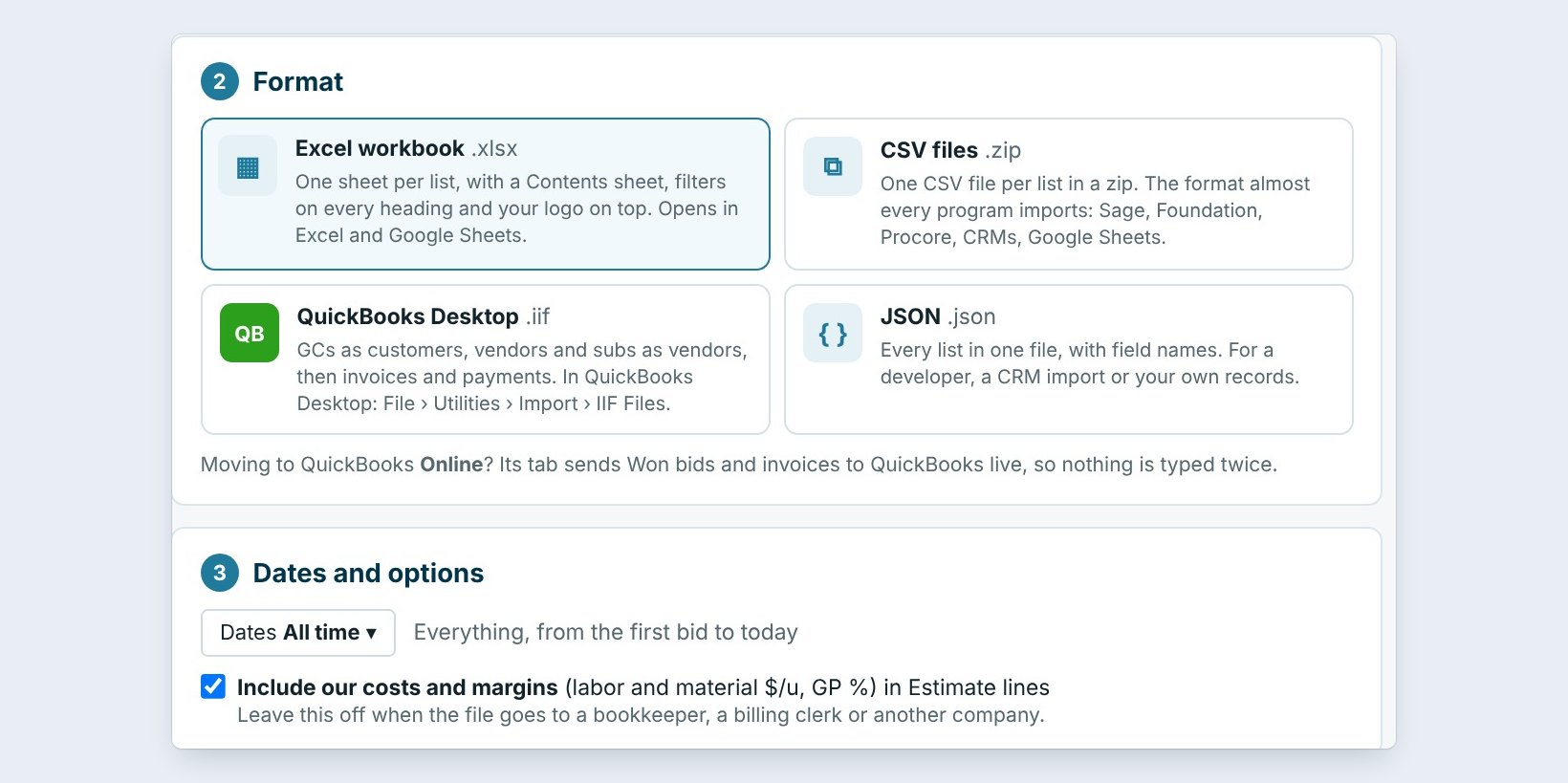
Step two is the Format. An Excel workbook gives one sheet per list, with a contents sheet, filters on every heading and your logo on top. CSV files come in a zip, one file per list, the format almost every program imports. QuickBooks Desktop writes an .IIF file: GCs as customers, vendors and subs as vendors, then invoices and payments. JSON is for a developer or a CRM import.
Step three is Dates and options: all time, or a date range. The box Include our costs and margins adds labor and material cost per unit and GP percent to the estimate lines. Leave it off when the file goes to a bookkeeper, a billing clerk or another company.
Moving to QuickBooks Online? Do not export at all. Its own tab sends Won bids and invoices live, so nothing is typed twice.
3Export, then find it under Past exports
Click Export. The file is saved on this PC, where you choose. Nothing is sent anywhere.
Every export is logged under Past exports and imports with when, who, the format, what was in it and how many rows. On BidWise Business only the Master user can export every bid and its lines, so the whole company's pricing never walks out on a USB drive.
4Bring data in with Import my data


Settings › Import my data has three ways in. Moving to a new PC brings everything: bids, jobs, invoices, payments and settings, from a backup. From a BidWise export file brings back GCs and contacts, other companies, subs and vendors from the Excel or JSON file Export my data made.
From another program takes an Excel or CSV list, such as a QuickBooks customer or vendor list, Outlook contacts or a CRM, with one row per company or per contact. BidWise shows what is in the file first. Nothing changes until you click Bring in, and companies already in BidWise are filled in, never doubled.
5Move everything to a new PC
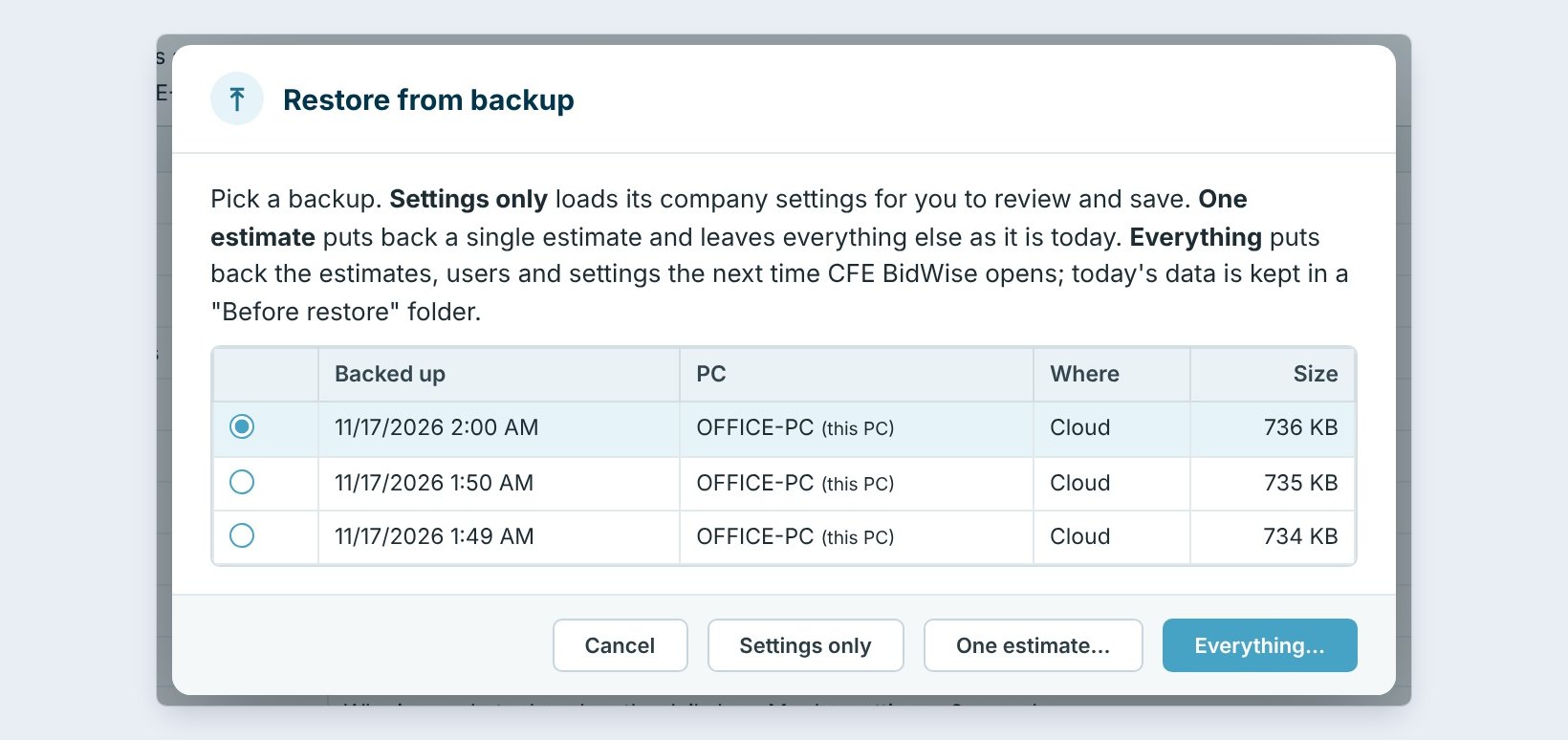
On the old PC, open Settings › Backup / restore and click Back up now. Install BidWise on the new PC and sign in. Point Backup / restore at the same cloud folder, then click Restore from backup, pick the newest one and click Everything. The estimates, users and settings come back the next time BidWise opens, and today's data is kept in a Before restore folder, just in case.
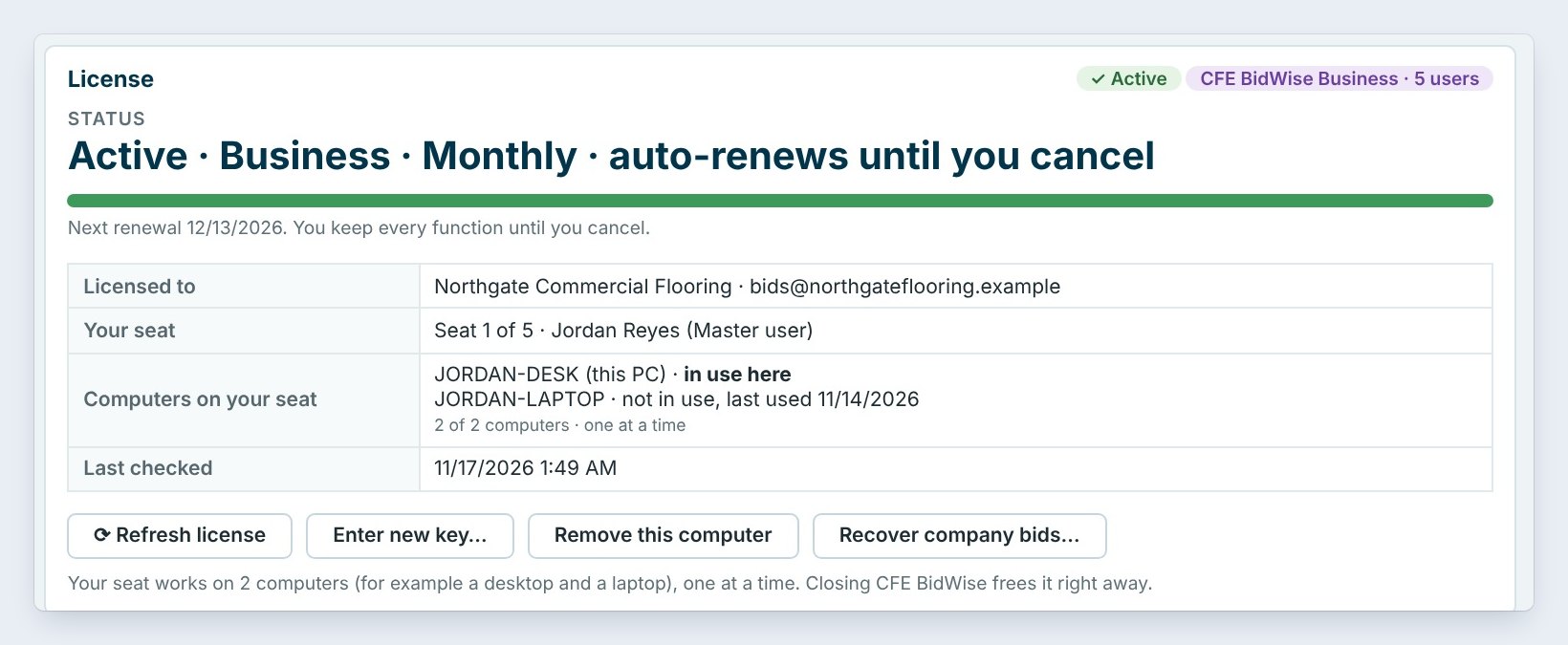
Your seat works on 2 computers, one at a time. If the old PC is retired, open About › License info on it and click Remove this computer, so the new one takes its place.
Do the backup on the old PC the same day you move, after your last save. A backup from last week brings back last week.
6What can go wrong, and how to fix it
No backups found on the new PC. The new PC is looking at a different folder. In Backup / restore, pick the same OneDrive, Google Drive or Dropbox folder as the old PC, and wait until the cloud program shows the files are downloaded.
The seat says it is in use on another PC. Close BidWise on the old PC, or remove it in About › License info. An import shows a company twice in the preview? The names are spelled differently, so fix the spelling in your file and pick it again. Bills are greyed out in the export? Unlock Accounting first, then export again.
Worked example: moving the office to a new laptop
Northgate Commercial Flooring moves Jordan Reyes from OFFICE-PC to a new laptop:
| When | What Jordan does |
|---|---|
| Friday 4:30 PM | Old PC: Back up now, to OneDrive, 736 KB |
| Friday 4:35 PM | Old PC: About › License info › Remove this computer |
| Monday 7:00 AM | New laptop: install, sign in, pick the same OneDrive folder |
| Monday 7:05 AM | Restore from backup › Everything › restart |
| Monday 7:07 AM | 12 bids, 5 Won jobs and all settings are back |
For the accountant, Jordan also exports Just the money as an Excel workbook, without costs and margins.
What to do next
Next: protect every bid with the company copy and daily backup.
Take your data anywhere
Export, import and backup are part of BidWise. Start with the 30-day free trial, no credit card.
Frequently Asked Questions
Does an export send my data anywhere?
No. The file is saved on your PC, where you choose.
Can I import from QuickBooks?
Yes. Export the customer or vendor list from QuickBooks as Excel or CSV and bring it in with From another program.

Written by
Cristian Valcu – Founder & CEO, Commercial Flooring Estimating LLC
Cristian has estimated commercial flooring for over 20 years and built BidWise around the way flooring contractors actually price, propose and track their bids.
Last updated: