BidWise guide · Getting started
Make BidWise Yours: Tabs, Quick Bar and Custom Boxes
BidWise lets each person set up the screen the way they work. Right-click any tab to color it, move it or hide it, or open Customize my tabs to do them all at once. Settings › Customize Ribbon picks the tools on your quick bar at the top of the window, and Settings › Custom boxes adds your own text boxes to the bottom of every proposal.


Why set up the screen?
An estimator lives in Home and Insert; the office lives in Invoicing; the warehouse lead lives in Warehouse and Schedule. Fifteen tabs in the same order for everyone means extra clicks all day.
Tab colors, order and hidden tabs are kept per person, on every PC they sign in on. The quick bar is per person too. Custom boxes are company settings, so every proposal from your team carries the same text.
The six steps
- Color and move a tabRight-click a tab: move, color.
- Customize them allOne window: order, colors, on or off.
- Find a hidden tabThe plus after Rate Me.
- Pick your quick bar toolsSettings › Customize Ribbon.
- Add a custom proposal boxSettings › Custom boxes.
- What can go wrongReset, missing tab, company settings.
1Right-click a tab to move it or color it
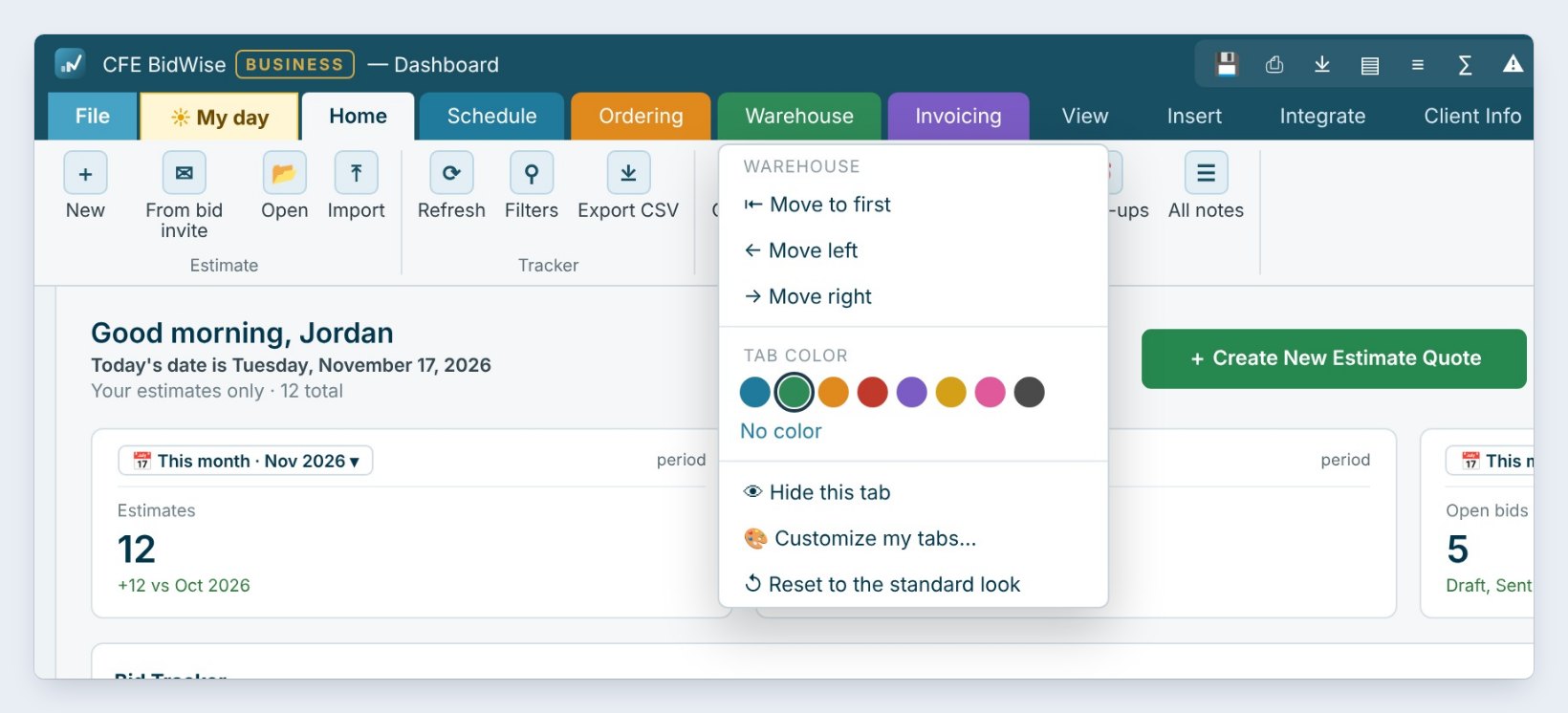
Right-click any tab on the tab row. The menu is named for that tab, here Warehouse. Move to first puts it at the front of the row, and Move left and Move right nudge it one place.
Under Tab color, click a swatch to color the tab, or No color to clear it. The color shows on the tab all day, so the tabs you use most are easy to spot. In the picture, Schedule is teal, Ordering is orange, Warehouse is green and Invoicing is purple, and all four sit next to Home.
2Set every tab at once in Customize my tabs
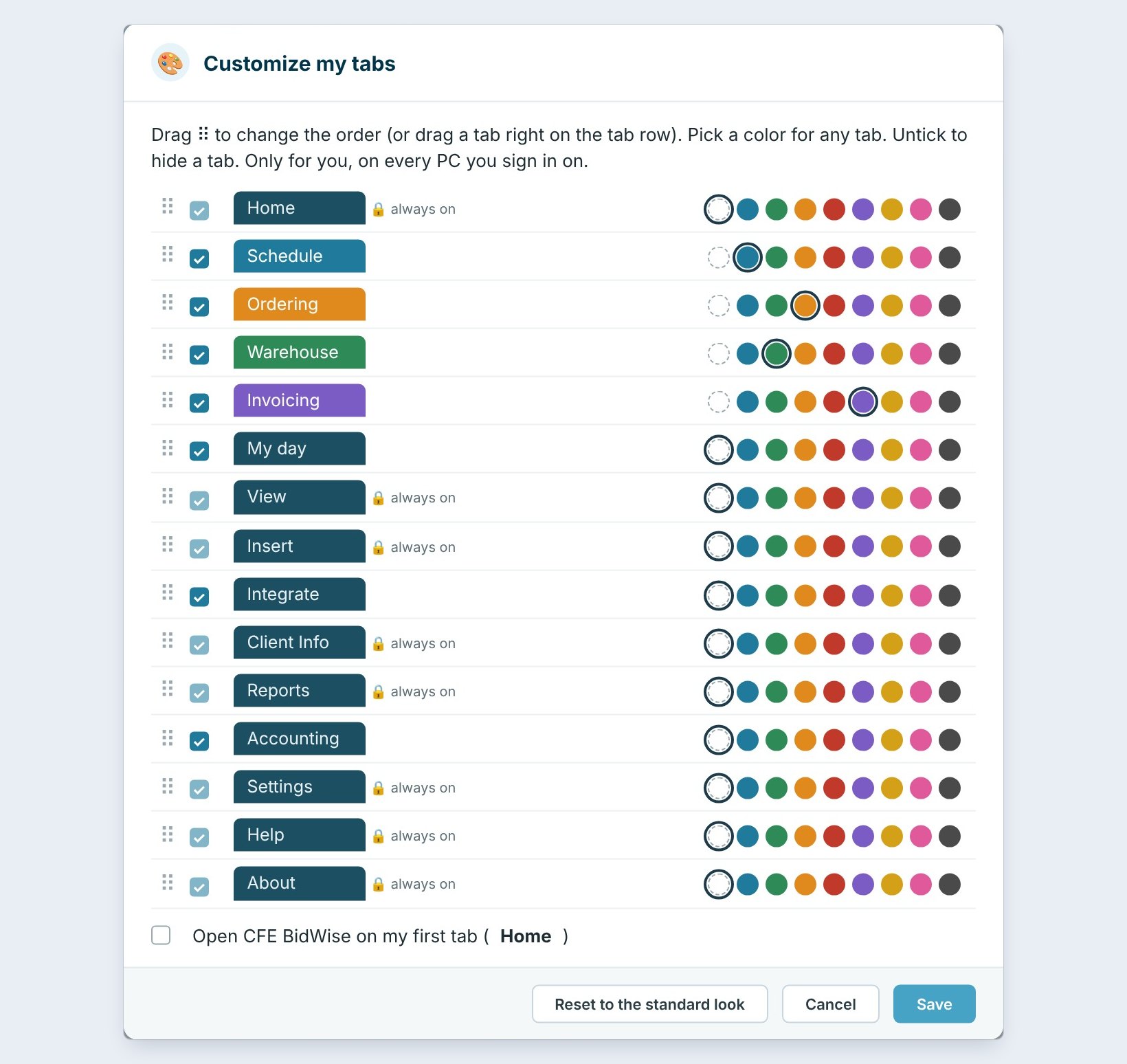
Pick Customize my tabs from the same menu. Every tab is a line: drag the handle on the left to change the order, untick a tab to hide it, and click a color on the right.
Tabs marked always on, such as Home, View, Client Info, Reports, Settings, Help and About, can be moved and colored but not hidden. At the bottom, tick Open BidWise on my first tab if you want it to start on your first tab instead of the usual screen. Press Save. Only you see these changes, on every PC you sign in on.
Hide the tabs a person never opens. A warehouse lead might keep only My day, Warehouse, Schedule and Ordering, so nothing else gets in the way.
3Open a hidden tab when you need it

A hidden tab is not gone. It waits under the plus at the end of the tab row, after Rate Me. Click the plus to open it for a moment, or tick it to bring it back on the row.
A red count on the plus means a hidden tab needs you, for example Ordering has reminders. That way hiding a tab never hides a late order.
4Pick your own tools for the quick bar
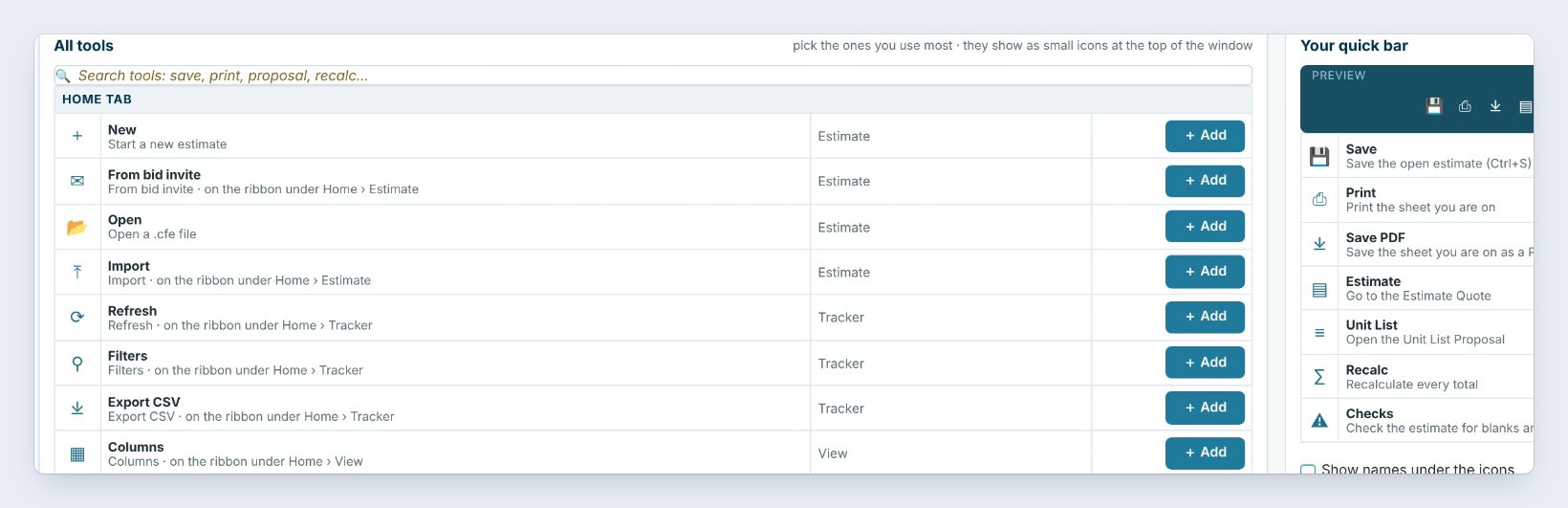
The small icons in the middle of the title bar are your quick bar. Open Settings › Customize Ribbon, or click the gear on the quick bar.
The left side lists All tools, tab by tab, with a search box. Press Add on the tools you use most. The right side, Your quick bar, shows a preview and each tool with arrows to move it left or right and an X to take it off. Tick Show names under the icons if you like labels, or press Standard tools to start again. The quick bar is saved for you as soon as you change it; it is not a company setting.
5Add your own text box to the bottom of proposals
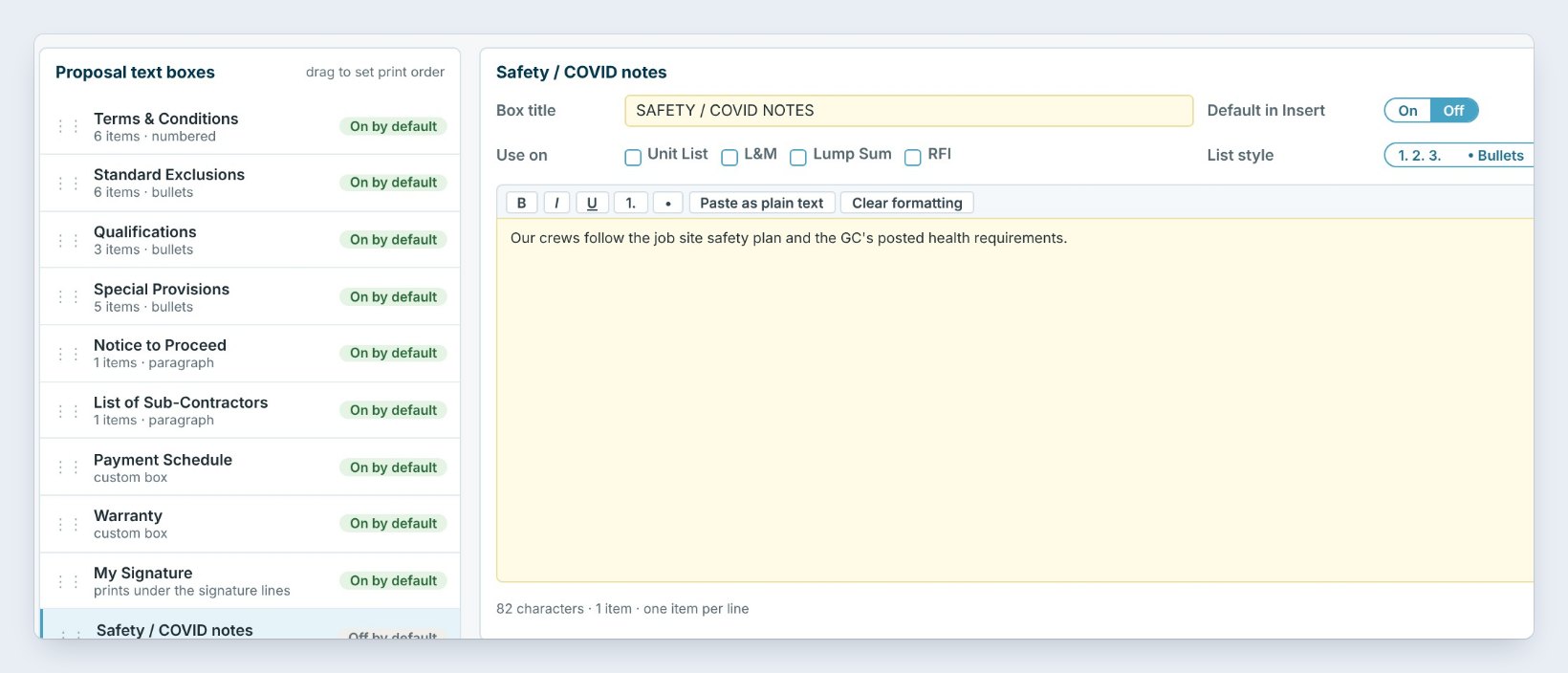
Open Settings › Custom boxes. The left list shows every proposal text box in print order: Terms & Conditions, Standard Exclusions, Qualifications, Special Provisions and the rest. Drag a box to change where it prints.
Press Add custom box, type the Box title, here Safety / COVID notes, and the text. Default in Insert decides if new proposals start with it on or off, Use on picks the Unit List, Labor and Material, Lump Sum or RFI, and List style prints it numbered, as bullets or as a paragraph. Press Preview on proposal to check it, then Save settings. Custom boxes are saved once to the company and used by every new proposal and RFI.
6What can go wrong, and how to fix it

The tabs look wrong after too many changes. Right-click any tab and pick Reset to the standard look, or press it at the bottom of Customize my tabs. Order, colors and hidden tabs go back to the way BidWise ships.
A teammate cannot find a tab. Ask them to look under the plus after Rate Me; they may have hidden it. On BidWise Business, a tab can also be closed by their role in Team, which only the Master user changes.
Your custom box did not save. Custom boxes are company settings, so editing them needs an Admin user, and the change waits for Save settings. Press Revert to throw away changes you did not mean.
Worked example: three people, three tab rows
Northgate Commercial Flooring sets up three people in ten minutes:
| Person | First tabs | Hidden |
|---|---|---|
| Jordan, estimator | Home, Insert, Ordering | Warehouse |
| Ana, office | Invoicing, Accounting, Schedule | Insert |
| Luis, warehouse lead | Warehouse, Schedule, Ordering | Invoicing, Accounting |
Each person sees their own tabs on every PC they sign in on, and the company custom box prints on every proposal they send.
What to do next
Next, set up the terms and exclusions library that your proposals print.
Set up BidWise the way you work
Start with the 30-day free trial, no credit card.
Frequently Asked Questions
Do my tab colors change the tabs for everyone?
No. Tab order, colors, hidden tabs and the quick bar are kept per person, on every PC you sign in on.
Can I hide the Home tab?
No. Tabs marked always on can be moved and colored, but not hidden.
Who can add a custom proposal box?
An Admin user, because custom boxes are company settings used by every new proposal and RFI.
How do I undo everything?
Right-click a tab and pick Reset to the standard look; on the quick bar press Standard tools.

Written by
Cristian Valcu – Founder & CEO, Commercial Flooring Estimating LLC
Cristian has estimated commercial flooring for over 20 years and built BidWise around the way flooring contractors actually price, propose and track their bids.
Last updated: