BidWise guide · Warehouse
Check Material Out: Pull List and Stock
Open Warehouse › Pull & load for the job and tick each item Pulled as it comes off the shelf. Print the Pull list for the crew, with the bins, dye lots and a sign-off line for the driver and the crew lead. Material that comes from your leftover stock is checked out with Stock › Use on a job, which takes it off the shelf and puts its cost on that job.


Why check material out?
Material walks. A box of adhesive grabbed for one job leaves the next one short, and leftover base used on a job never shows on its costs, so the closeout looks better than it was.
Checking material out in BidWise ties every item to a job: the job’s own material is ticked off its Work Order for Warehouse, and stock taken from the shelf is charged to the job that used it.
The five steps
- Open the job on Pull & loadThe Work Order for Warehouse, run from one screen.
- Tick each item PulledAs it comes off the shelf.
- Print the pull list and labelsBins, dye lots, sign-off, job labels.
- Use stock on a jobCheck leftovers out with their cost.
- What can go wrongTicks you can’t tick, stock that doesn’t add up.
1Open the job on Pull & load
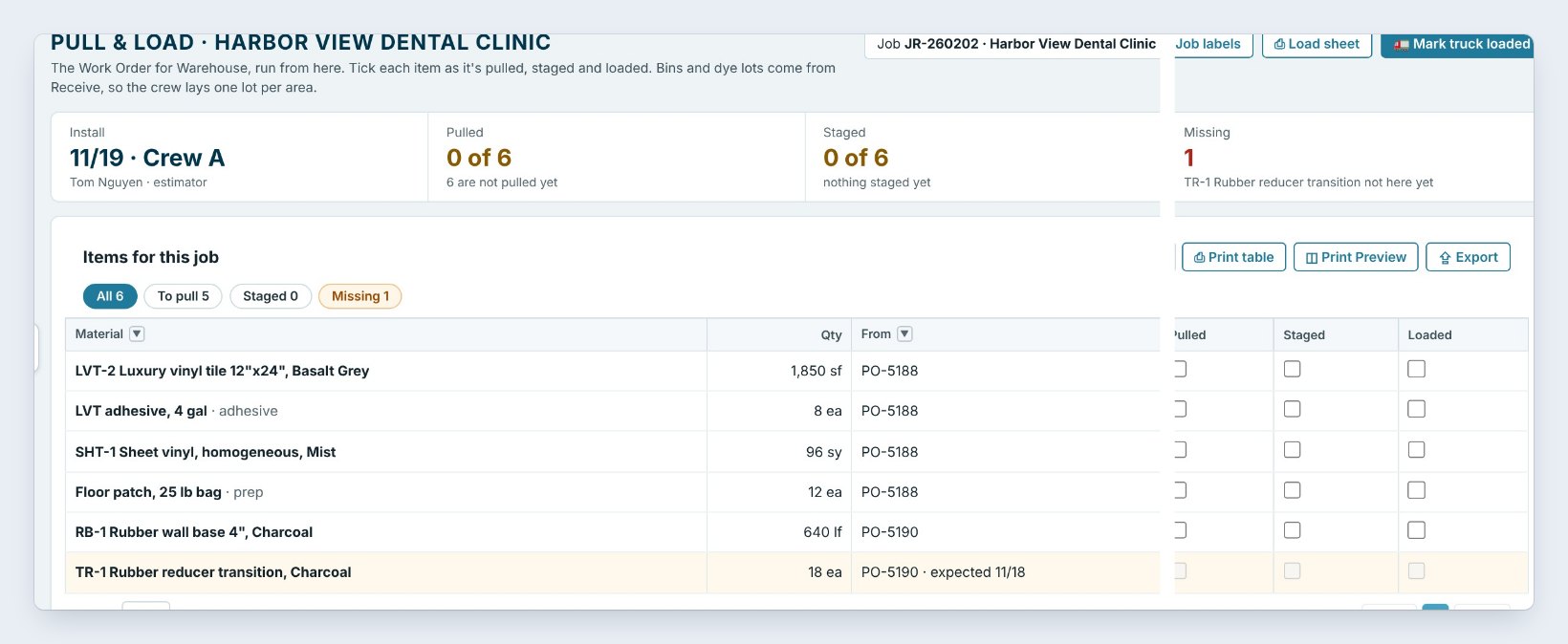
Open Warehouse › Pull & load and pick the job, here JR-260202 Harbor View Dental Clinic. This screen is the job’s Work Order for Warehouse. The tiles on top say the Install date and crew, 11/19 with Crew A, how many items are Pulled and Staged, the Truck, and what is Missing.
Below, every material line of the job is listed with its quantity, the PO it came on, its Bin from Receive and its Dye lot. A line that has not arrived is shaded and can’t be ticked: here the rubber reducer is still expected on 11/18.
2Tick each item Pulled as it comes off the shelf
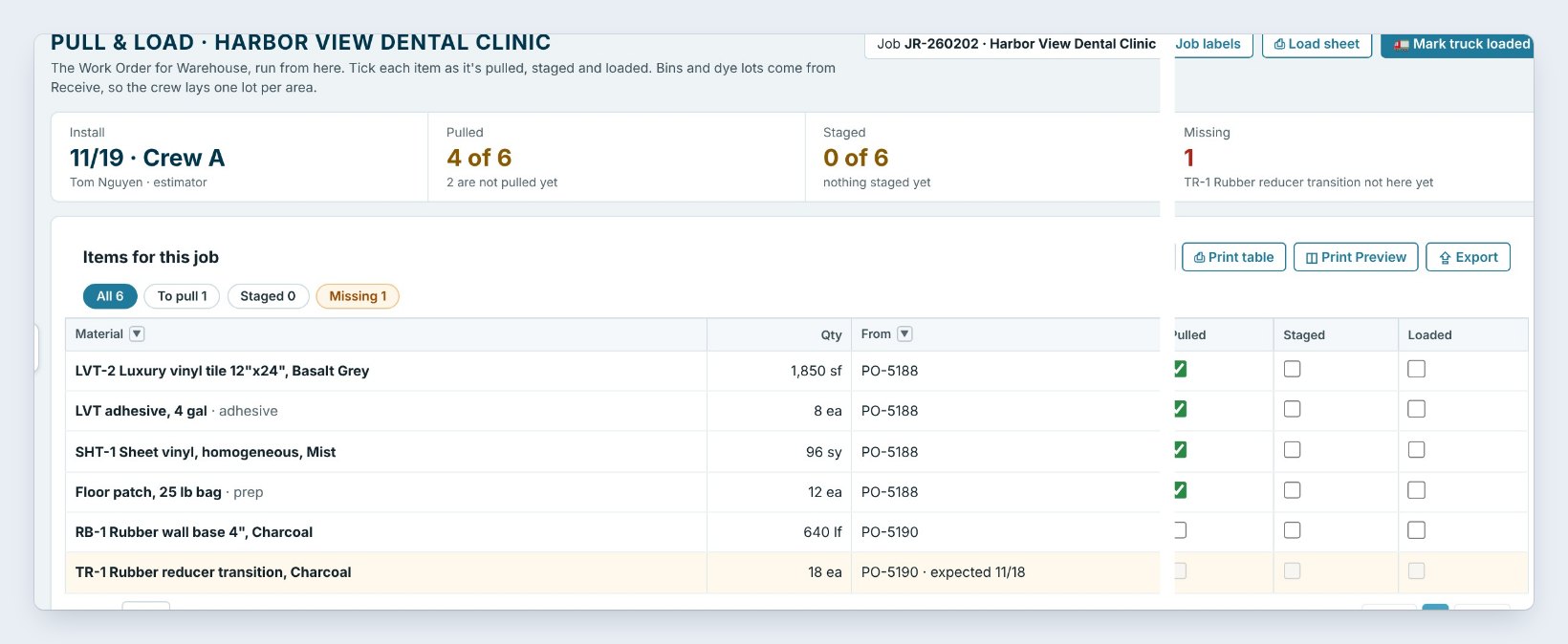
Walk the bins with the screen or a printout, and tick Pulled on each line as it comes off the shelf: the 1,850 square feet of LVT from Bay 2 · A, 8 pails of adhesive, 96 square yards of sheet vinyl from Bay 3 · A and 12 bags of floor patch. The tile reads Pulled 4 of 6.
The To pull chip shows only what is here and not pulled yet, so the warehouse crew sees what is left at a glance. Ticking Staged or Loaded later ticks Pulled for you.
3Print the pull list and the job labels
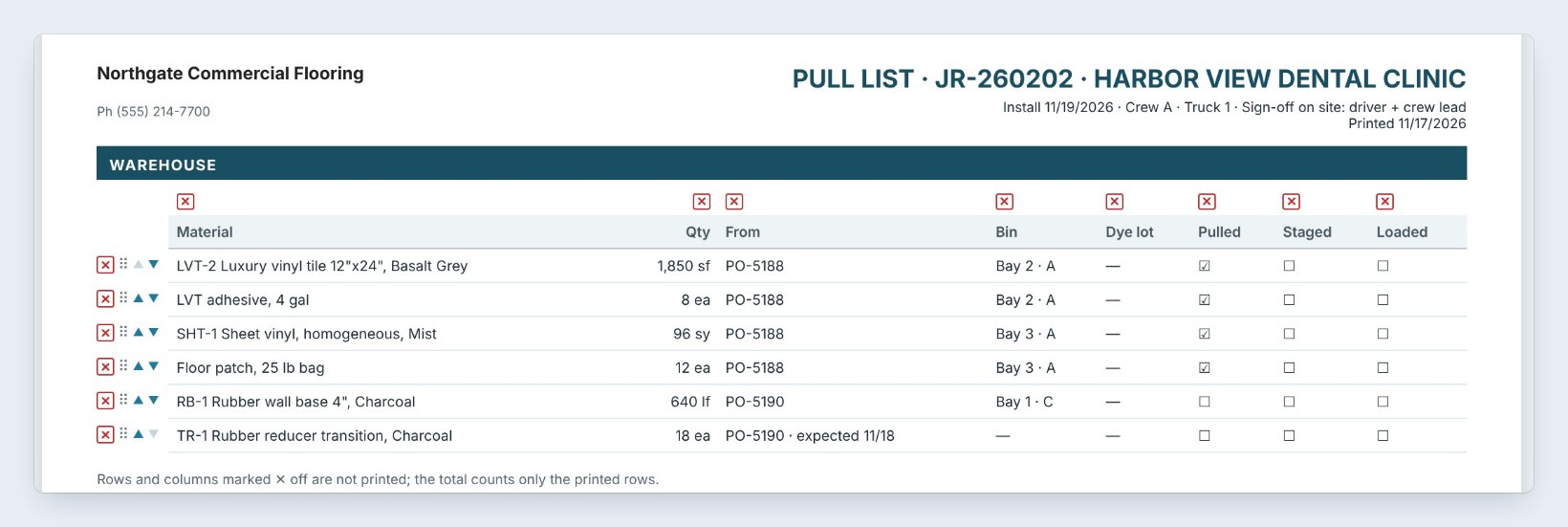
Click Pull list. The printout has every item with its quantity, PO, bin and dye lot, and the header says the install date, the crew, the truck and Sign-off on site: driver + crew lead. That signature is your check-out: the crew lead signs for what left the building.
Use a chip first, such as To pull, to print only what is left. In Print Preview you can take rows or columns off, switch to landscape, save a PDF or email it.
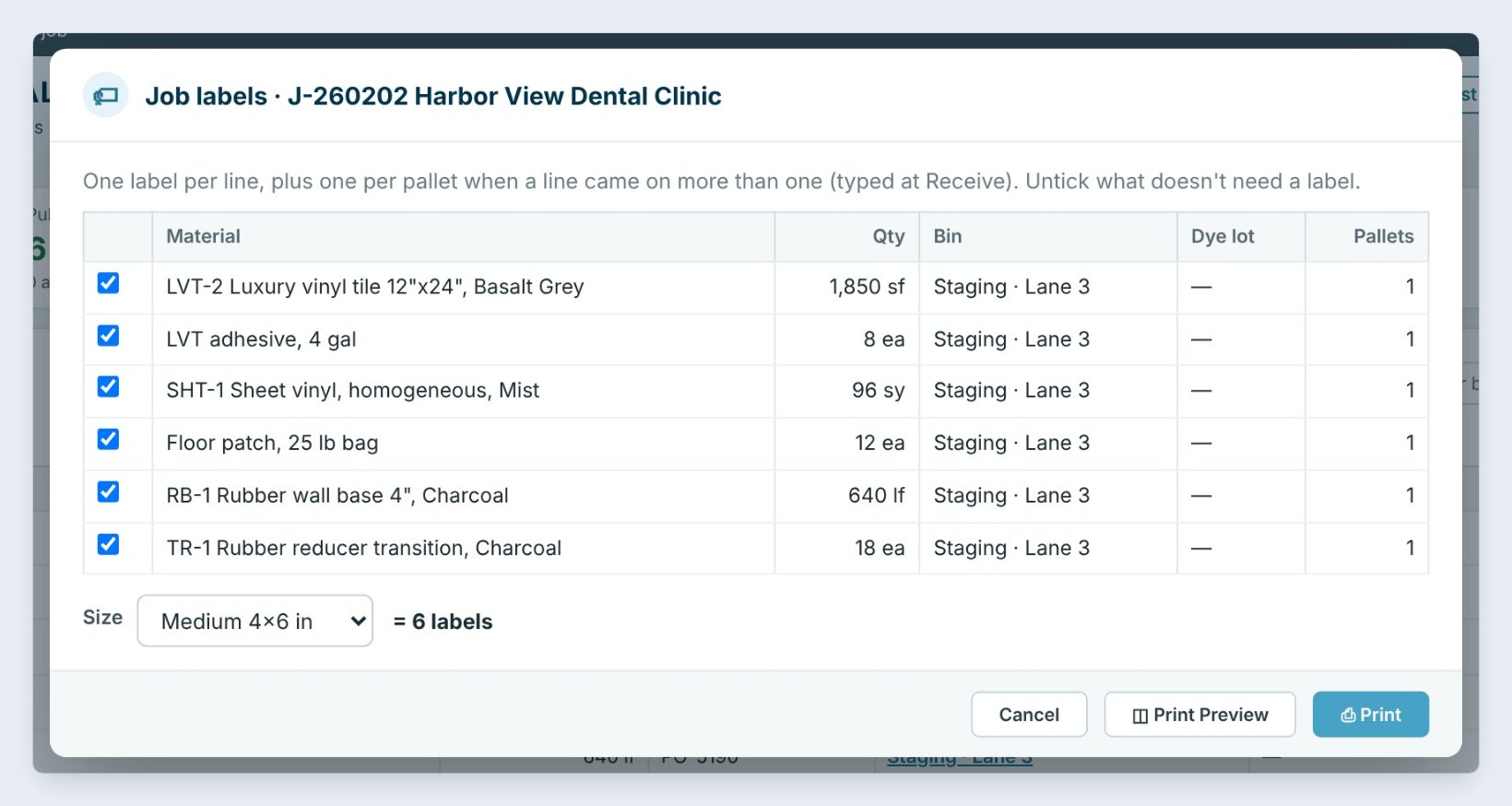
Click Job labels for a big label on each item: the job number, the client, the install date, the crew and the truck, with Do not use for other jobs across the top. Here it is 6 labels, Medium 4×6. Stick them on as you pull, and nobody borrows this job’s material for another one.
4Check stock out onto a job
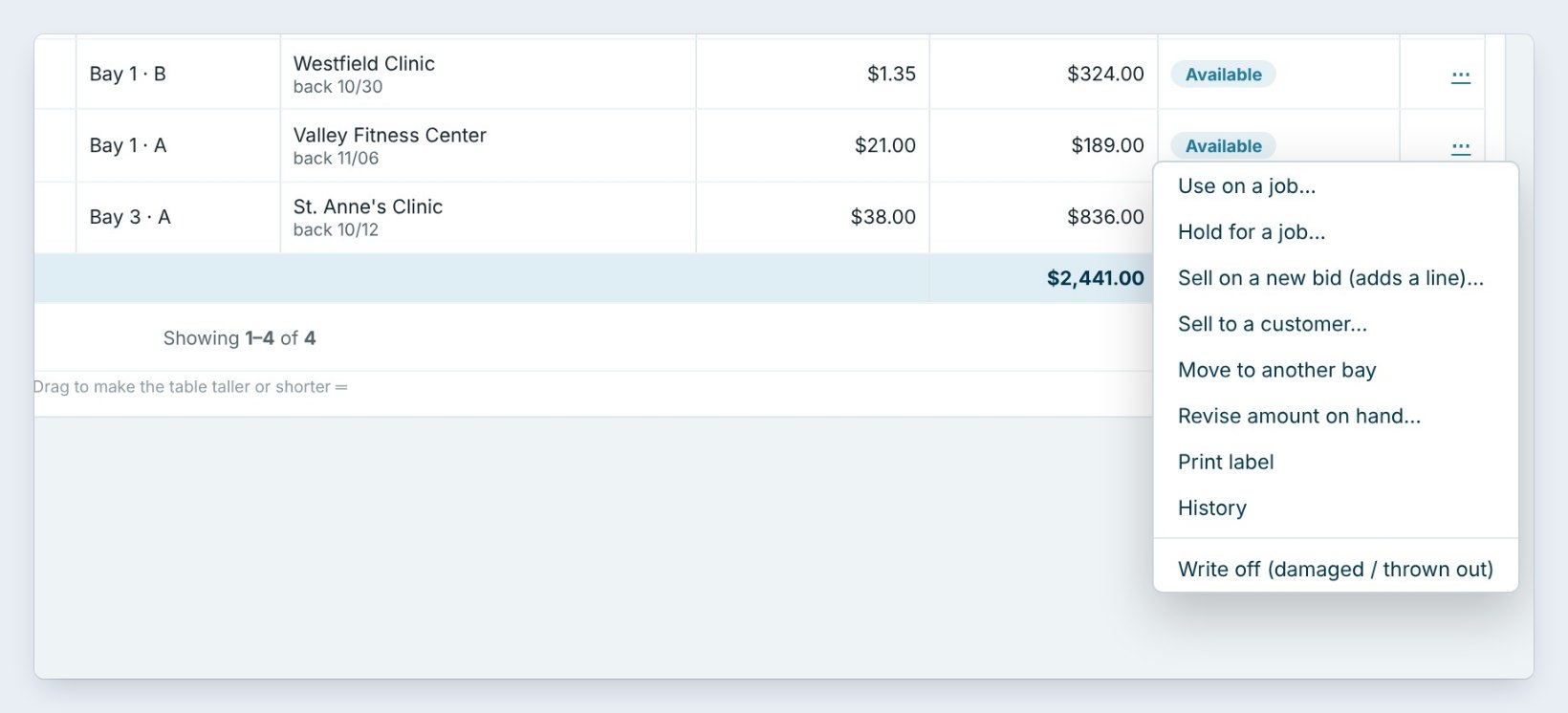
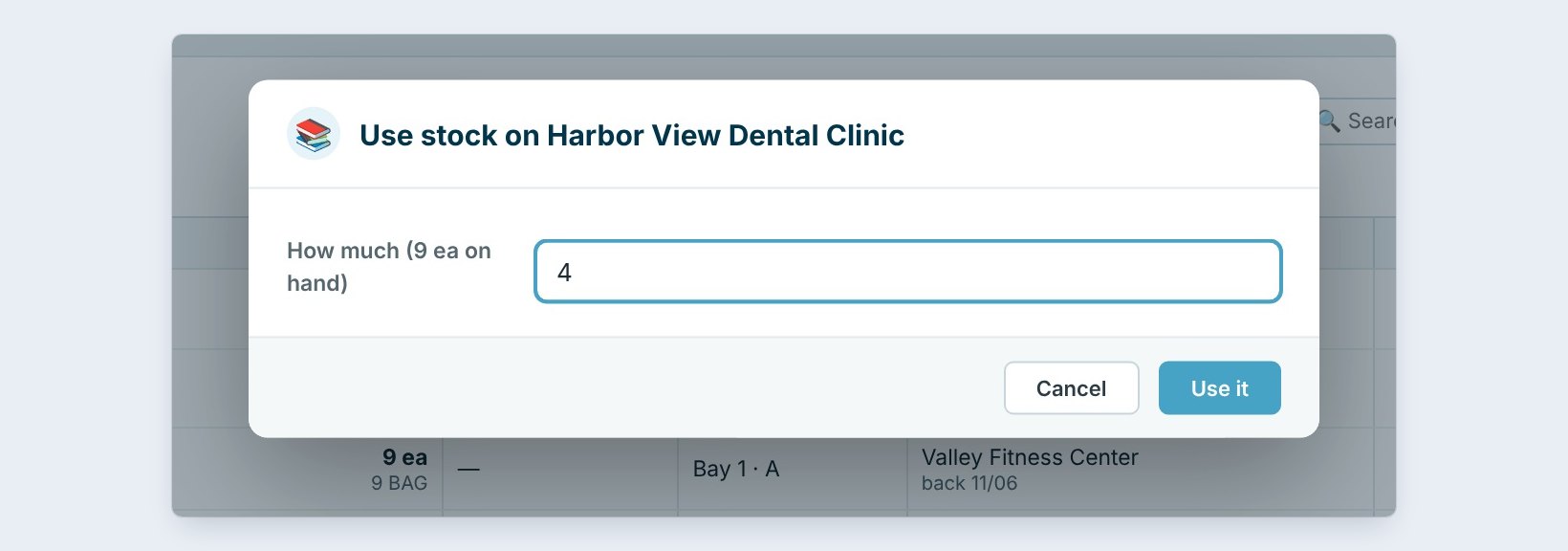
The sheet vinyl needs more patch than the bid had. Rather than buy it, take it from stock. Open Warehouse › Stock, click the three dots on Floor patch, 25 lb bag, 9 bags in Bay 1 · A, and pick Use on a job. Pick the job, type how much, 4, and click Use it.
Four bags come off the shelf and 5 stay on hand. Their cost, 4 times 21 dollars, is 84 dollars, and it goes on Harbor View’s Job costs as Material from stock, so the job pays for what it used.
Use stock first and say so on the job. 84 dollars of patch from the shelf is 84 dollars you did not spend at the supply house, and the Stock tile Used or sold this year adds it up.
5What can go wrong, and how to fix it
The Pulled box is grey. The material has not been received yet. Receive it first; until then it stays on the Missing tile and on Ordering’s reminders.
The crew took more than the list. Take it off the Stock list with Use on a job, or add it to the job as extra material in Ordering, so the cost lands on the job and not on the next one.
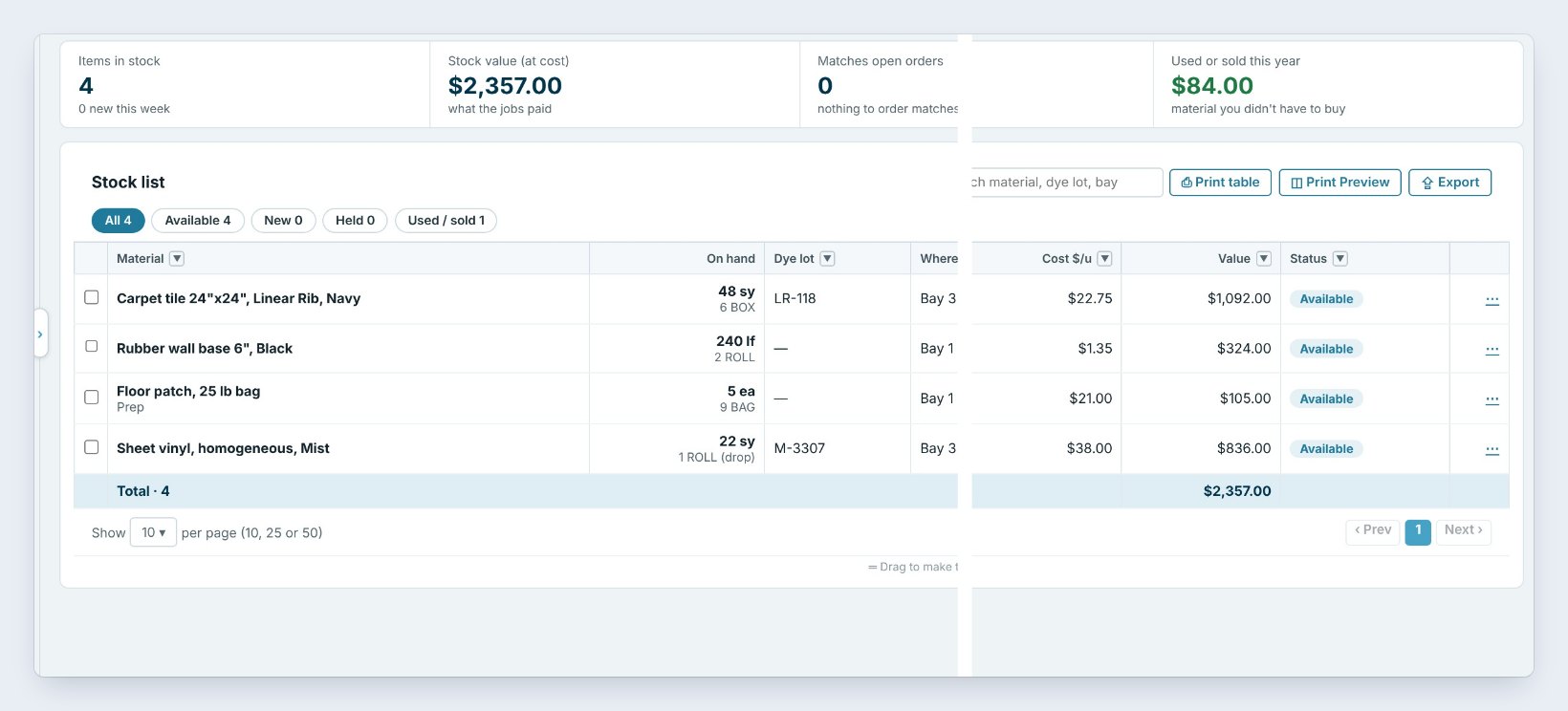
The shelf count is off. If the Stock list says 5 bags and you count 4, use Revise amount on hand and type why. The change and the reason are kept in the item’s History.
Worked example: Harbor View Dental Clinic, install 11/19
Marco pulls the job on Tuesday for a Thursday install:
| Item | Qty | From | Checked out |
|---|---|---|---|
| LVT-2 Tile, Basalt Grey | 1,850 sf | Bay 2 · A | Pulled |
| LVT adhesive, 4 gal | 8 ea | Bay 2 · A | Pulled |
| SHT-1 Sheet vinyl, Mist | 96 sy | Bay 3 · A | Pulled |
| Floor patch, 25 lb bag | 12 ea + 4 from stock | Bay 3 · A, Bay 1 · A | Pulled, $84 to Job costs |
| TR-1 Rubber reducer | 18 ea | expected 11/18 | Missing |
The pull list went to Crew A’s lead with the sign-off line, and the missing reducer stayed on the dashboard until it arrived.
What to do next
Next, set the pulled material in a staging lane with Stage a job.
Check out your next job the right way
The warehouse is part of BidWise Business. Start with the 30-day free trial, no credit card.
Frequently Asked Questions
Is there a signature in the app?
The printed pull list and load sheet have sign-off lines for the driver and the crew lead. Each tick is saved in the job’s history.
Can I check stock out without a job?
Use Sell to a customer for material sold off the shelf, or Write off for damaged material. Use on a job always names the job, so the cost lands on it.
Does Personal have Pull & load?
Personal has the Staged column, the install date and Add to stock / Use on a job. Pulled, bins, dye lots, trucks and the load sheet are on Business.

Written by
Cristian Valcu – Founder & CEO, Commercial Flooring Estimating LLC
Cristian has estimated commercial flooring for over 20 years and built BidWise around the way flooring contractors actually price, propose and track their bids.
Last updated: