BidWise guide · Warehouse
Load the Truck and Send It
On Pull & load, print the Load sheet, tick each item Loaded as it goes on the truck, then click Mark truck loaded, and Mark delivered once it is on site. If anything is not in the warehouse yet, BidWise tells you before you load, so the truck never leaves short without anyone knowing.


Why load from the app?
The call from the job site at 7:40 is always the same: we don’t have the base. Was it never loaded, left on the dock or never delivered by the vendor? Without a load list nobody knows.
With a load sheet and the Loaded ticks in BidWise, the answer is on screen: what went on the truck, who drove it, and what was still missing when it left.
The five steps
- See the truck runsEvery job’s run, truck and driver.
- Print the load sheetQty, bin, dye lot, Loaded and On site boxes.
- Mark the truck loadedOne click ticks every item that is here.
- Mark it deliveredThe job leaves the warehouse lists.
- What can go wrongLoading with items missing.
1See the truck runs
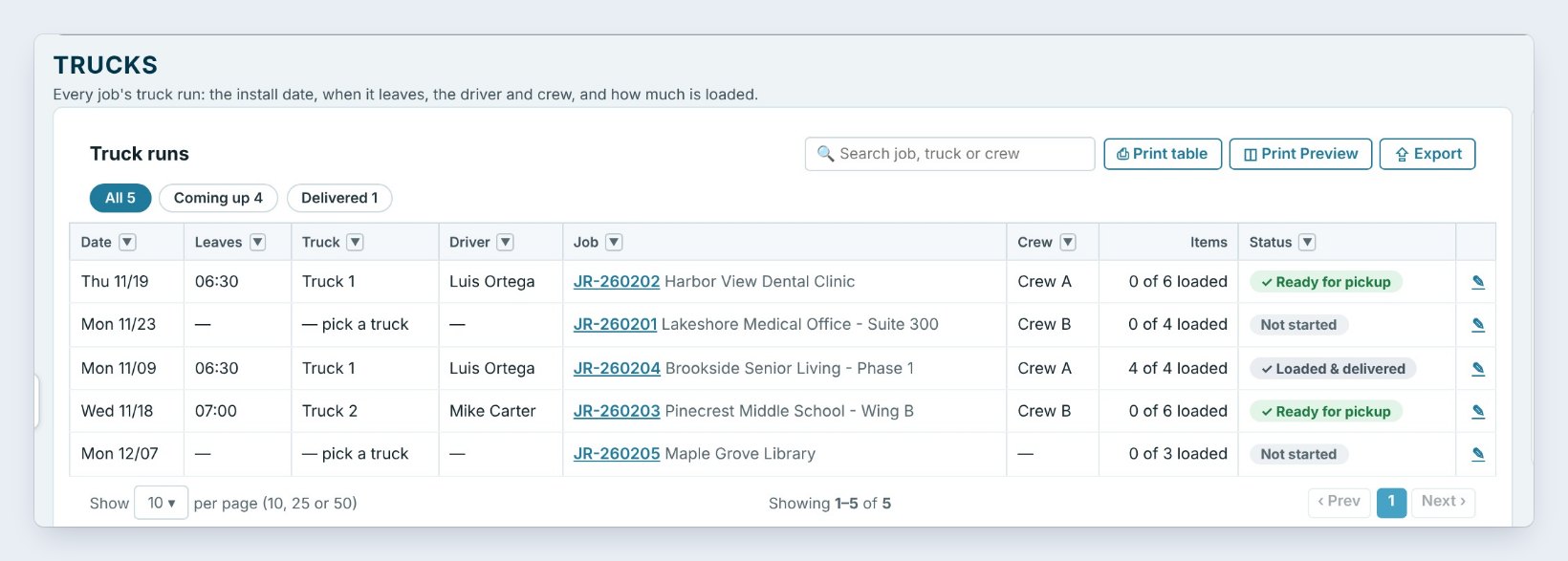
Open Warehouse › Trucks. Truck runs lists every job with an install date: when it leaves, the truck, the driver, the crew, how many items are loaded and the status. Tomorrow, Wednesday 11/18, Truck 2 leaves at 7:00 with Crew B for Pinecrest Middle School; Thursday, Truck 1 leaves at 6:30 for Harbor View.
On the right are your trucks and drivers: Truck 1 with Luis Ortega and Truck 2 with Mike Carter. Click + Truck to add one, or Edit to change a driver.
2Print the load sheet
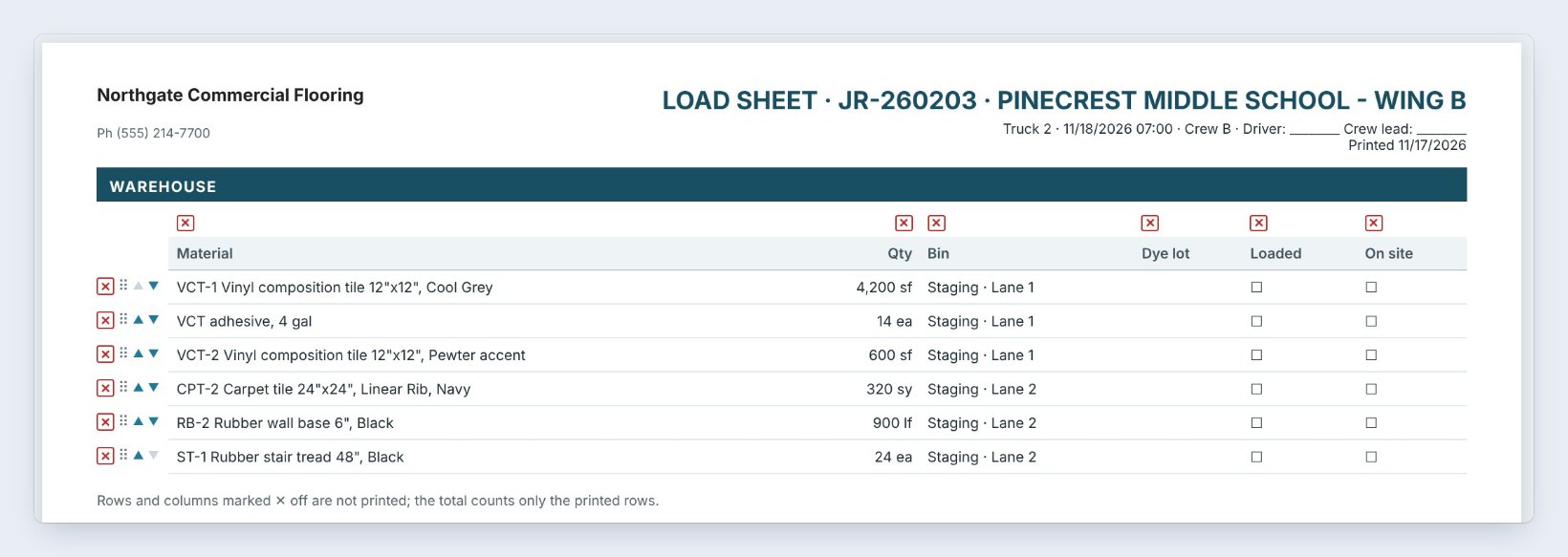
Open the job on Pull & load and click Load sheet. It lists what is in the warehouse for the job, with the quantity, the lane, the dye lot, a Loaded box and an On site box, and a line for the Driver and the Crew lead.
The driver ticks Loaded at the dock; the crew lead ticks On site when it comes off the truck and signs. That paper is your proof of delivery.
3Mark the truck loaded
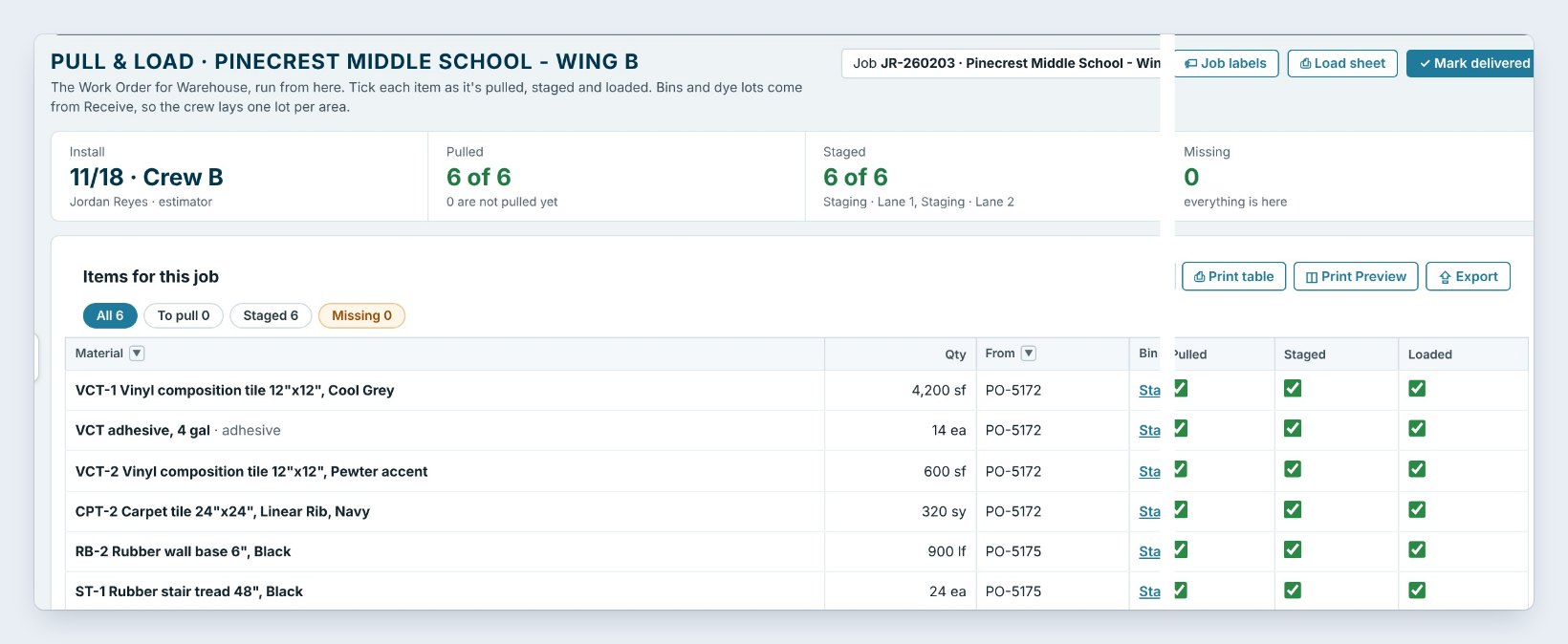
Tick Loaded item by item as it goes on, or click Mark truck loaded once the sheet is done. All 6 items are ticked Loaded and Staged, the Truck tile says loaded 11/17, the log notes Truck 2 loaded for Pinecrest Middle School, 6 items, and the button turns into Mark delivered.
4Mark it delivered
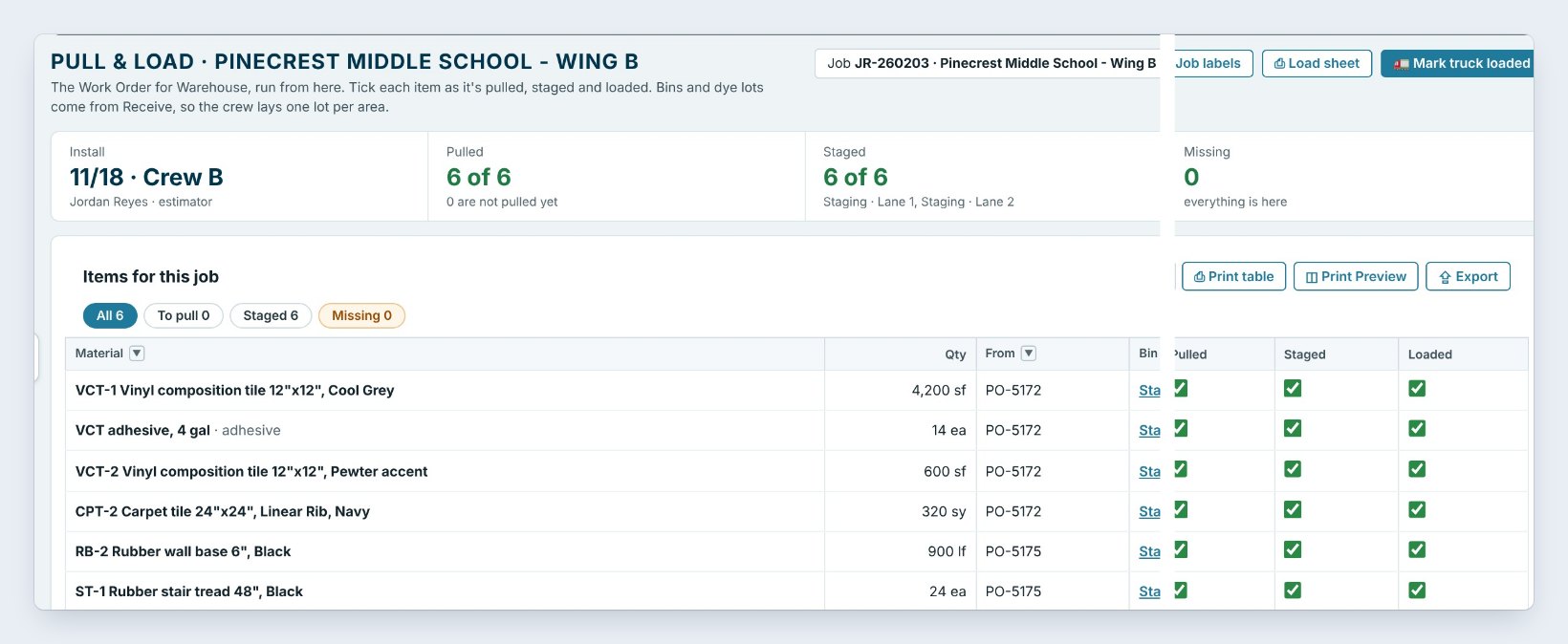
When the crew lead confirms the material is on site, click Mark delivered. The delivered date goes on every loaded line of the job’s Work Order for Warehouse, and the job shows Loaded & delivered on the dashboard and under Delivered on Trucks.
Mark delivered from the signed load sheet, not from the schedule. If the sheet comes back with a box not ticked On site, you know which item to look for before the crew calls.
5What can go wrong, and how to fix it
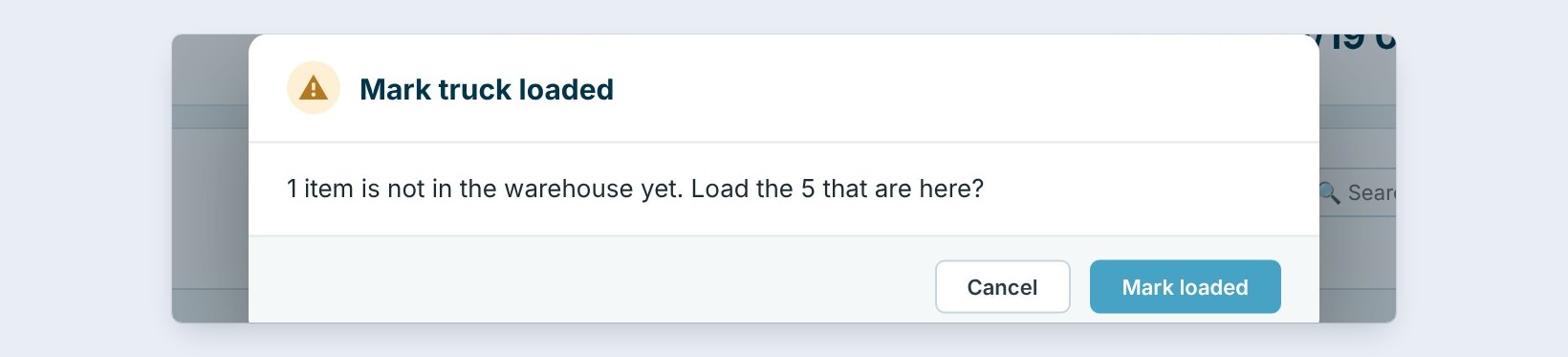
An item is not here yet. If you click Mark truck loaded on Harbor View while the reducers are still on the way, it asks: 1 item is not in the warehouse yet. Load the 5 that are here? Click Cancel and chase the item, or Mark loaded to send what is here; the missing line stays on the Problems list, so it goes out on the next run.
No truck on the run. The Trucks list says pick a truck. Click the pencil and set it with Install & truck.
Nothing for the job is in the warehouse. Mark truck loaded says so and stops. Check Receive: the delivery may have gone straight to the job site.
Worked example: Truck 2 to Pinecrest Middle School
Wednesday, November 18, 7:00 AM, Crew B with Mike Carter driving:
| Item | Qty | Lane | Loaded |
|---|---|---|---|
| VCT-1 Cool Grey | 4,200 sf | Staging · Lane 1 | Yes |
| VCT adhesive, 4 gal | 14 ea | Staging · Lane 1 | Yes |
| VCT-2 Pewter accent | 600 sf | Staging · Lane 1 | Yes |
| CPT-2 Carpet tile, Linear Rib | 320 sy | Staging · Lane 2 | Yes |
| RB-2 Wall base 6", Black | 900 lf | Staging · Lane 2 | Yes |
| ST-1 Stair tread 48" | 24 ea | Staging · Lane 2 | Yes |
Six items, two lanes, one load sheet signed by Mike and the crew lead, and the job marked delivered before 9 AM.
What to do next
When the job is done, bring the leftovers back with Bring back leftovers.
Send your next truck with a load sheet
The warehouse is part of BidWise Business. Start with the 30-day free trial, no credit card.
Frequently Asked Questions
Can I load part of a job?
Yes. Tick Loaded on the items that go now; the rest stays staged for the next run.
Where do drivers come from?
Warehouse › Trucks: each truck has a driver, and the load sheet and Pull & load show it.
Is loading on BidWise Personal?
Trucks, the load sheet and Loaded are on Business. Personal marks a job picked up.

Written by
Cristian Valcu – Founder & CEO, Commercial Flooring Estimating LLC
Cristian has estimated commercial flooring for over 20 years and built BidWise around the way flooring contractors actually price, propose and track their bids.
Last updated: