BidWise guide · Your data, backups and support
Get On-Screen Help from BidWise with Remote Support
Call BidWise, then click Help › Remote Support and Save and open Quick Assist. BidWise saves your open estimate first and opens Windows Quick Assist; type the 6-character code BidWise reads to you, click Submit, then Allow. BidWise sees your screen only while you allow it, and you can stop sharing at any time.


Why it matters
Some problems take twenty minutes to describe on the phone and two minutes to fix when someone can see the screen.
The six steps
- Find Remote SupportHelp tab, Support group.
- Call, then clickSave and open Quick Assist.
- Type the codeGet help, 6 characters, Submit.
- Allow, and stay in controlAllow; pause or stop any time.
- Send your logHelp › Send log, attach the newest file.
- What can go wrongCommon snags and the fix for each.
1Find Remote Support on the Help tab

Open the Help tab. The Support group holds Remote Support, for live help on your screen, and Send log, for the log file BidWise may ask for. The User guide and Video Guides sit on the left, so try a quick search first: many answers are one click away.
Remote Support works the same on BidWise Personal and Business, on Windows 10 and 11.
2Call BidWise, then click Save and open Quick Assist
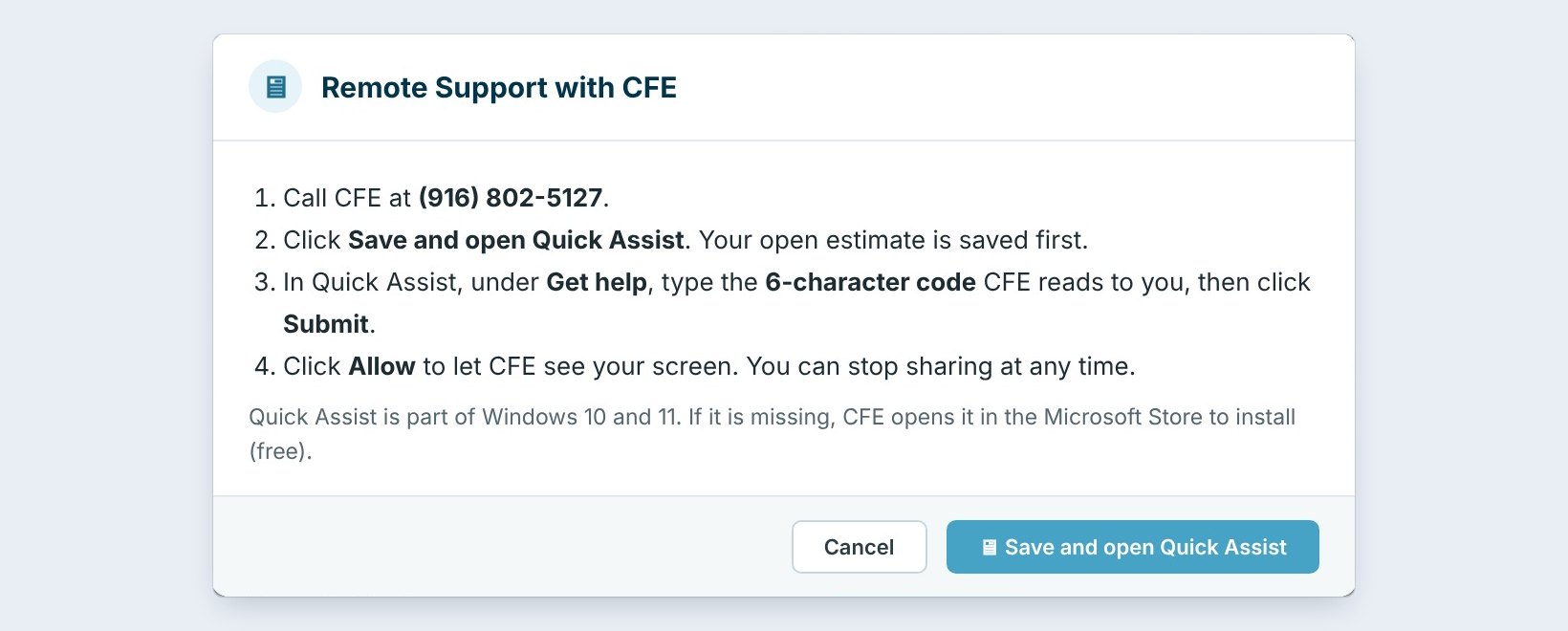
Call BidWise first; the number is on the window. Then click Remote Support. The window lists all four steps, so you don't need to remember them.
Click Save and open Quick Assist. Your open estimate is saved first, so nothing is lost if the technician needs to restart BidWise. Then Windows Quick Assist opens. It is built into Windows 10 and 11, made by Microsoft, and free.
3Type the code BidWise reads to you
In Quick Assist, look under Get help. The BidWise technician reads you a 6-character code. Type it in and click Submit.
The code works once and only for a few minutes, and it connects you to the person on the phone, nobody else. You never give out a password, and nothing new is installed.
Close the windows you don’t want seen, like email or the bank, before you click Allow. The technician sees your whole screen, not only BidWise.
4Click Allow, and stay in control
Quick Assist asks you to Allow screen sharing. Click it, and the technician sees your screen while you both talk. If they need to click for you, Quick Assist asks you first.
You stay in charge the whole time. Pause hides your screen for a moment, and Stop sharing or closing Quick Assist ends the session at once. BidWise can only see your screen while you allow it.
5Send your log when BidWise asks
For a problem that comes and goes, BidWise may ask for your log instead of, or as well as, a session. Click Help › Send log. The Logs folder opens. Attach the newest cfe-….log file to an email to BidWise support.
The log lists what BidWise did and any errors, with the time, so BidWise can see what happened just before the problem.
6What can go wrong, and how to fix it
Quick Assist is not on this PC. BidWise opens its Microsoft Store page instead. Click Get, it is free, then click Remote Support again. The code doesn't work. It expired after a few minutes; ask the technician for a new one.
The screen goes black for the technician. A Windows permission prompt is showing; click Yes on your side. A work PC blocks Quick Assist. Your IT department may have turned it off; ask them, or send the log while BidWise helps by phone.
Worked example: a five-minute support call
Jordan at Northgate can’t find why a proposal total looks off:
| Minute | What happens |
|---|---|
| 0:00 | Jordan calls BidWise and describes the problem |
| 0:30 | Help › Remote Support › Save and open Quick Assist; the estimate is saved |
| 1:00 | Jordan types the 6-character code, clicks Submit, then Allow |
| 1:30 | The technician spots Net Area turned on in the View tab |
| 3:00 | Jordan turns it off, presses Recalc, and the total is right |
| 3:30 | Jordan clicks Stop sharing; the session is over |
No files emailed back and forth, and no password ever given out.
What to do next
Back to the full list of guides.
Help when you need it
Remote Support comes with every BidWise plan. Start with the 30-day free trial, no credit card.
Frequently Asked Questions
Can BidWise connect to my PC without me?
No. Every session needs a new code you type and an Allow you click, and it ends when you stop sharing.
Does Remote Support cost extra?
No. Quick Assist is free and built into Windows 10 and 11.

Written by
Cristian Valcu – Founder & CEO, Commercial Flooring Estimating LLC
Cristian has estimated commercial flooring for over 20 years and built BidWise around the way flooring contractors actually price, propose and track their bids.
Last updated: