BidWise guide · Ordering and material
Run Ordering From One Dashboard: Reminders, Late Deliveries and POs
The Ordering dashboard puts every material line on every Won job in one place, for the person who orders for everyone. It shows what still needs ordering, what is late, what arrives this week, the open purchase orders and the material cost against the bid. Order reminders keep each problem in color until someone clicks Handled with a note or snoozes it, so nothing silently disappears.


Why one ordering dashboard?
Flooring jobs fail on material: carpet ordered late, wall base that never shipped, a back-order nobody noticed until the crew was on site. When each estimator orders from their own bids, nobody sees the whole picture.
The Ordering dashboard reads the Material List of every Won job, so the buyer or office manager sees every line at once. Reminders come from the dates you already have, the job start, the vendor lead time and the expected delivery, and they stay until someone handles them.
The six steps
- Open the dashboardNot ordered, late, arriving, open POs, bid vs actual.
- Work the order remindersWhat now, Handled with a note, or Snooze.
- Chase late deliveriesCall the vendor, new date or mark arrived.
- Track purchase ordersEvery PO with vendor, total and status.
- Set the reminder rulesWhen reminders fire and how loud they are.
- What can go wrongFixes for the usual snags.
1Open the Ordering dashboard
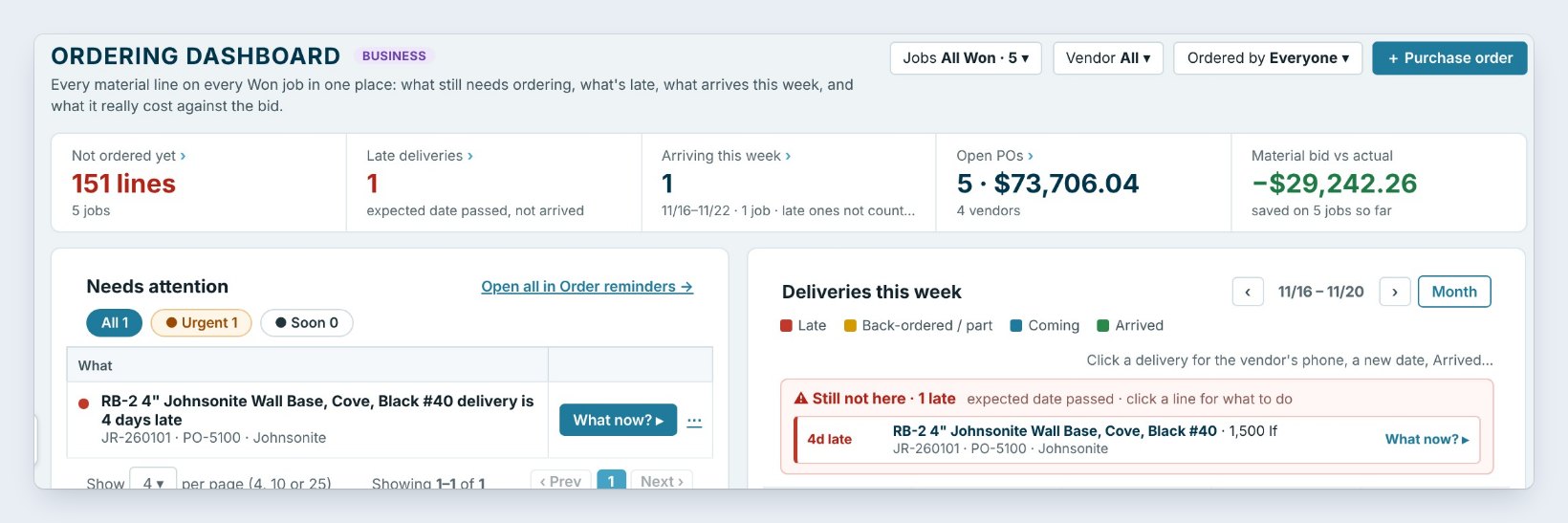
On the Ordering tab, click Dashboard. The tiles show Not ordered yet, here 151 lines on 5 jobs, Late deliveries, Arriving this week, Open POs and Material bid vs actual, what the material really cost against the bid. Click a tile to open its list.
Needs attention shows the urgent lines, and Deliveries this week shows each day’s deliveries in color: late, back-ordered, coming or arrived. Filter by job, vendor or who ordered.
2Work the order reminders
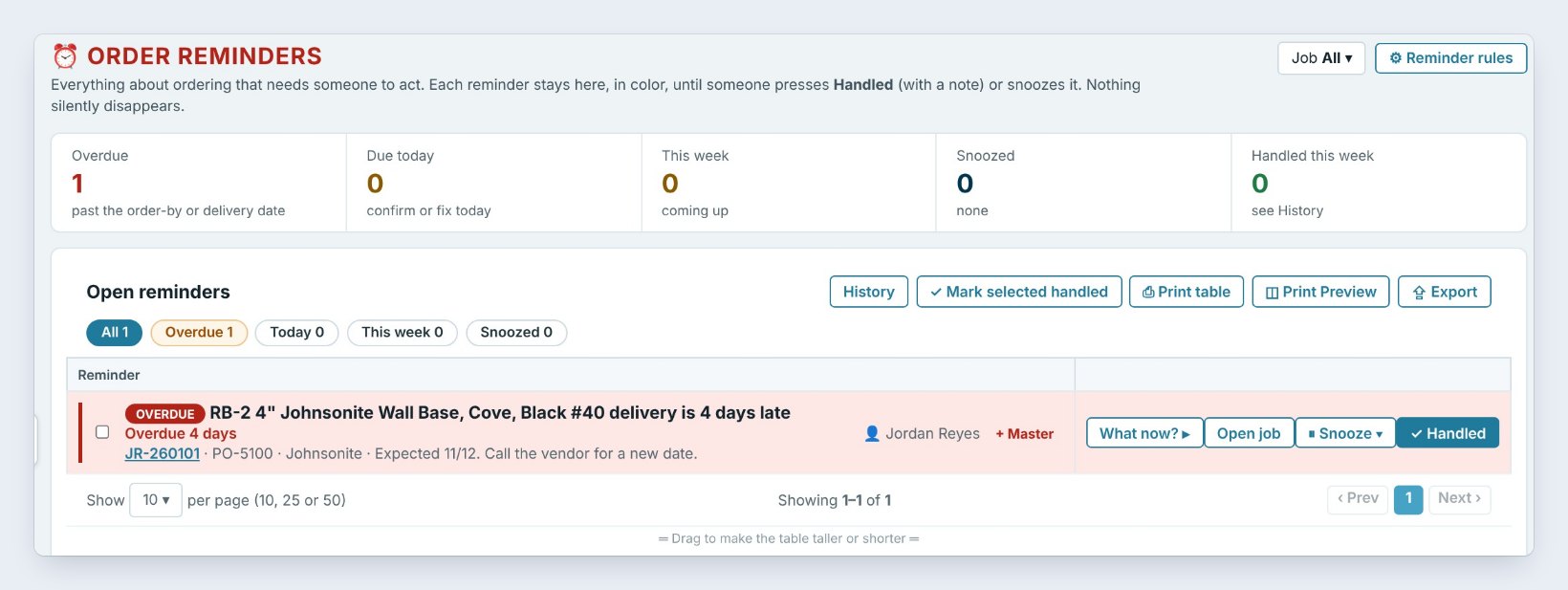
Click Order reminders. The red count on the Ordering tab and on this button tells you how many need someone. Each reminder says what is wrong and what to do, such as RB-2 4" Johnsonite Wall Base delivery is 4 days late. Call the vendor for a new date.
Click What now? for the next step, Snooze to bring it back later, or Handled with a note. Handled reminders keep who, when and the note in History.
Type a real note when you click Handled, such as the vendor's new ship date. Next week, History answers the question before anyone has to ask.
3Chase late deliveries
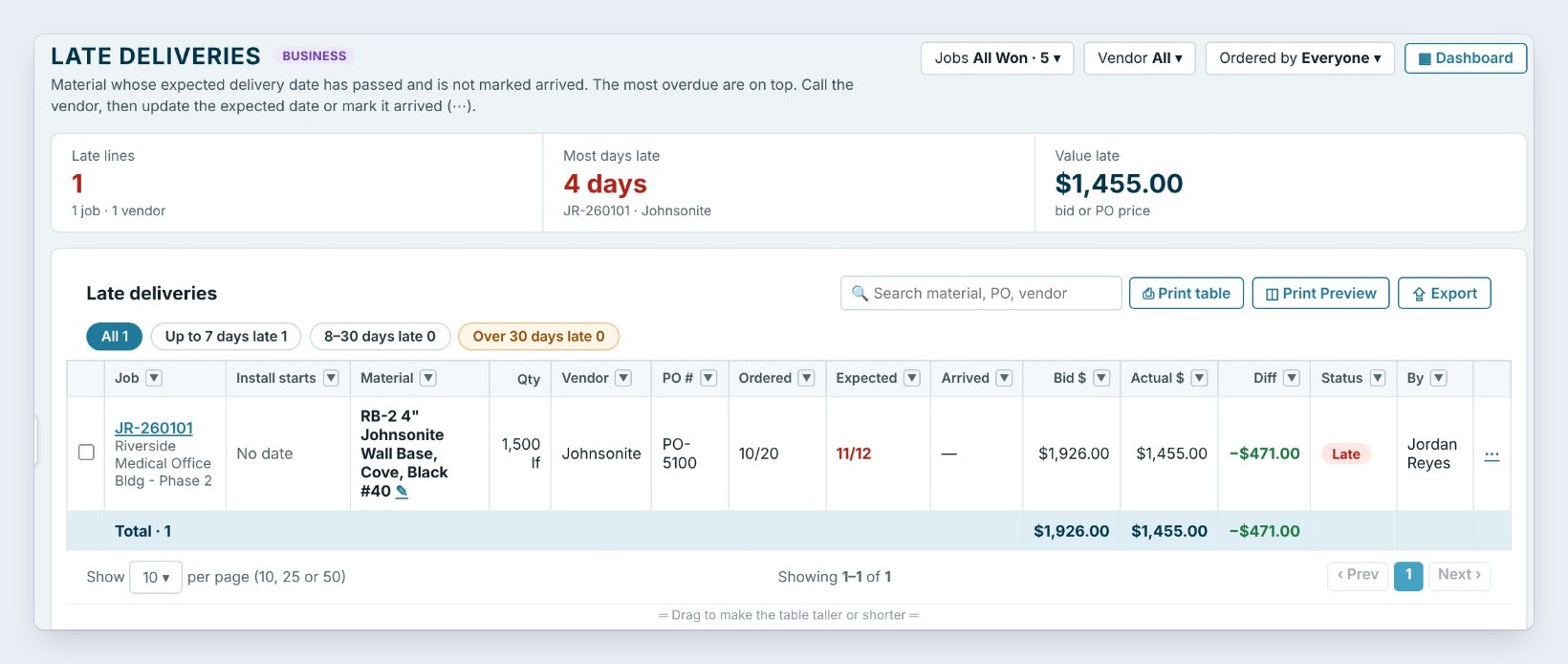
Late lists material whose expected date passed and is not marked arrived, the most overdue on top. Here it is the Johnsonite wall base on PO-5100, expected 11/12 for Riverside Medical Office.
Call the vendor, then click ··· on the line to type the new expected date, or mark it arrived. The line, the dashboard and the reminder all update together.
4Track every purchase order
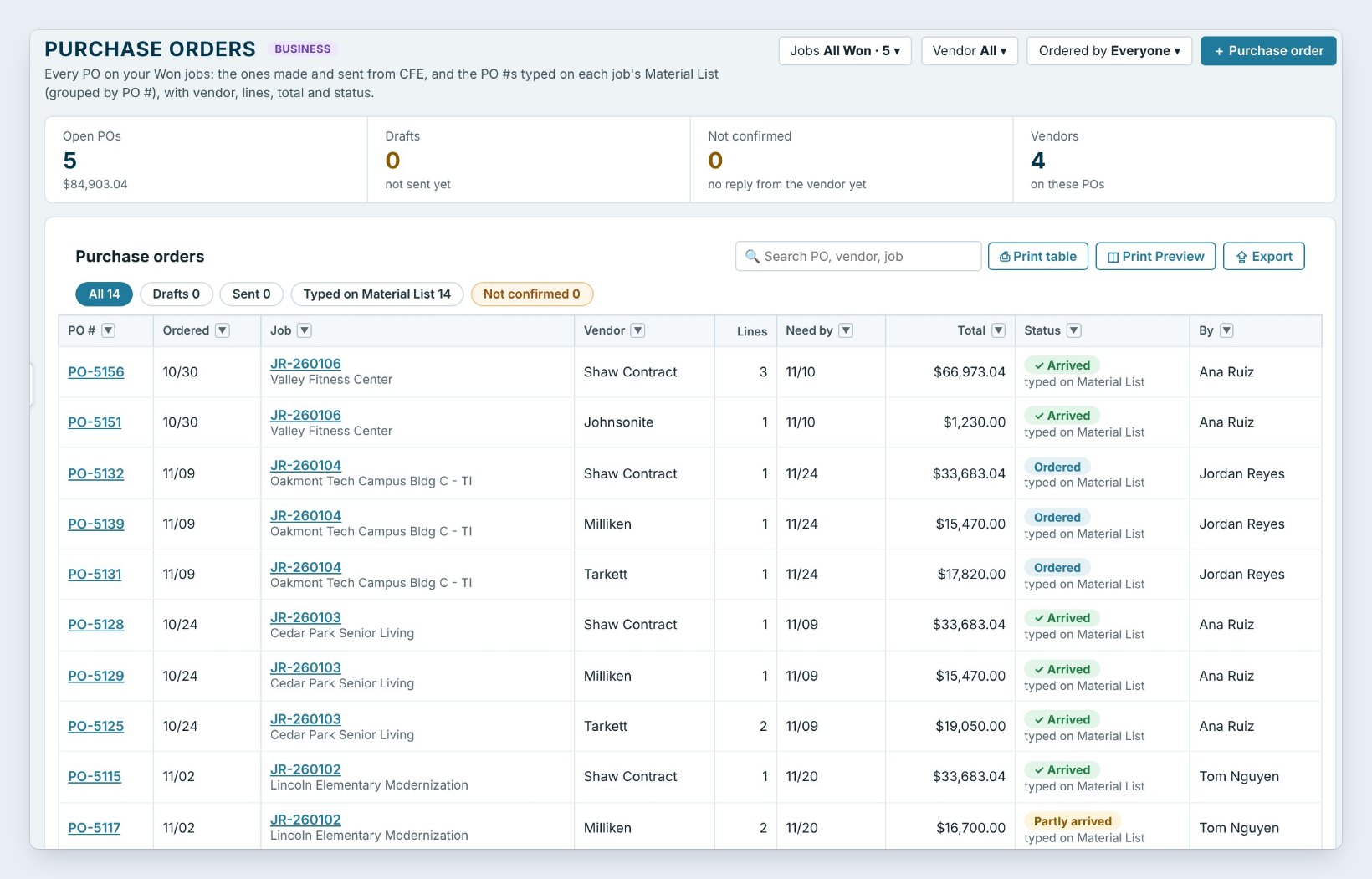
Purchase orders lists every PO on your Won jobs: the ones made and sent from BidWise, and the PO numbers typed on each job’s Material List. Each shows the job, the vendor, the lines, the need-by date, the total and the status, such as Ordered, Partly arrived or Arrived.
The chips show Drafts not sent yet and POs Not confirmed by the vendor. Click Purchase order to make a new one.
5Set when reminders fire
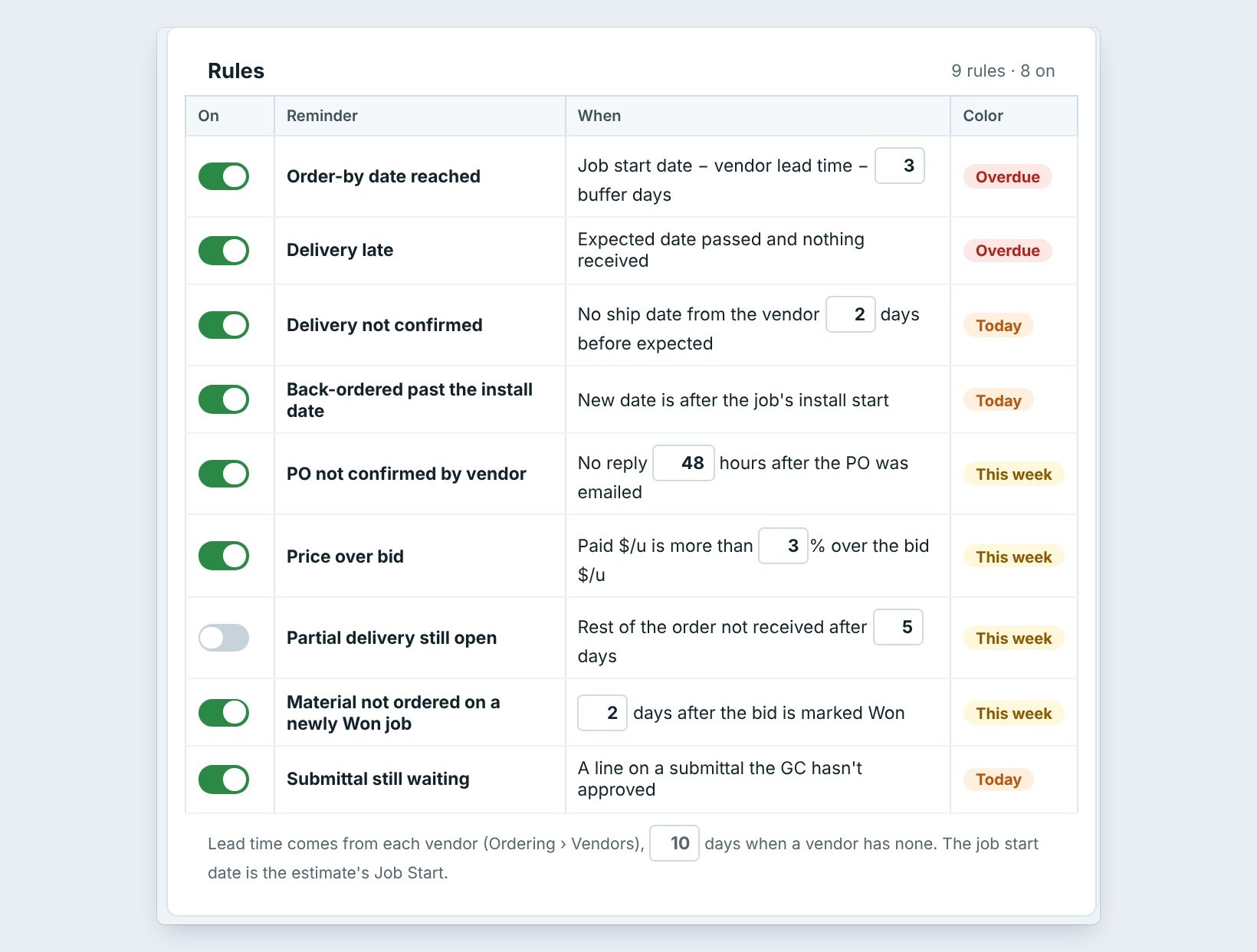
Click Order settings for Order reminder rules. Each rule can be turned on or off, with its own numbers and color: Order-by date reached uses the job start minus the vendor lead time minus 3 buffer days, Delivery not confirmed fires when there is no ship date 2 days before it is expected, and Price over bid fires when the paid price is more than 3% over the bid.
The lead time comes from each vendor in Ordering › Vendors, or 10 days when a vendor has none.
6What can go wrong, and how to fix it
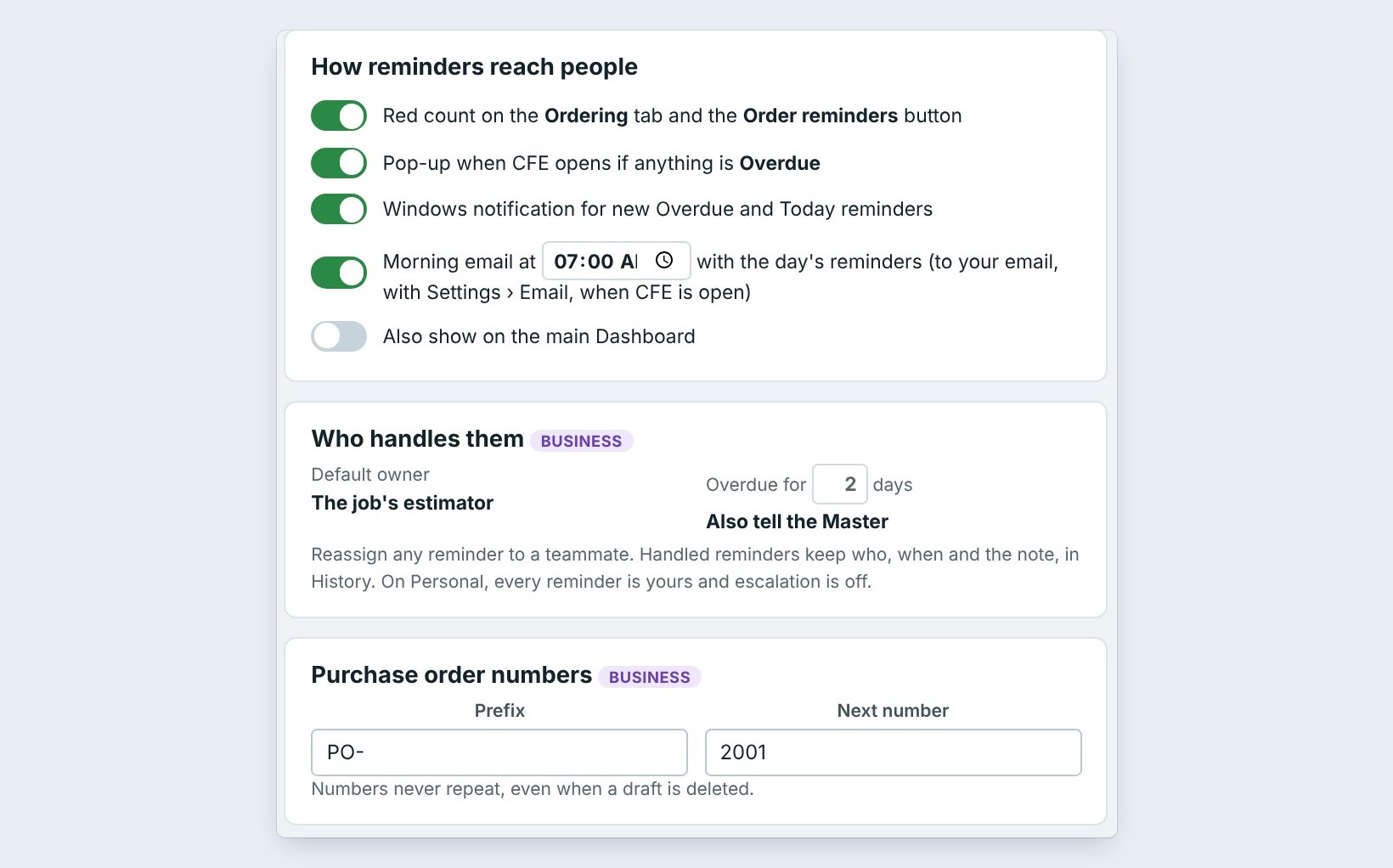
Nobody saw a reminder. Turn on the morning email or the Windows notification under How reminders reach people. Each reminder goes to the job’s estimator by default, and one overdue for 2 days also tells the Master.
A job shows nothing to order. The dashboard reads Won jobs only. Mark the bid Won, and check its Material List has the lines.
You order in another program. Turn on We do our ordering in another program at the top of the rules, and BidWise stops the reminders and pop-ups.
Worked example: Monday morning ordering at Northgate
Ana Ruiz opens the Ordering dashboard at 7 AM:
| What she sees | What she does | Result |
|---|---|---|
| 1 late: Johnsonite wall base, 4 days | Calls Johnsonite, new date 11/20 | Reminder handled with the note |
| Shaw carpet arriving 11/20 | Nothing, it is confirmed | Shows on Deliveries this week |
| Valley Fitness: prep and adhesive not ordered | Orders by phone, PO-5157 | Lines leave Not ordered yet |
| Price over bid on Milliken | Checks the PO against the bid | Material bid vs actual updates |
Ten minutes, every Won job checked, and the wall base problem was solved before the crew found out.
What to do next
Build the order from the bid with the Material List, and pull it for the crew with the warehouse pick ticket.
Run every order from one screen
The Ordering dashboard comes with BidWise Business. Start with the 30-day free trial, no credit card.
Frequently Asked Questions
Where do the reminders come from?
From dates BidWise already has: the job start, each vendor's lead time, the PO and the expected delivery. You change the numbers in Order settings.
Is the Ordering dashboard on the Personal plan?
The Ordering dashboard and Order reminders for all jobs are on BidWise Business. On Personal, every reminder is yours and escalation is off.
Do reminders ever disappear by themselves?
No. A reminder stays in color until someone clicks Handled, with a note, or snoozes it. Lines that are fixed, such as a delivery marked arrived, tick themselves off.
Can I turn ordering off?
Yes. If you order in another program, the Master user turns on We do our ordering in another program in the reminder rules.

Written by
Cristian Valcu – Founder & CEO, Commercial Flooring Estimating LLC
Cristian has estimated commercial flooring for over 20 years and built BidWise around the way flooring contractors actually price, propose and track their bids.
Last updated: