BidWise guide · Estimating
Set Up Import Rules Once, Import Clean Every Time
Import Rules decide what each takeoff line becomes when you import a Callidus, Measure Square 8, RFMS or FloorRight report. Each material type has words, codes and fallback words; the app checks the words first, then the codes, then the fallback words. Sub-line rules add grout or seam welding under the right products, and each program has its own rules for quantities and flags. Set them once and every import comes in typed and checked.


Why set up Import Rules?
Every architect names finishes differently. CPT-1 is carpet on one job, FT-1 is floor tile on one set of plans and a Schluter strip on the next. When an import guesses wrong, you retype types on every line and forget the grout or the seam welding.
Import Rules are your company’s vocabulary. Teach a word once, like rubber tile or cove base, and every future takeoff that says it lands on the right type, with the right sub-lines under it.
The six steps
- See the rules at workEach line shows its type and why.
- Teach the material typesWords, codes, fallback words and units.
- Add sub-line rulesGrout, seam welding and more, under the right products.
- Set the program rulesQuantities and flags for each takeoff program.
- Share your rulesExport a .cfeRules file for your team.
- What can go wrongFixes for the usual snags.
1See the rules at work in the import preview
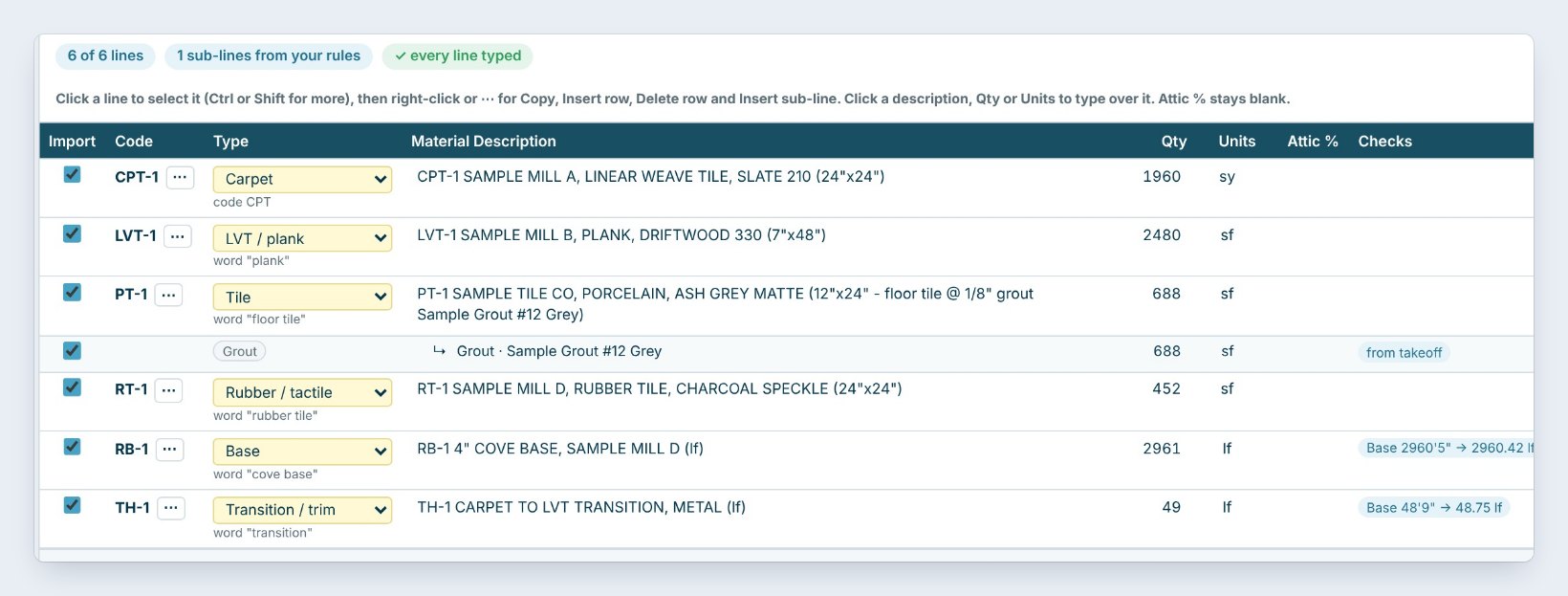
Open a takeoff PDF in Import Takeoff. Each line in the Import preview gets a Type, and under it the reason: code CPT for the carpet, word "plank" for the LVT, word "floor tile" for the porcelain tile.
The tile also got a Grout sub-line from your rules, and the Checks column shows what was fixed, such as a base length read as 2960 feet 5 inches. When a type is wrong, the rules are where you fix it for good.
2Teach the material types their words and codes
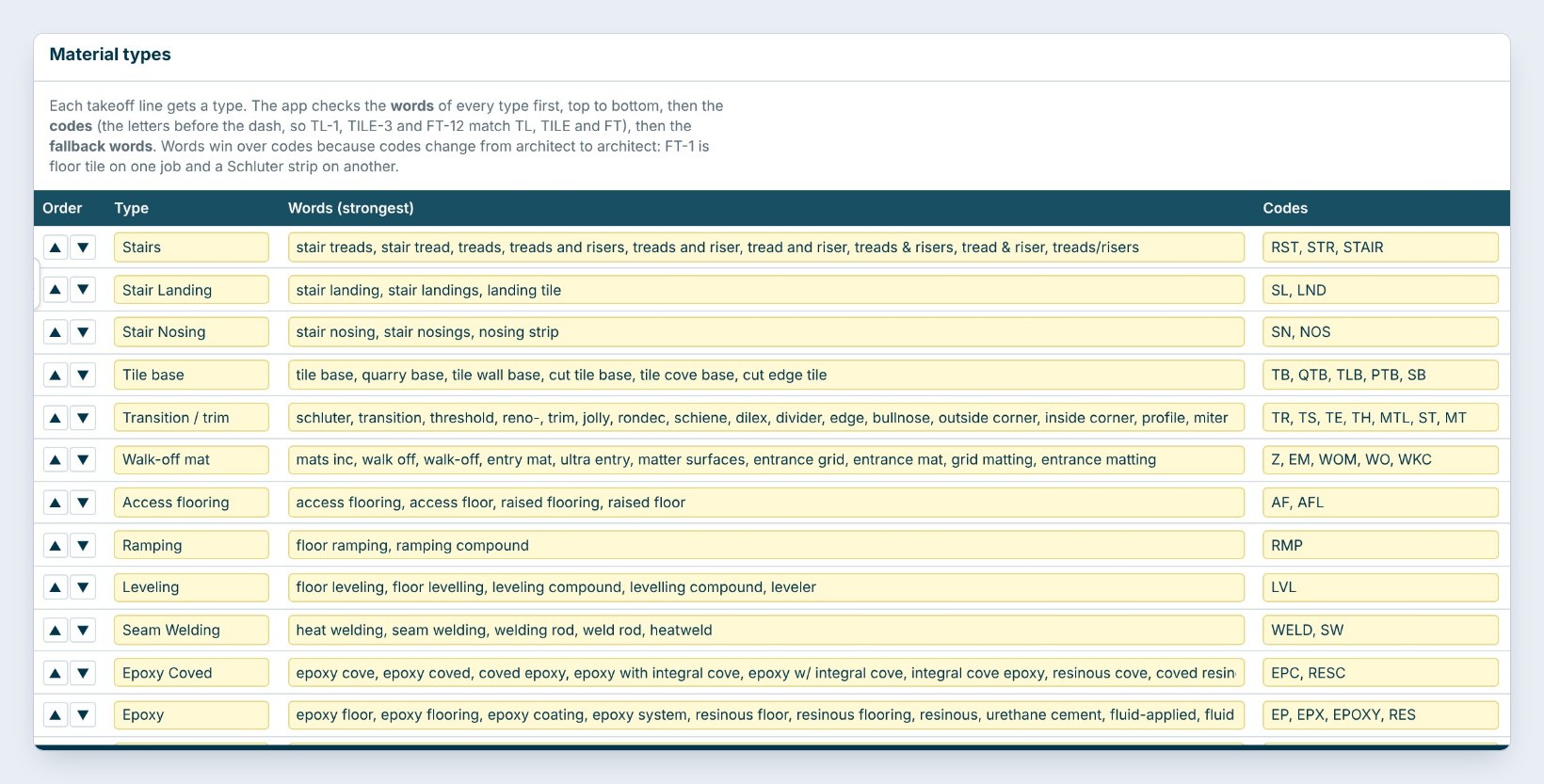
Click the Import Rules tab. Each Material type has Words, the strongest match, such as tile base, quarry base, cove tile base; Codes, the letters before the dash, so TB-1 and QTB-2 match; and Fallback words that are tried last.
The app checks the words of every type first, top to bottom, then the codes, then the fallback words. Words win because codes change from architect to architect. Use the arrows to change the order, Add type for a new one, and set the Units or leave them as read.
When you fix a wrong type in the preview, add that word to the type here too. You only teach it once.
3Add sub-lines like grout and seam welding
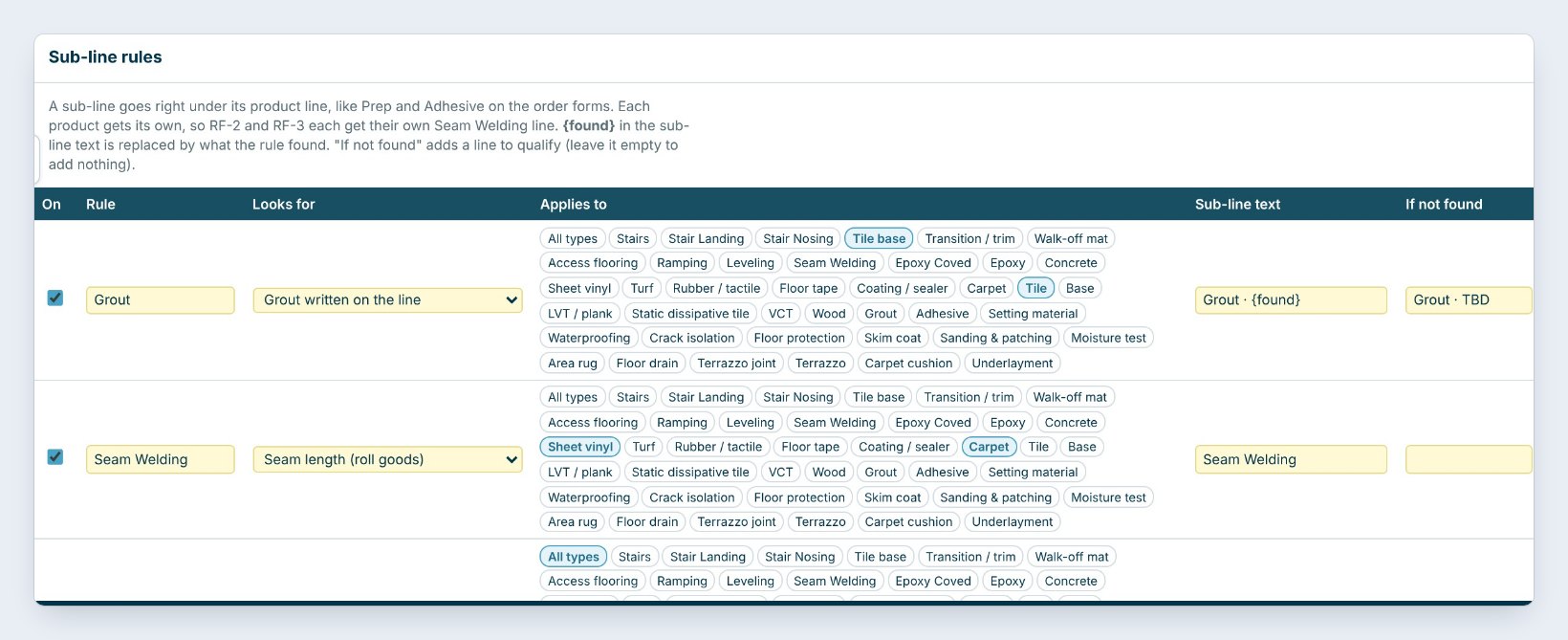
Scroll to Sub-line rules. A sub-line goes right under its product line, like Prep and Adhesive on the order forms, and each product gets its own.
The Grout rule looks for grout written on the line and applies to Tile base and Tile. {found} in the sub-line text is replaced by what it found, here Sample Grout #12 Grey, and If not found adds Grout - TBD so you remember to qualify it. Seam Welding takes the seam length from the takeoff for sheet vinyl.
4Set the rules for each takeoff program
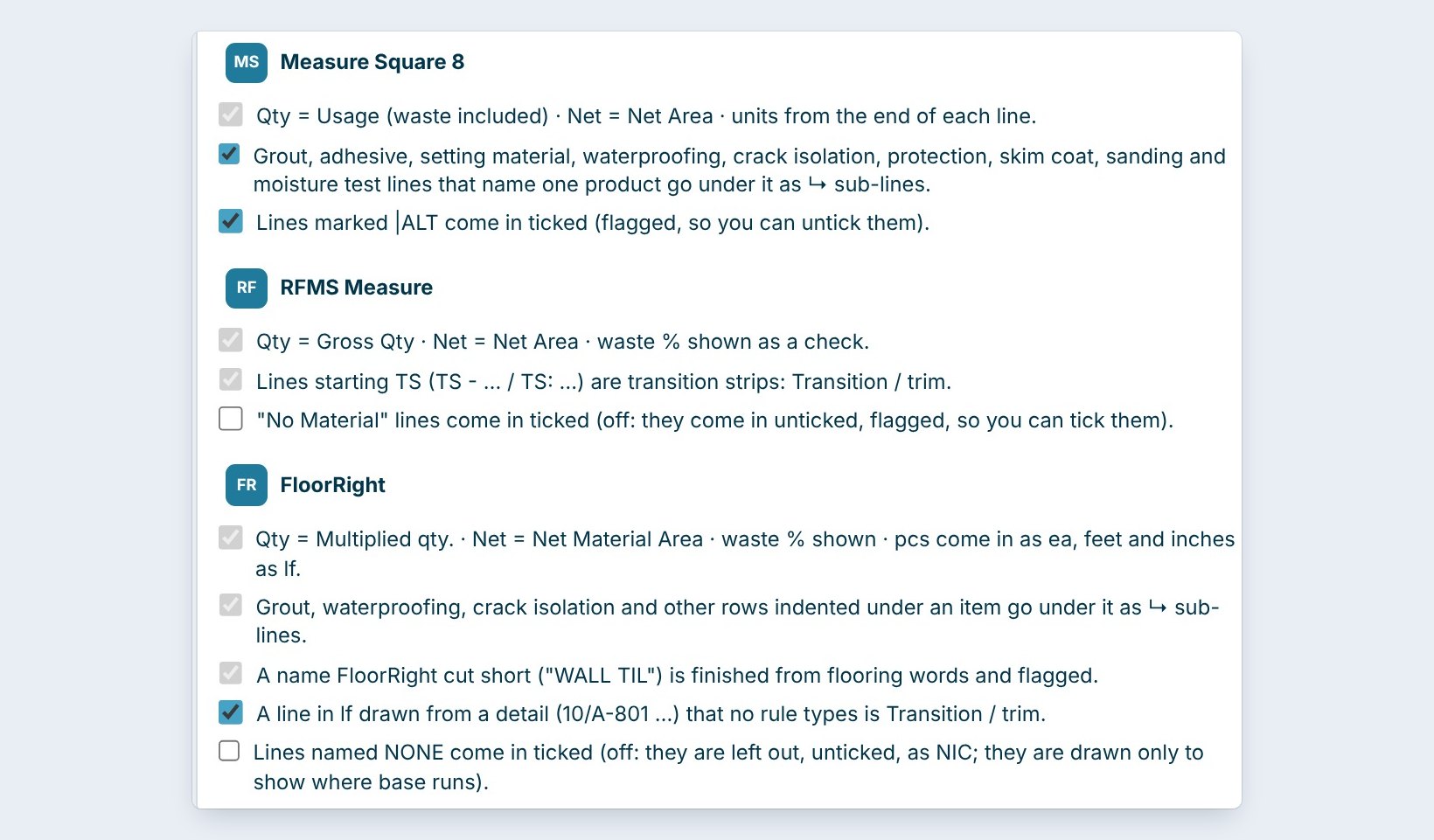
Each program reports quantities its own way. For Measure Square 8, Qty is the usage with waste included and Net is the net area, and lines marked ALT come in ticked and flagged. For RFMS Measure, Qty is the gross quantity and lines starting TS are transition strips.
For FloorRight, rows indented under an item come in as sub-lines and a short name like WALL TIL is finished from flooring words. Tick or untick each rule to match how your team draws.
5Share your rules with your team

Your Import Rules are saved with your user profile. To give them to a teammate, click Export rules to a file: it saves a small .cfeRules file you can email.
When someone sends you theirs, click Import rules from a file and pick Add to my rules, which keeps yours and adds their new types, words, codes and sub-line rules, or Replace my rules.
6What can go wrong, and how to fix it
A line keeps getting the wrong type. A word on a higher type matched first. Move the right type up with the arrows, or make the word more exact, like rubber stair tread instead of rubber.
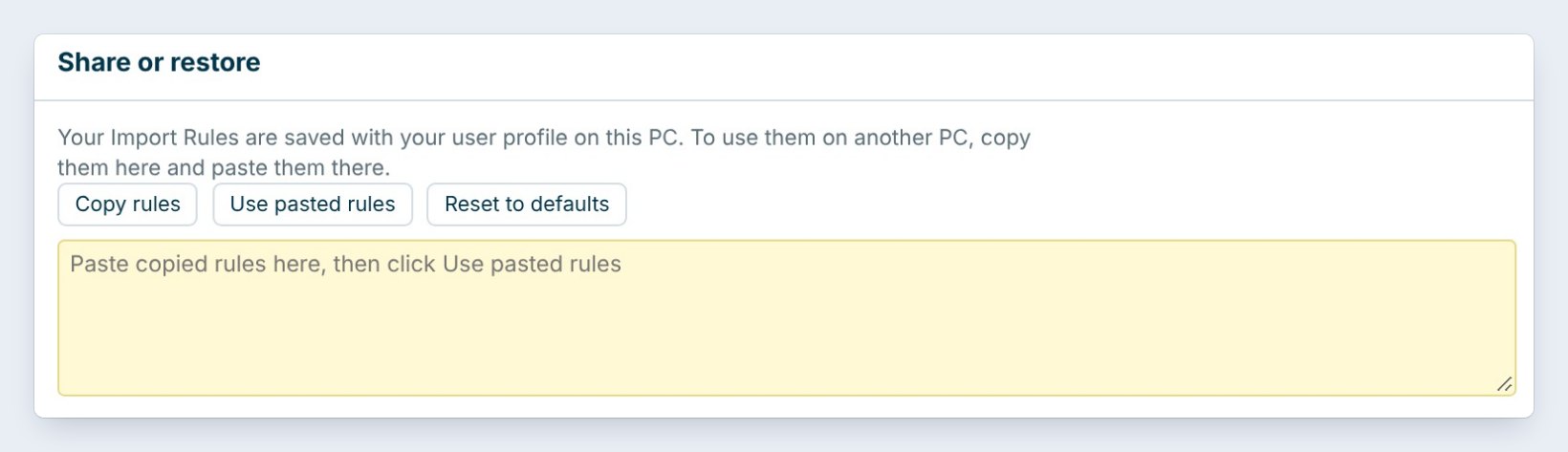
Your rules are not on your other PC. They live with your user profile on each PC. Click Copy rules, paste them on the other PC and click Use pasted rules, or use the .cfeRules file.
The rules got messy. Reset to defaults puts back the rules the app came with. Export yours first if you may want them back.
Worked example: Lakeview Community Clinic
A Callidus summary report with 6 lines, imported with the default rules:
| Takeoff line | Type it got | Because of |
|---|---|---|
| CPT-1 Sample Mill A, linear weave tile | Carpet | code CPT |
| LVT-1 Sample Mill B, plank | LVT / plank | word "plank" |
| PT-1 porcelain floor tile, grout | Tile + Grout sub-line | word "floor tile", grout rule |
| RB-1 4" cove base | Base | word "cove base" |
| TH-1 carpet to LVT transition | Transition / trim | word "transition" |
Every line came in typed and the grout was not forgotten, so the import went straight to the Estimate Quote.
What to do next
Now import a takeoff with the step-by-step guides for Measure Square 8, RFMS Measure, FloorRight and Callidus.
Import your next takeoff clean
Import Rules come with BidWise. Start with the 30-day free trial, no credit card.
Frequently Asked Questions
Which takeoff programs do Import Rules work with?
Callidus summary reports, Measure Square 8 summary reports, RFMS Measure takeoff reports and FloorRight job summaries.
Why do words win over codes?
Because codes change from architect to architect: FT-1 is floor tile on one job and a Schluter strip on another. Words like floor tile mean the same thing everywhere.
Are my rules shared with the team automatically?
No. They are saved with your user profile on the PC. Share them with Export rules to a file, or Copy rules and Use pasted rules.
Can I undo my changes?
Yes. Reset to defaults puts back the rules the app came with.

Written by
Cristian Valcu – Founder & CEO, Commercial Flooring Estimating LLC
Cristian has estimated commercial flooring for over 20 years and built BidWise around the way flooring contractors actually price, propose and track their bids.
Last updated: