BidWise guide · Schedule and the field
Set Up the BidWise Field App for Your Crews
The BidWise Field app runs on any iPhone, Android phone or tablet from a web address, with nothing to install from a store. In Schedule › Field app, add a crew phone, give the crew its code or QR code, and approve the phone when it signs in. From then on the crew sees the jobs booked for them, never your costs or bid totals, and everything they send comes back to the office by itself.


Why set the crews up on the phone?
Paper work orders get left in the truck, and phone calls about the address, the material or the plans eat the office’s morning. When the crew has the job on their phone, they stop calling for it.
Setup takes a few minutes per crew. The office stays in control: a phone sees nothing until someone in the office approves it, and the crews never see your costs or bid totals.
The six steps
- Open Field appSchedule, Field app: crew phones and what needs you.
- Give the crew the codeQR code, the address and a crew code per crew.
- Sign in on the phoneScan, type the code, name and mobile.
- Approve the phoneApprove phones you know; turn away the rest.
- Choose what comes backGC labor price, your contact, the PM email.
- What can go wrongFixes for the usual snags.
1Open Schedule › Field app
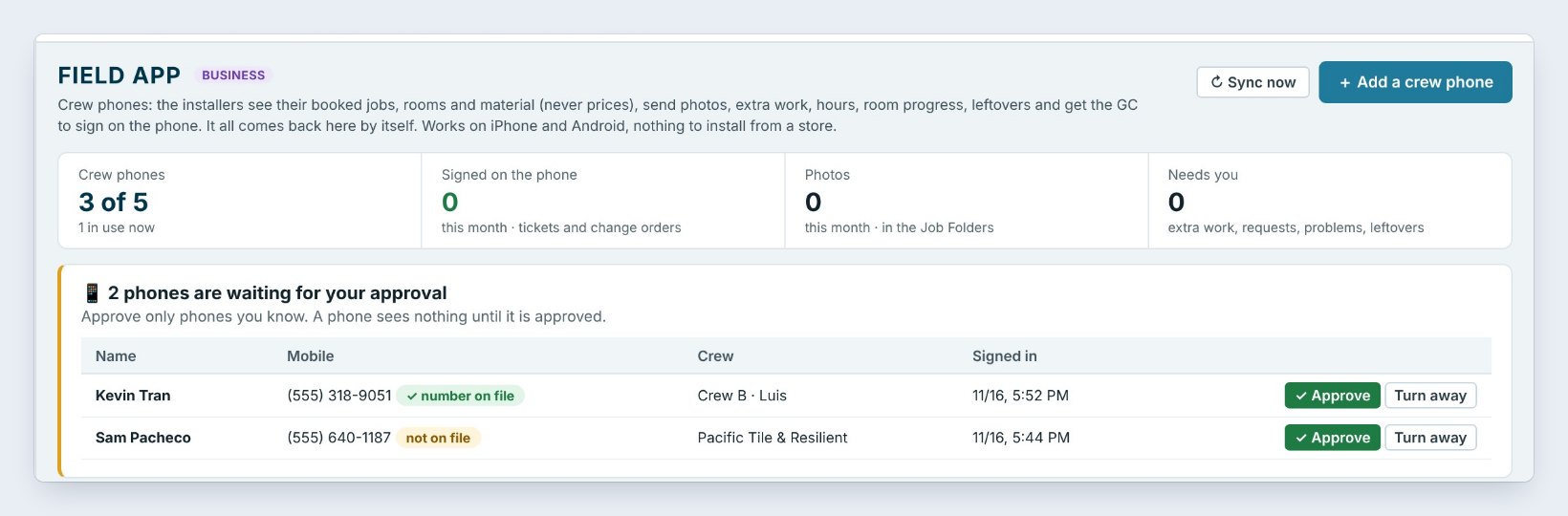
On the Schedule tab, click Field app. The tiles show Crew phones, here 3 of 5, what was Signed on the phone this month, Photos sent to the Job Folders and what Needs you.
The Master user clicks Add a crew phone. On Business, pick the crew from your Schedule crews, so the phone sees the jobs booked for that crew.
2Give the crew the code and the QR
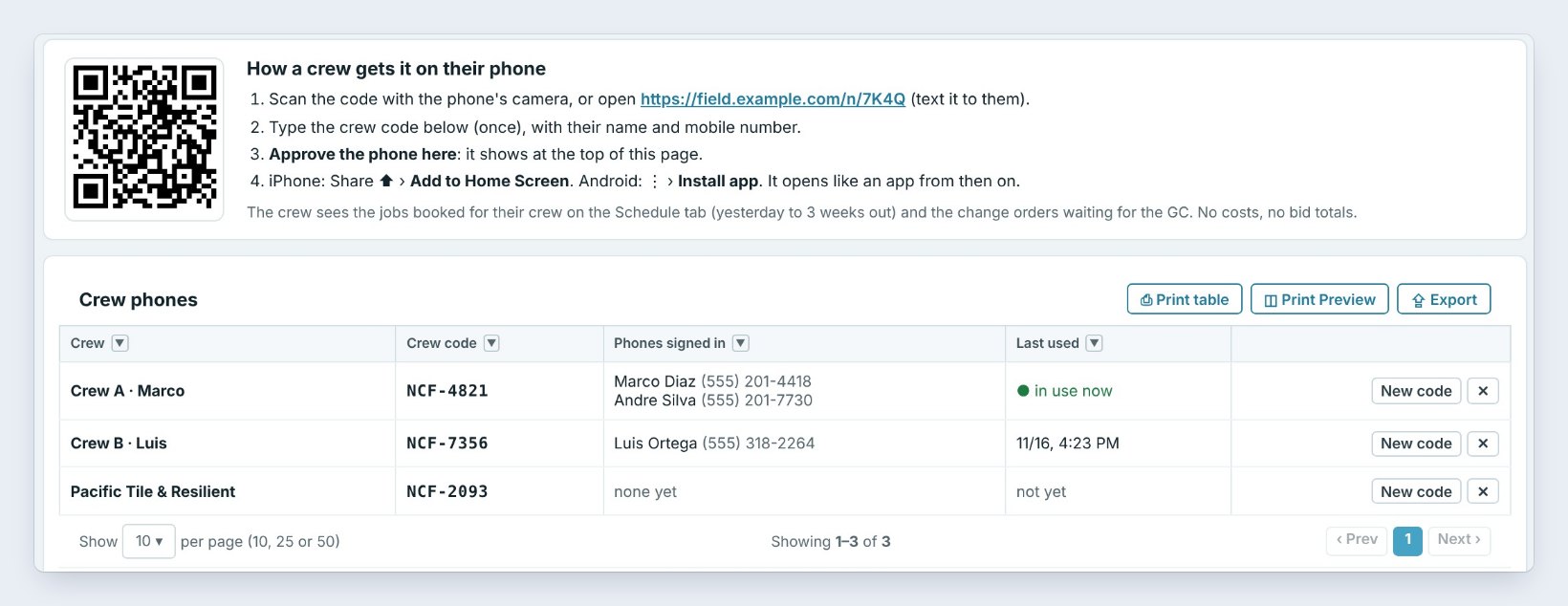
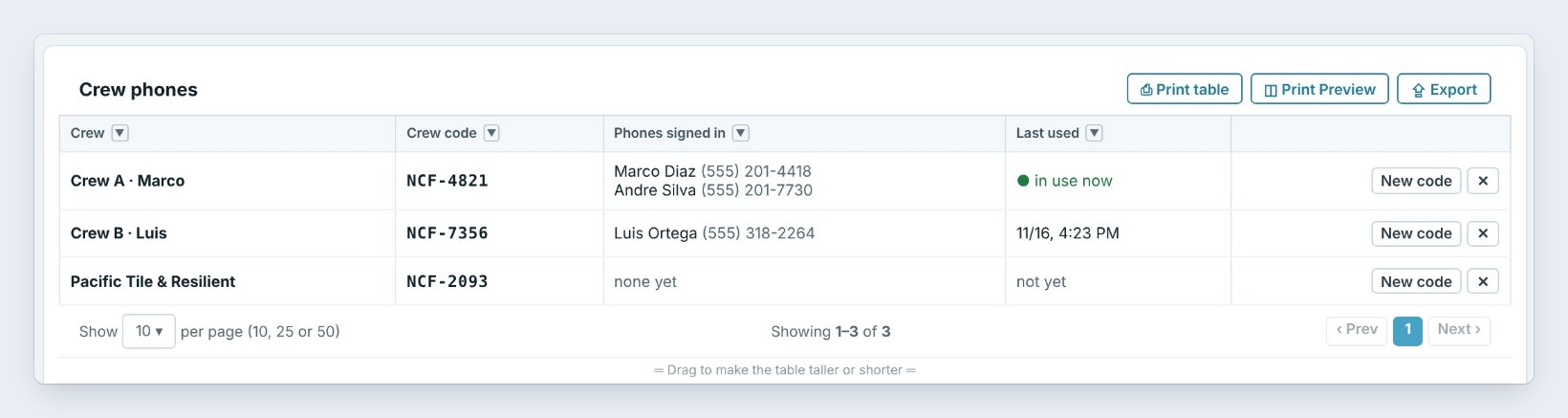
How a crew gets it on their phone shows a QR code, the Field address to text to the crew, and four steps. Each crew in Crew phones has its own Crew code, such as NCF-4821 for Crew A.
The table shows who is signed in on each crew and when the phone was last used. New code makes a fresh code if one gets passed around.
3Sign in on the crew’s phone
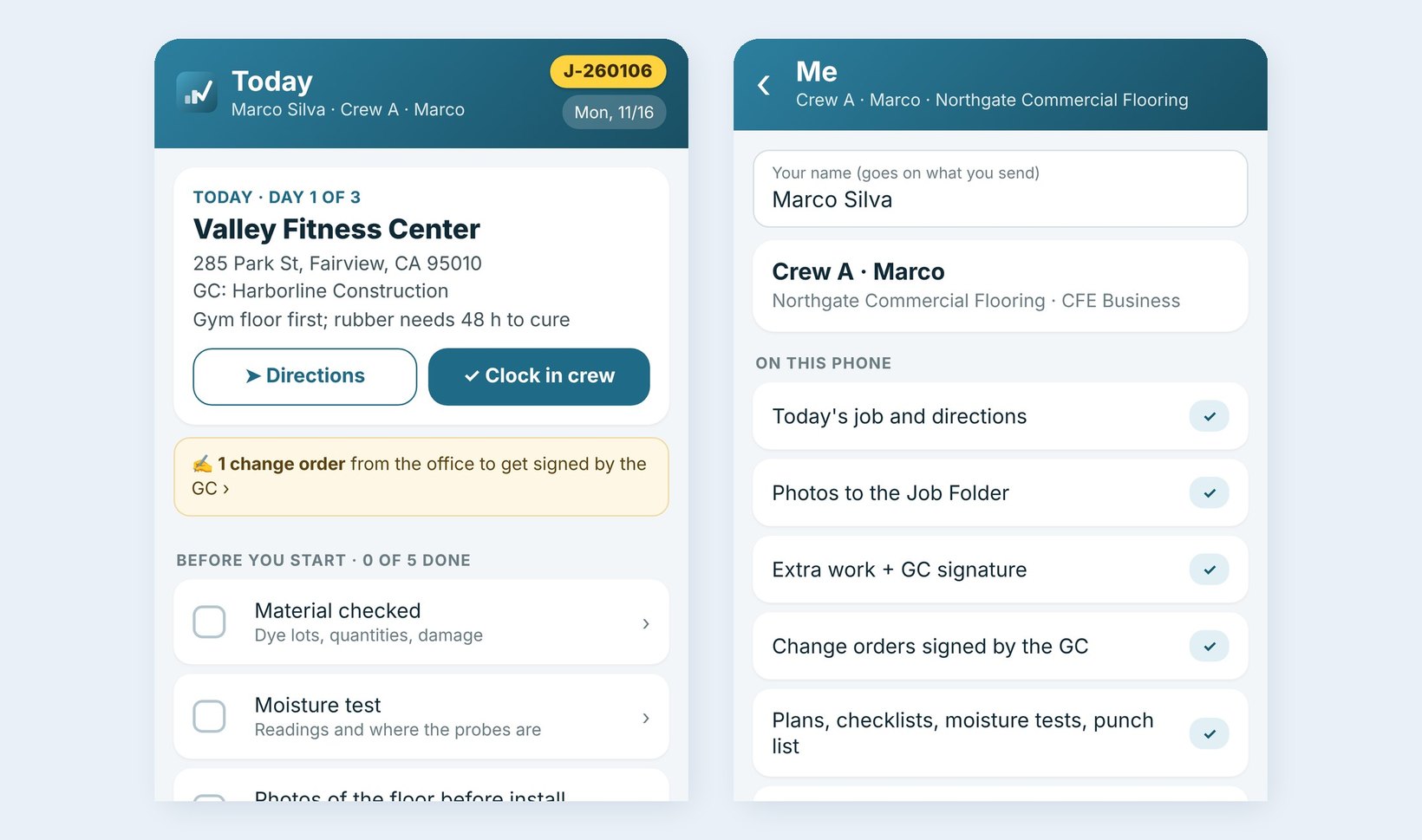
The installer scans the code with the phone’s camera, or opens the address, and types the crew code once with their name and mobile number. The phone shows Waiting for your office.
On iPhone, tap Share then Add to Home Screen; on Android, tap the menu then Install app. It opens like an app from then on, with Today, Jobs, Plans, Photos and Office. Me shows the name, the crew and everything the phone sends.
4Approve the phone in the office
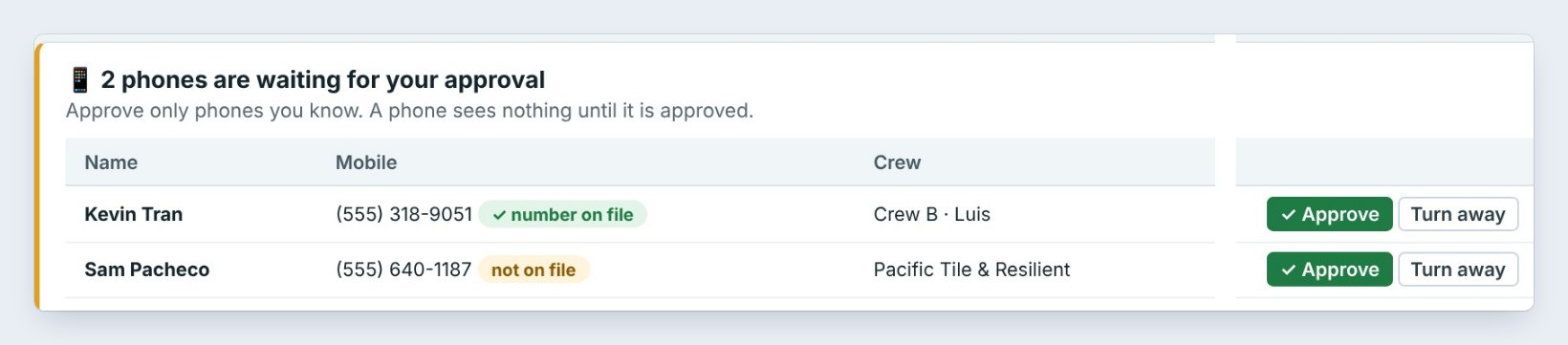
Back in Schedule › Field app, the waiting phone is at the top with the name, the mobile number, the crew and the time it signed in. A PC checks for waiting phones every minute and shows a note when one is waiting.
Number on file means the mobile matches someone you know. Click Approve, or Turn away for a phone you do not know. Any team member can approve. A phone sees nothing until it is approved.
Approve only numbers you recognize. If a number is not on file, call the installer before you click Approve.
5Choose what the GC sees and who hears from the crews

Tick Show the GC the labor price if extra work tickets should show your T&M rates before the GC signs. Change orders always show their price to the GC. Crews never see costs.
Under You on the crew phones, each user types their own mobile and email. Leave Email the job’s Estimator / PM once per crew visit on to get one email about 10 minutes after the crew stops sending, and set the day’s Checklists the crew sees before they start.
6What can go wrong, and how to fix it
The phone says Waiting for your office. Nobody approved it yet. Open Schedule › Field app and click Approve at the top.
A crew phone was lost, or the code got passed around. Click × to take that phone off the crew, then New code and give the new one to the crew. The old code stops working.
The crew sees no jobs. The phone shows the installs booked for that crew on the Schedule tab, from yesterday to 3 weeks out. Book the install for the right crew and tap Check for new jobs on the phone.
Worked example: setting up Crew B
Northgate Commercial Flooring adds Kevin Tran to Crew B, Luis:
| Who | Does what | Result |
|---|---|---|
| Office | Texts the Field address and crew code NCF-7356 | Kevin has what he needs |
| Kevin Tran | Opens the address, types the code, name and mobile | Phone shows Waiting for your office |
| Office | Sees number on file and clicks Approve | Phone is in, 2 phones on Crew B |
| Kevin Tran | Adds it to the Home Screen | Today shows the Cedar Park install |
Five minutes, no app store, and the office never had to read a work order out over the phone.
What to do next
Next, follow the crew through a day on the job with the Field app, and get extra work and change orders signed by the GC.
Put your crews on the Field app
The Field app comes with BidWise. Start with the 30-day free trial, no credit card.
Frequently Asked Questions
Do the crews need an app store?
No. The Field app is a web app that works on any iPhone, Android phone or tablet. They add it to the Home Screen and it opens like an app.
How many crew phones can I have?
BidWise Personal has one crew phone. BidWise Business has up to 25, one per Schedule crew.
Do crews see our prices?
No. Crews see the jobs booked for them, rooms, material and the people on the job, never costs or bid totals.
Does it work with no signal?
Yes. The Field app keeps working with no signal and sends everything when the signal comes back.

Written by
Cristian Valcu – Founder & CEO, Commercial Flooring Estimating LLC
Cristian has estimated commercial flooring for over 20 years and built BidWise around the way flooring contractors actually price, propose and track their bids.
Last updated: