BidWise guide · Tracking and reports
Connect QuickBooks Online and Send Your First Won Job
The Master user connects QuickBooks Online once from the QuickBooks Online tab, signing in on Intuit’s own page. Then you choose how jobs go over, as an Estimate or one Invoice, and how GCs, projects, items, terms and tax are matched. A Won bid goes over at sell prices only, and costs never leave BidWise.


Why connect
Retyping a won number into QuickBooks is where alternates get missed and change orders get lost.
The six steps
- Before you connectWhat goes over, and what never does.
- ConnectMaster user signs in on Intuit’s page.
- Choose how jobs go overEstimate or Invoice, matching, terms, tax.
- Pick the itemsLines and Products and Services.
- Send the first jobCheck the preview, then Send.
- What can go wrongCommon snags and the fix for each.
1Know what goes over before you connect
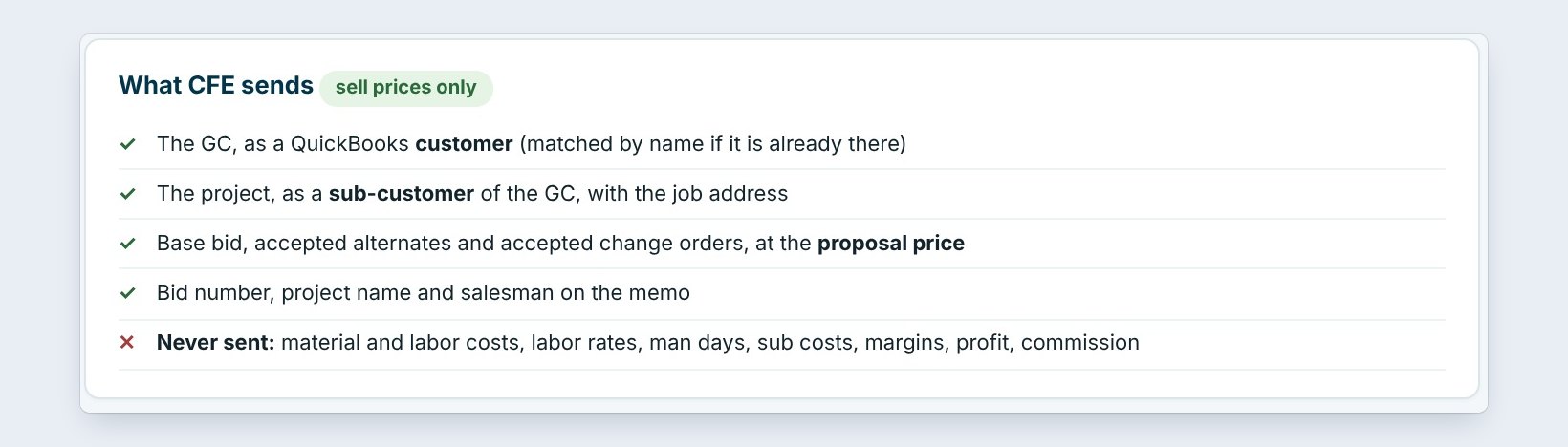
Open the green QuickBooks Online tab. The page says exactly what BidWise sends: the GC as a QuickBooks customer, matched by name if it is already there; the project as a sub-customer of the GC with the job address; the base bid, accepted alternates and accepted change orders at the proposal price; and the bid number, project name and salesman on the memo.
And what is never sent: material and labor costs, labor rates, man days, sub costs, margins and profit. QuickBooks sees what the GC pays, never what the job costs you.
2Connect to QuickBooks
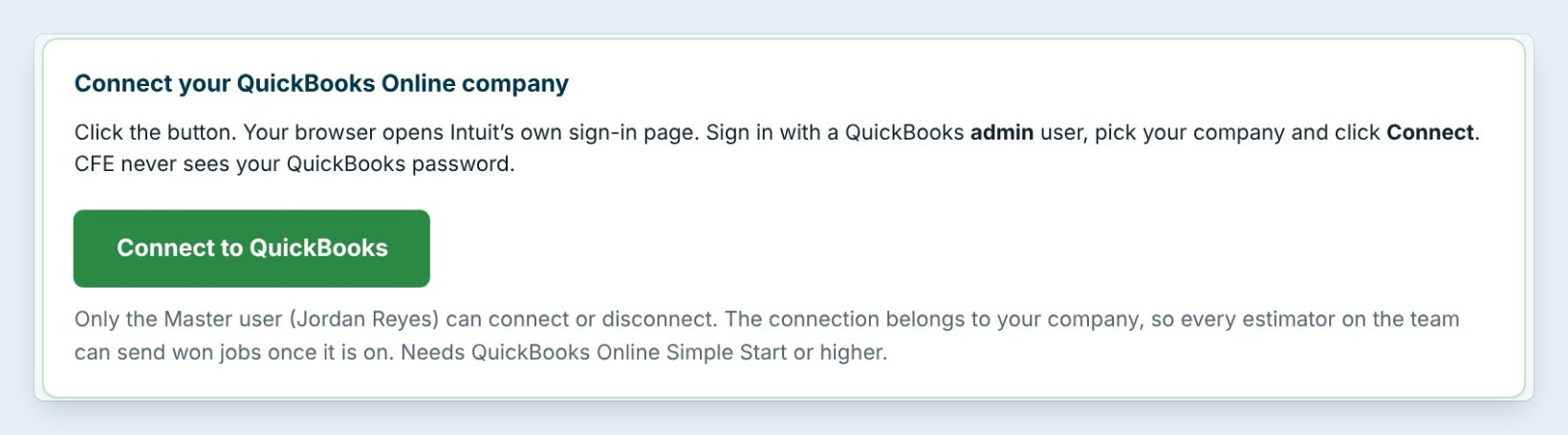
Only the Master user can connect or disconnect, and the connection belongs to the company, so every estimator who is allowed can send Won jobs once it is on.
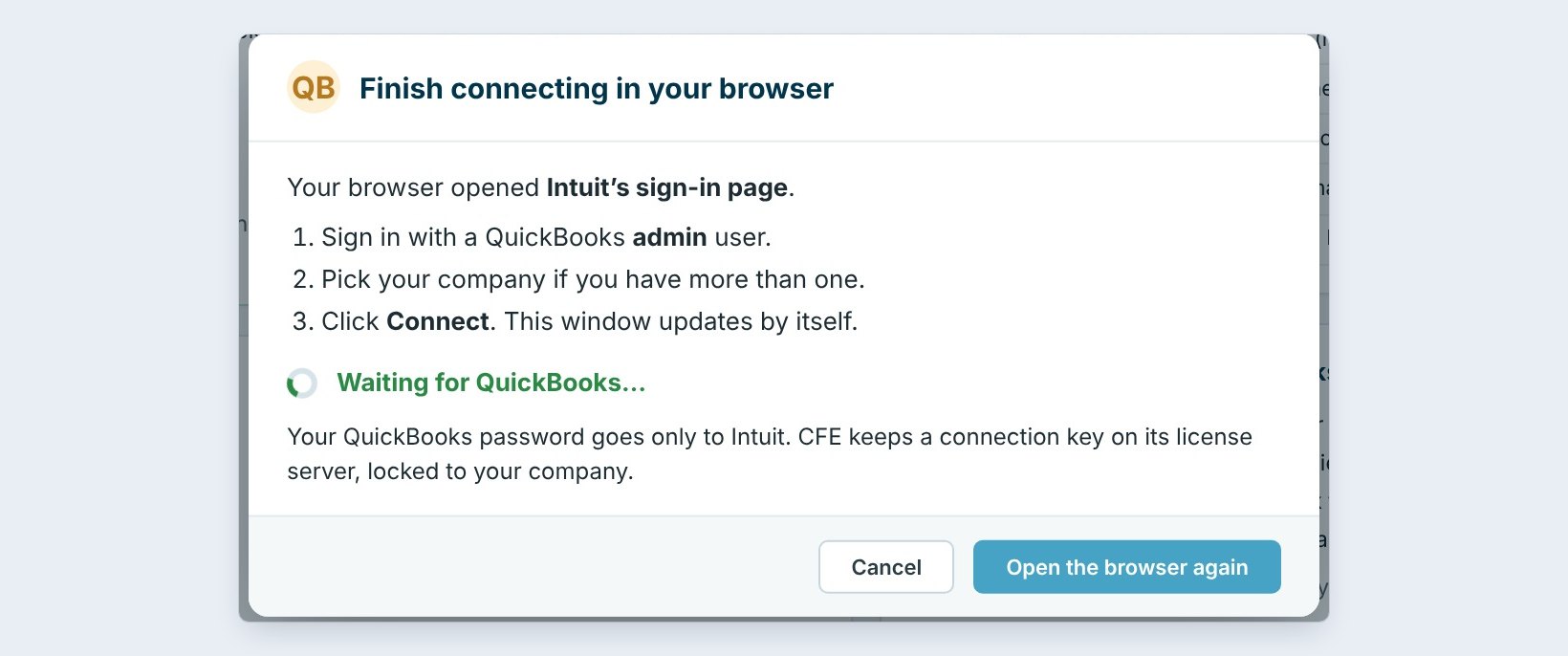
Click Connect to QuickBooks. Your browser opens Intuit’s sign-in page. Sign in with a QuickBooks admin user, pick your company if you have more than one, and click Connect. The BidWise window updates by itself. Your QuickBooks password goes only to Intuit; BidWise never sees it.
In QuickBooks, turn on Account and settings, Sales, Progress invoicing first. Then you can bill each estimate a percent at a time, month by month.
3Choose how Won jobs go over
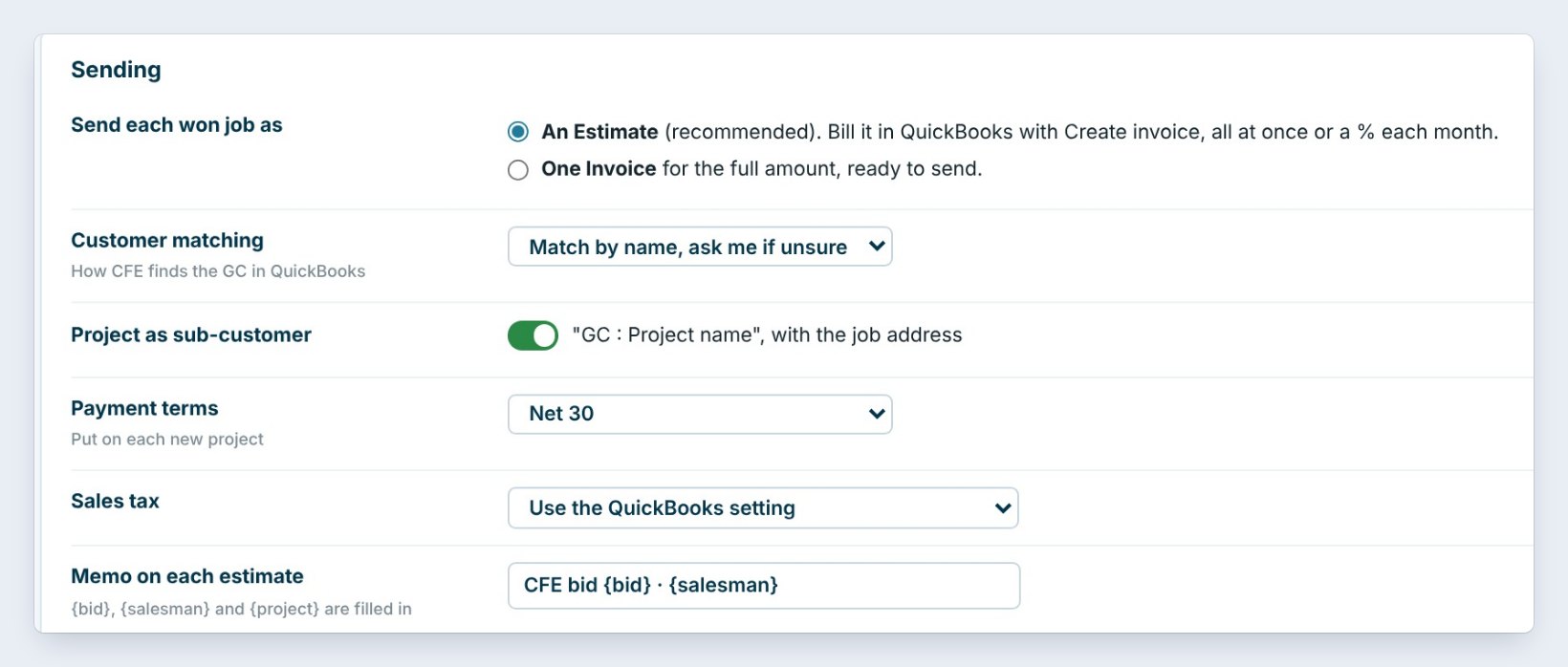
Open Settings on the tab, then Sending. Send each won job as: An Estimate, recommended, which you bill in QuickBooks with Create invoice, all at once or a percent each month; or One Invoice for the full amount, ready to send.
Customer matching: match by name and ask you if unsure, or by name only. Project as sub-customer makes "GC : Project name" with the job address, so every job has its own balance. Then Payment terms, such as Net 30, Sales tax, either the QuickBooks setting or non-taxable for labor and material sold installed, and the Memo, filled in with the bid, salesman and project.
4Pick the lines and items
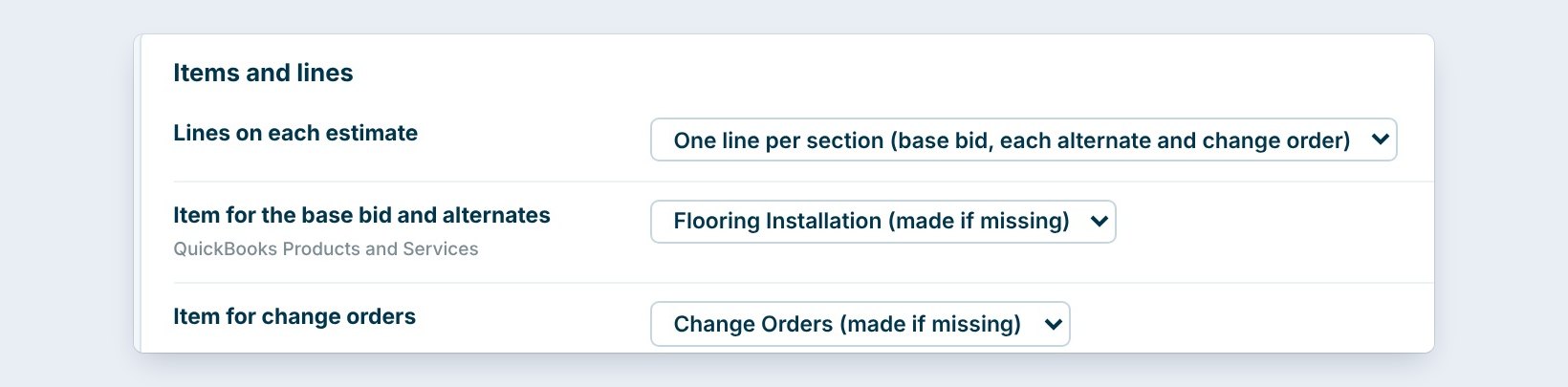
Items and lines decides what the estimate looks like in QuickBooks. One line per section puts the base bid, each alternate and each change order on its own line, or pick One line for the whole job.
Then pick the QuickBooks Products and Services item for the base bid and alternates, and one for change orders. If you leave them alone, BidWise makes Flooring Installation and Change Orders the first time it needs them. Click Save settings.
5Send your first Won job
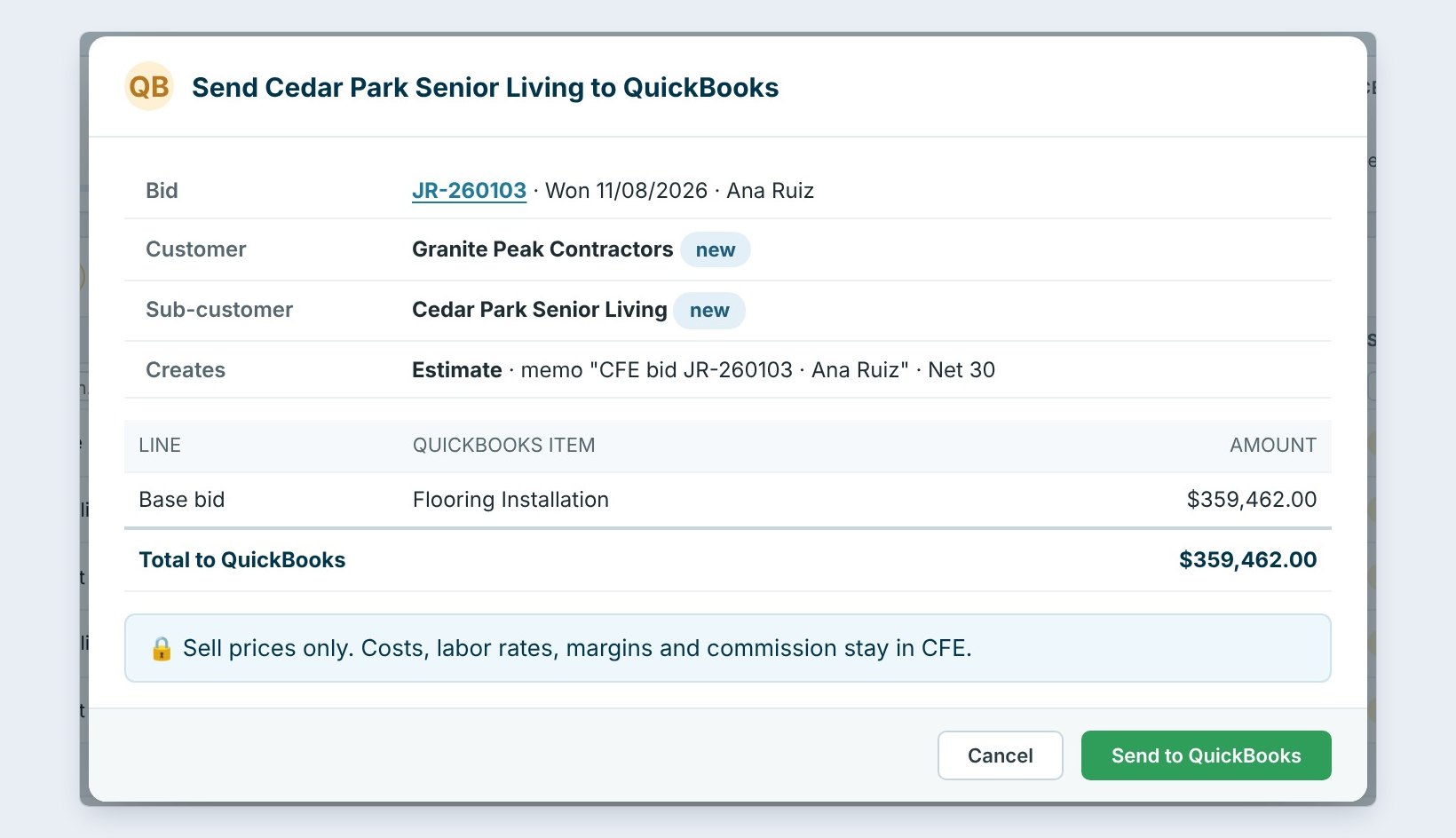


On the dashboard, every Won job shows Not sent. Pick one and click Send won job. Here it is Cedar Park Senior Living, bid JR-260103, Won 11/08. The preview shows the customer, Granite Peak Contractors, marked new because QuickBooks does not have it yet, the sub-customer, and that it creates an Estimate, Net 30.
Each line shows its QuickBooks item and amount: the base bid, $359,462.00, to Flooring Installation. The lock line says it again: sell prices only. Click Send to QuickBooks. The banner says Sent: QuickBooks now has Estimate 1042, and the job turns green.
6What can go wrong, and how to fix it
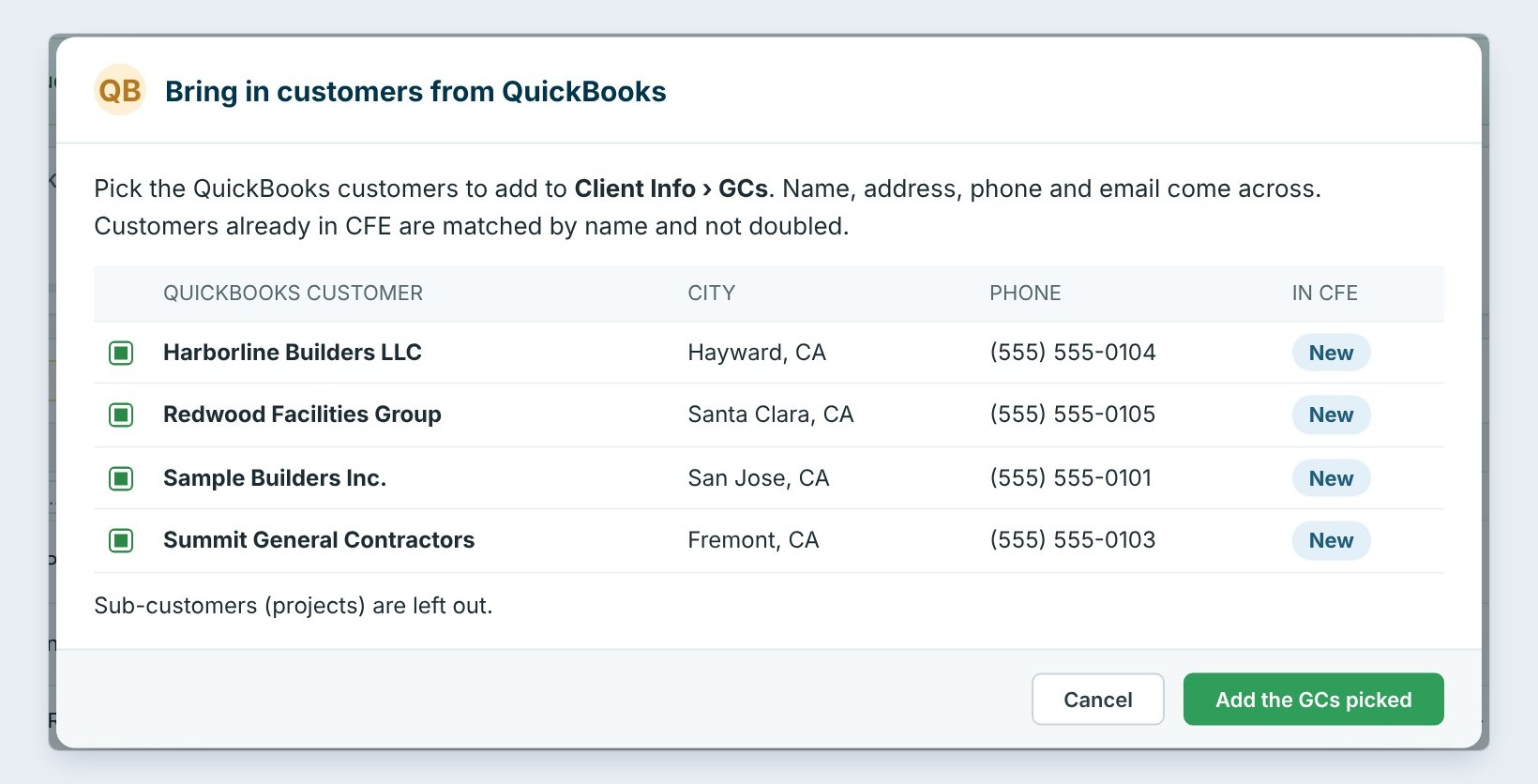
The GC shows as new, but it is already in QuickBooks. The names are spelled differently. Click Customers on the ribbon to bring QuickBooks customers into Client Info, so the names match from now on.
The Connect button is greyed out. Only the Master user connects. The browser page closed before Connect. Click Open the browser again. A job went over by mistake. If nothing was invoiced from it, the Master user can delete it in QuickBooks from BidWise; once it is invoiced, fix it in QuickBooks.
Worked example: Cedar Park Senior Living to QuickBooks
Granite Peak Contractors, Won 11/08/2026, salesman Ana Ruiz:
| In QuickBooks | What BidWise sent |
|---|---|
| Customer | Granite Peak Contractors (new) |
| Sub-customer | Granite Peak Contractors : Cedar Park Senior Living |
| Document | Estimate 1042, Net 30 |
| Line 1, Flooring Installation | $359,462.00 |
| Memo | BidWise bid JR-260103 · Ana Ruiz |
| Costs, labor, margins | never sent |
In QuickBooks, the office opens Estimate 1042 and clicks Create invoice to bill 40% this month.
What to do next
Next: QuickBooks sync, day to day.
Send your next Won job to QuickBooks
QuickBooks Online comes with BidWise Business. Start with the 30-day free trial, no credit card.
Frequently Asked Questions
Does BidWise send my costs to QuickBooks?
No. Only sell prices: the base bid, accepted alternates and change orders.
Which QuickBooks works?
QuickBooks Online, Simple Start or higher. QuickBooks Desktop gets an .IIF export instead.

Written by
Cristian Valcu – Founder & CEO, Commercial Flooring Estimating LLC
Cristian has estimated commercial flooring for over 20 years and built BidWise around the way flooring contractors actually price, propose and track their bids.
Last updated: